> ## Documentation Index
> Fetch the complete documentation index at: https://docs.onestack.cloud/llms.txt
> Use this file to discover all available pages before exploring further.
# How to use OAuth to authorize apps with cal.com accounts
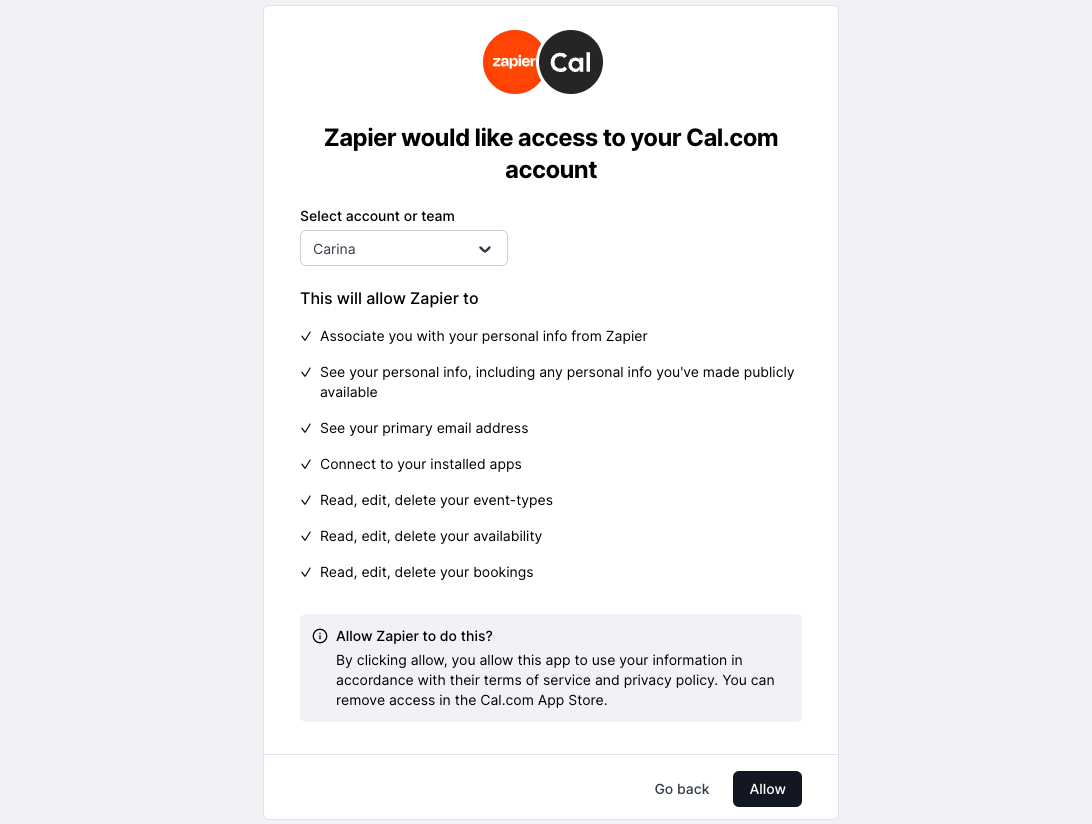
As an example, you can view our OAuth flow in action on Zapier. Try to connect your cal.com account [here](https://zapier.com/apps/calcom/integrations).
To enable OAuth in one of your apps, you will need a Client ID, Client Secret, Authorization URL, Access Token Request URL, and Refresh Token Request URL.
 ### OAuth Client Credentials
Only the cal.com team can create new OAuth clients. Please contact us at [support@cal.com](mailto:support@cal.com) with the following details: client name, redirect URI (provided by the app), app logo, and a link to the app.
The Cal.com team will register the app and provide you with the Client ID and Client Secret. Keep these credentials confidential and secure.
### Authorization URL
To initiate the OAuth flow, direct users to the following authorization URL:
* `https://app.cal.com/auth/oauth2/authorize`
* URL Parameters:
* *client\_id*
* *state*: A securely generated random string to mitigate CSRF attacks
* *redirect\_uri*: This is where users will be redirected after authorization
* *scope*: Specify the required scopes. Current scopes include READ\_BOOKING and READ\_PROFILE. Additional scopes can be added as needed.
After users click *Allow*, they will be redirected to the redirect\_uri with the code (authorization code) and state as URL parameters.
### Access Token Request
Endpoint: `POST https://app.cal.com/api/auth/oauth/token`
Request Body:
* *code*: The authorization code received in the redirect URI
* *client\_id*
* *client\_secret*
* *grant\_type*: "authorization\_code"
* *redirect\_uri*
Response:
```
{
access_token: “exampleAccessToken”
refresh_token: “exampleRefreshToken”
}
```
### Refresh Token Request
Endpoint: `POST https://app.cal.com/api/auth/oauth/refreshToken`
Request Body:
* *grant\_type*: "refresh\_token"
* *client\_id*
* *client\_secret*
Response:
```
{
access_token: “exampleAccessToken”
}
```
### Testing OAuth Credentials
To verify the correct setup and functionality of OAuth credentials you can use the following endpoint:
`GET https://app.cal.com/api/auth/oauth/me`
Headers:
* Authorization: Bearer *exampleAccessToken*
### Authorize requests with Bearer token
Ensure that Cal.com endpoints accessed by the app support authentication via Bearer Token.
If this is not the case, it will be necessary to update the code accordingly.
Here is an example of an endpoint that supports both apiKey and Bearer token authentication: [/listBookings endpoint](https://github.com/calcom/cal.com/blob/main/packages/app-store/zapier/api/subscriptions/listBookings.ts)
### OAuth Client Credentials
Only the cal.com team can create new OAuth clients. Please contact us at [support@cal.com](mailto:support@cal.com) with the following details: client name, redirect URI (provided by the app), app logo, and a link to the app.
The Cal.com team will register the app and provide you with the Client ID and Client Secret. Keep these credentials confidential and secure.
### Authorization URL
To initiate the OAuth flow, direct users to the following authorization URL:
* `https://app.cal.com/auth/oauth2/authorize`
* URL Parameters:
* *client\_id*
* *state*: A securely generated random string to mitigate CSRF attacks
* *redirect\_uri*: This is where users will be redirected after authorization
* *scope*: Specify the required scopes. Current scopes include READ\_BOOKING and READ\_PROFILE. Additional scopes can be added as needed.
After users click *Allow*, they will be redirected to the redirect\_uri with the code (authorization code) and state as URL parameters.
### Access Token Request
Endpoint: `POST https://app.cal.com/api/auth/oauth/token`
Request Body:
* *code*: The authorization code received in the redirect URI
* *client\_id*
* *client\_secret*
* *grant\_type*: "authorization\_code"
* *redirect\_uri*
Response:
```
{
access_token: “exampleAccessToken”
refresh_token: “exampleRefreshToken”
}
```
### Refresh Token Request
Endpoint: `POST https://app.cal.com/api/auth/oauth/refreshToken`
Request Body:
* *grant\_type*: "refresh\_token"
* *client\_id*
* *client\_secret*
Response:
```
{
access_token: “exampleAccessToken”
}
```
### Testing OAuth Credentials
To verify the correct setup and functionality of OAuth credentials you can use the following endpoint:
`GET https://app.cal.com/api/auth/oauth/me`
Headers:
* Authorization: Bearer *exampleAccessToken*
### Authorize requests with Bearer token
Ensure that Cal.com endpoints accessed by the app support authentication via Bearer Token.
If this is not the case, it will be necessary to update the code accordingly.
Here is an example of an endpoint that supports both apiKey and Bearer token authentication: [/listBookings endpoint](https://github.com/calcom/cal.com/blob/main/packages/app-store/zapier/api/subscriptions/listBookings.ts)