> ## Documentation Index
> Fetch the complete documentation index at: https://docs.onestack.cloud/llms.txt
> Use this file to discover all available pages before exploring further.
# Setting up OIDC with okta
1. Set SAML\_DATABASE\_URL to a Postgres database. Please use a different database than the main Cal instance since the migrations are separate for this database. For example `postgresql://postgres:@localhost:5450/cal-saml`. If you are using a self-signed certificate for Postgres then use the `sslmode=no-verify` query param in the database URL. For example `postgresql://postgres:@localhost:5450/cal-saml?sslmode=no-verify`.
2. Set SAML\_ADMINS to a comma separated list of admin emails who can configure the OIDC.
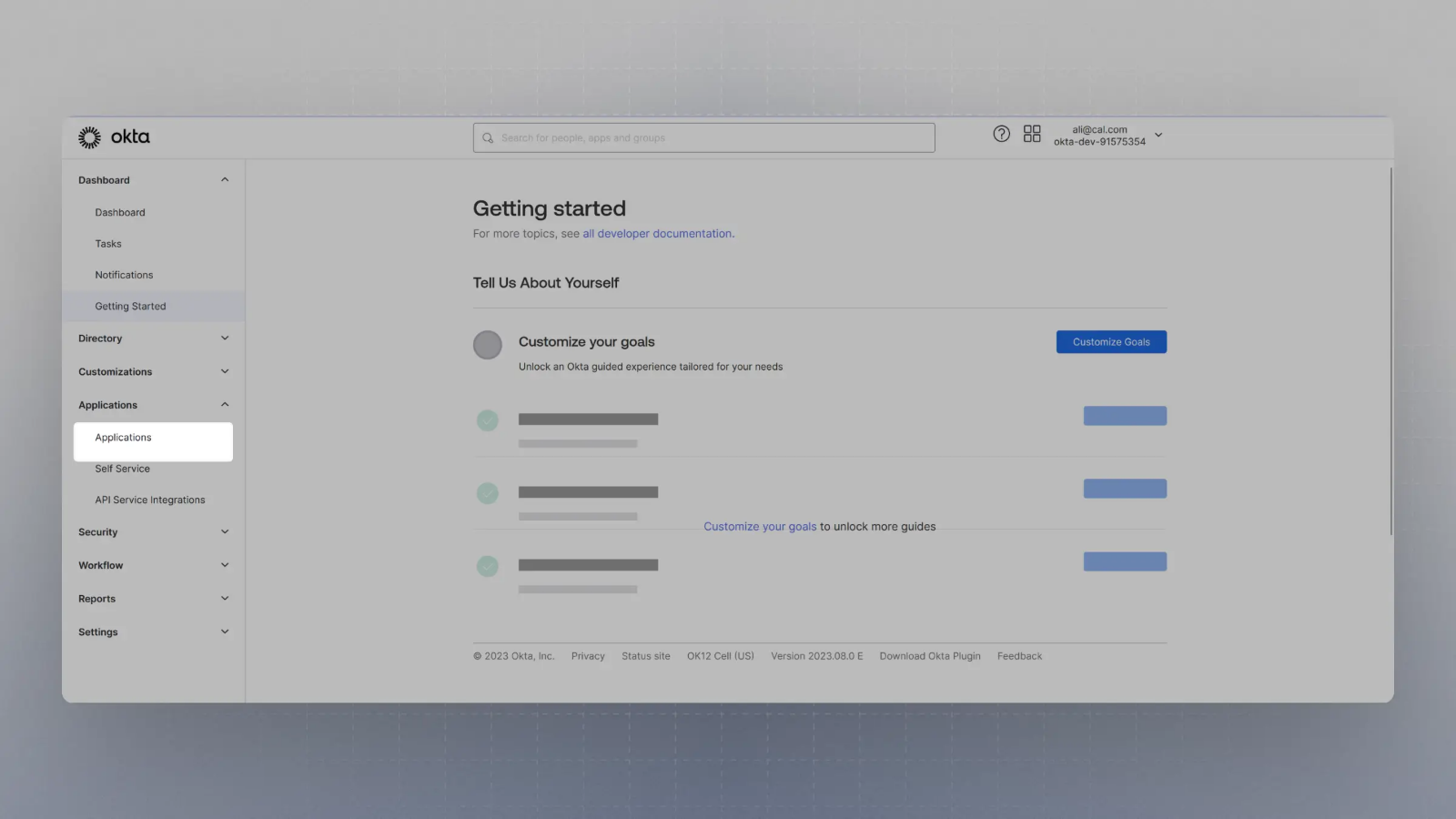
3. Create an application with your OIDC provider. For example, in Okta, once you create an account, you can click on Applications on the sidebar menu:
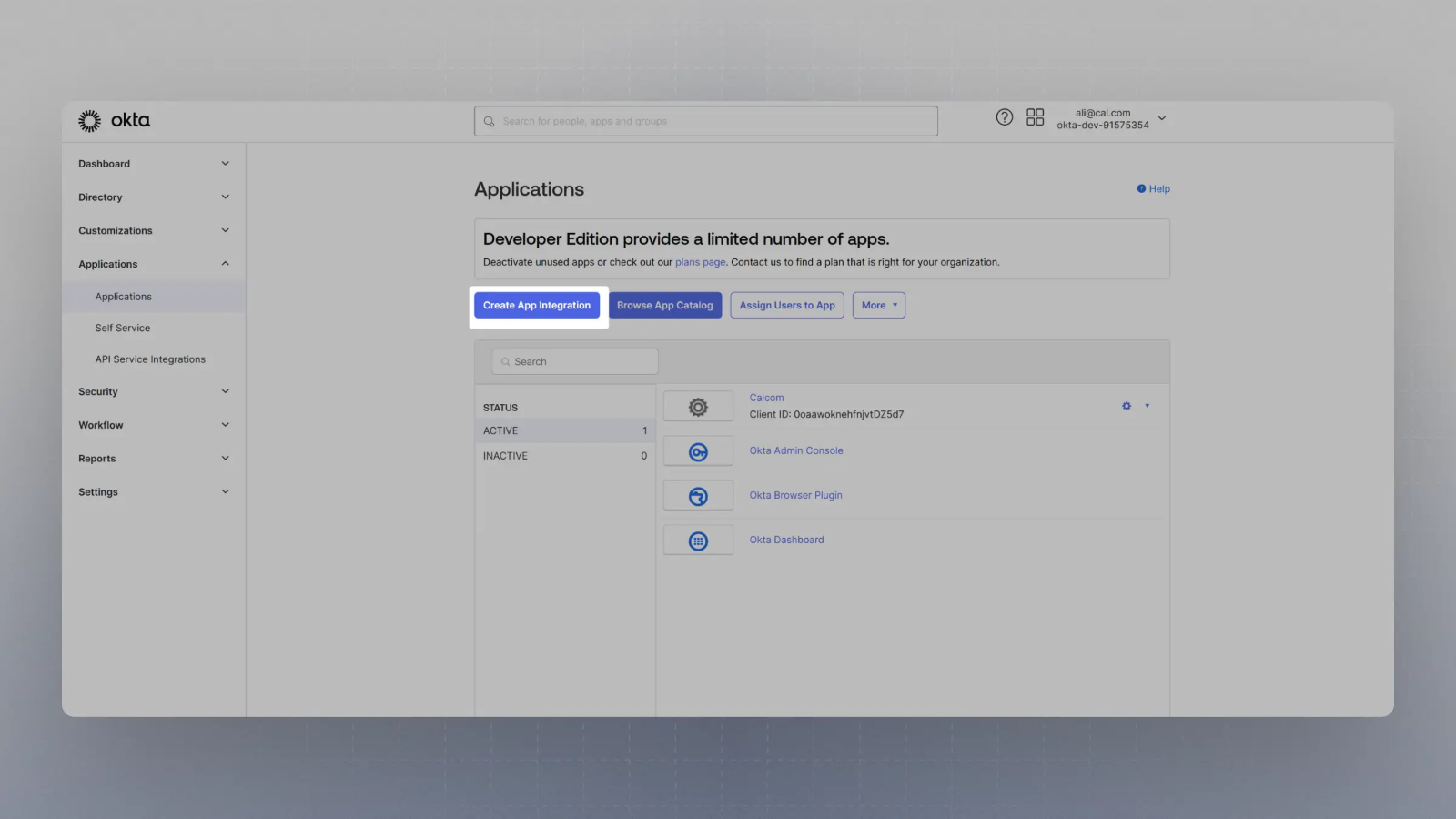
 4. Click on `Create App Integration`
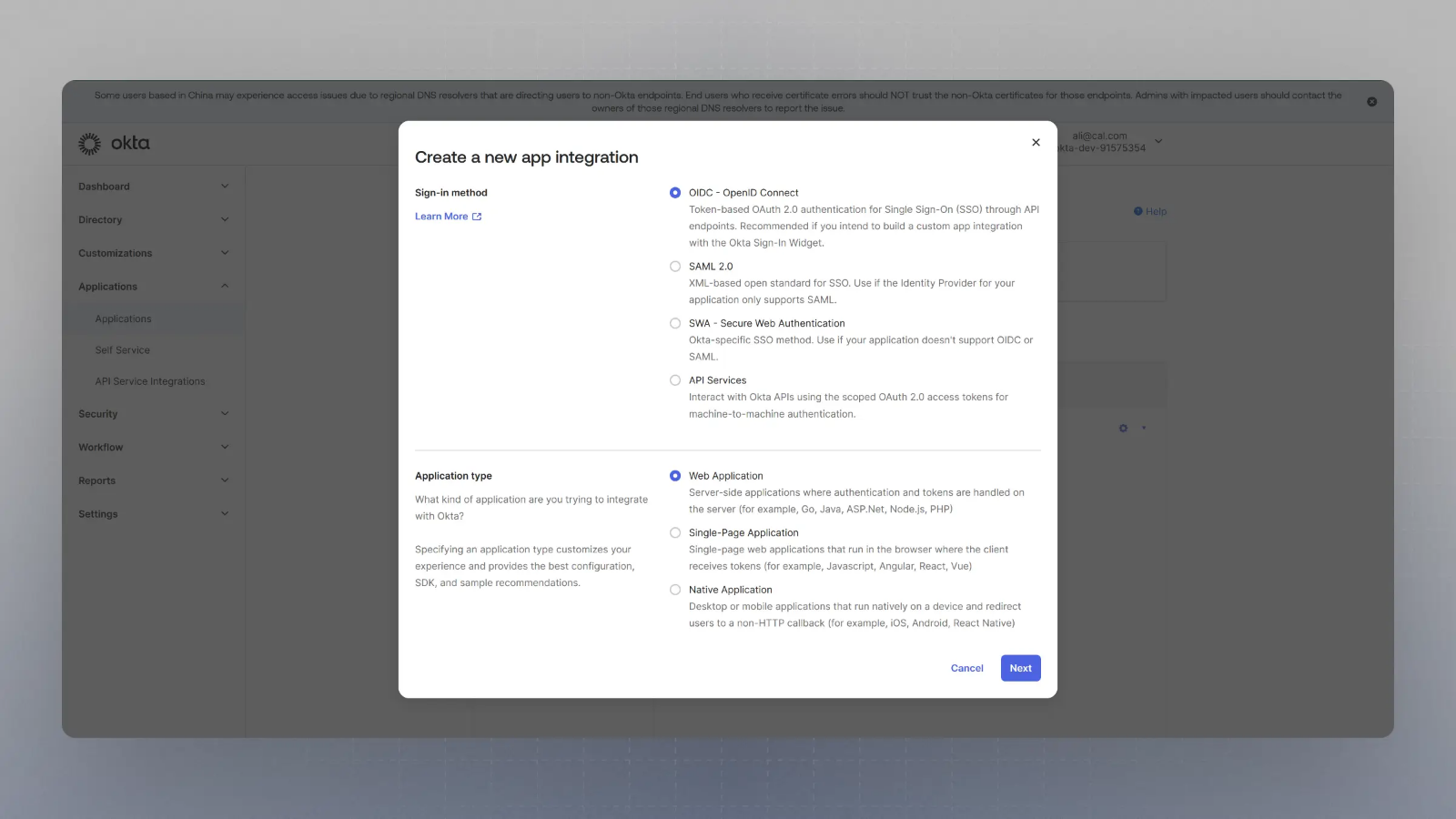
 5. Select OIDC in the modal form, along with Web App and click Next.
 6. Enter the Sign in redirect URL (or auth URL) as
```
{BASE_URL}/api/auth/oidc
```
And the sign out URL as
```
{BASE_URL}/auth/login
```
where {BASE_URL} is your app's base URL, and click save.
6. Enter the Sign in redirect URL (or auth URL) as
```
{BASE_URL}/api/auth/oidc
```
And the sign out URL as
```
{BASE_URL}/auth/login
```
where {BASE_URL} is your app's base URL, and click save.
 Please replace `{BASE_URL}` here with respective URL, such as `localhost:3000` for localhost testing, for example.
7. Now you should have the Client Secret and Client ID with you. You would also need the Well Known URL which for Okta is generally of the type:
```
https://{yourOktaDomain}/.well-known/openid-configuration
```
So, if your okta domain is `dev-123456.okta.com`, your well known URL would be
```
https://dev-123456.okta.com/.well-known/openid-configuration
```
8. Now spin up cal.com on your server and login with the Admin user (the email ID of which was provided in step 2 for SAML\_ADMINS environment variable).
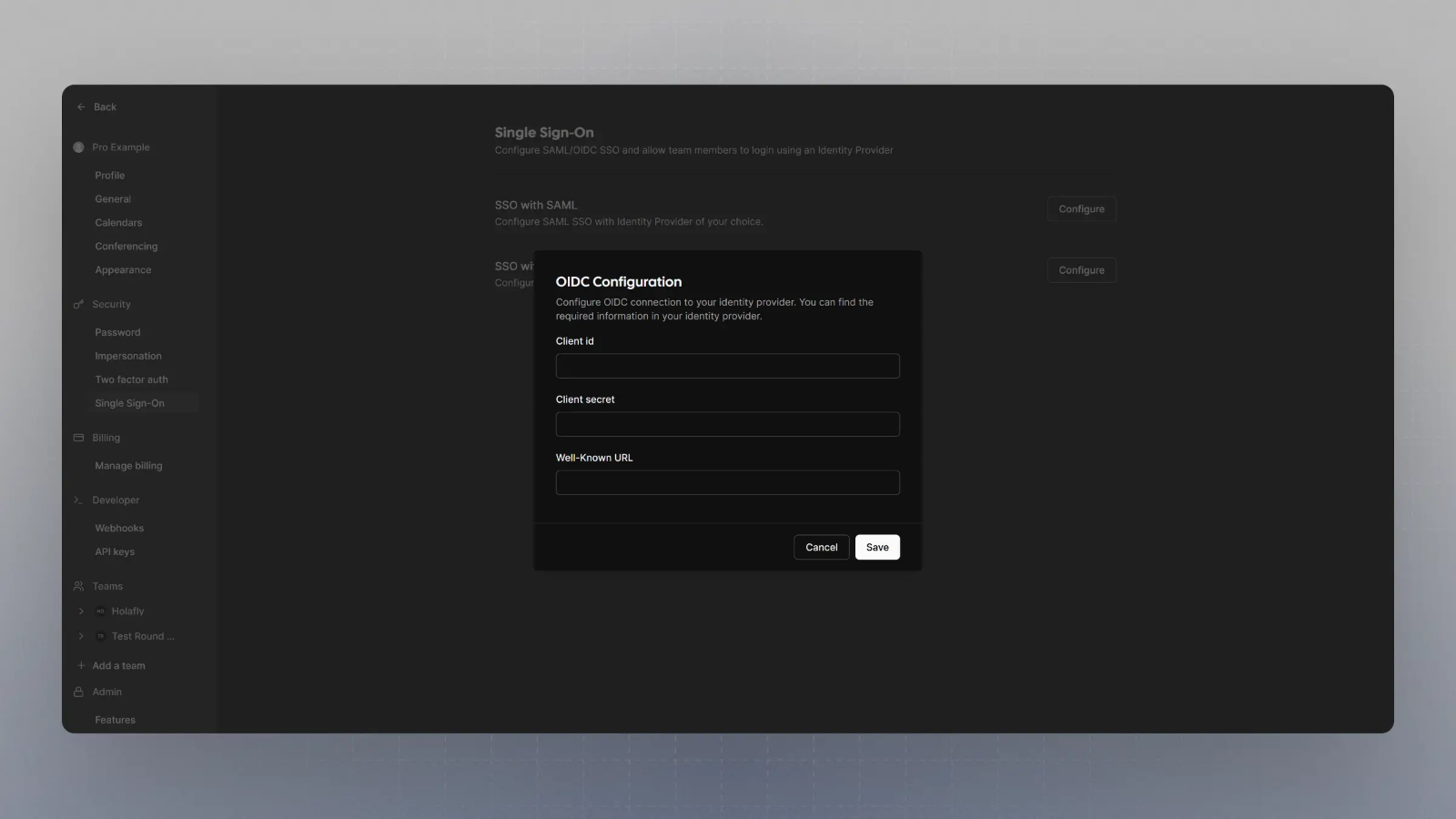
9. Visit `{BASE_URL}/settings/security/sso` and you should see something like this:
Please replace `{BASE_URL}` here with respective URL, such as `localhost:3000` for localhost testing, for example.
7. Now you should have the Client Secret and Client ID with you. You would also need the Well Known URL which for Okta is generally of the type:
```
https://{yourOktaDomain}/.well-known/openid-configuration
```
So, if your okta domain is `dev-123456.okta.com`, your well known URL would be
```
https://dev-123456.okta.com/.well-known/openid-configuration
```
8. Now spin up cal.com on your server and login with the Admin user (the email ID of which was provided in step 2 for SAML\_ADMINS environment variable).
9. Visit `{BASE_URL}/settings/security/sso` and you should see something like this:
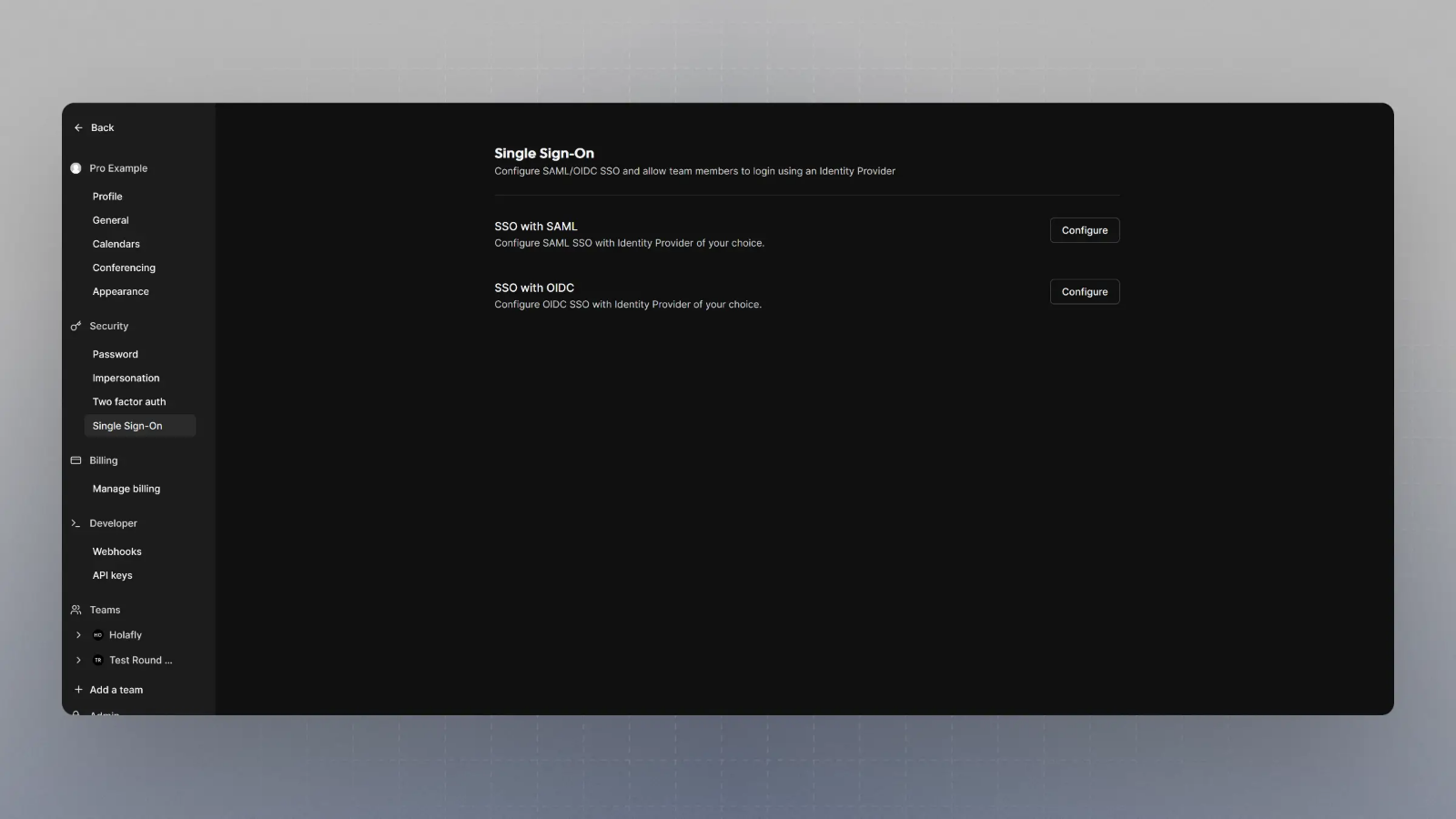 10. Click on Configure SSO with OIDC, and then enter the Client Secret, Client ID and Well known URL from the Step 7, and click save.