> ## Documentation Index
> Fetch the complete documentation index at: https://docs.onestack.cloud/llms.txt
> Use this file to discover all available pages before exploring further.
# Customization
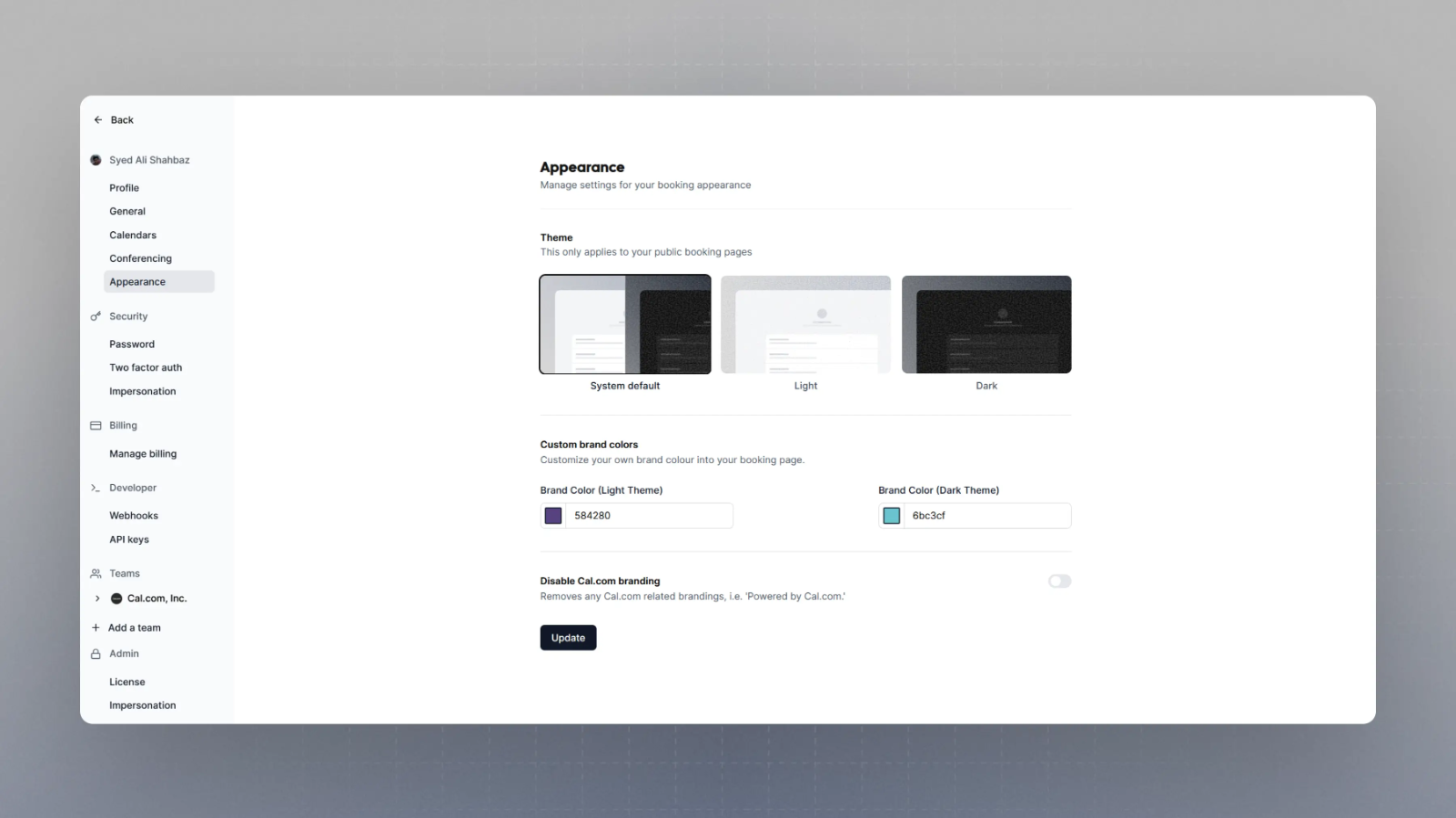
Cal.com offers customizable appearance baked into the product. You can select from a few options and dictate how your booking pages will look like:
### Theme
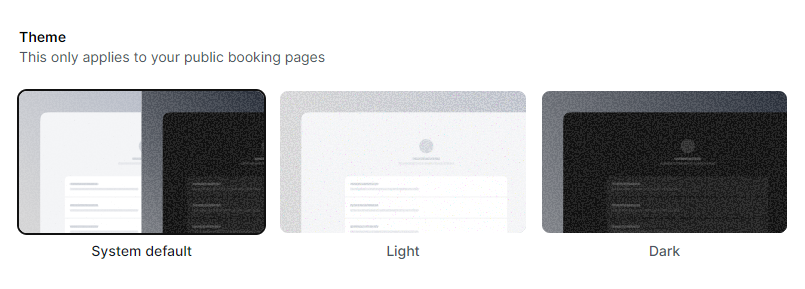
Select the theme of your booking pages. You can either force the booking page to be in Light mode or Dark mode, where visitors to your booking page would only ever see the selected mode. Alternatively, you could select the System default (selected by default by Cal.com) where visitors to your website would see the version as per their system default settings (Light or Dark).
 ### Brand Colors
Select your Brand Color for both light theme and dark theme, which overrides the default brand color of Cal.com in your public booking pages. This adds a custom feel to the booking experience.
### Brand Colors
Select your Brand Color for both light theme and dark theme, which overrides the default brand color of Cal.com in your public booking pages. This adds a custom feel to the booking experience.
 You can easily use these in combination with [embed](https://cal.com/docs/core-features/embed) to make the Cal.com embed feel like a part of your website by simply updating these settings to match your website.