> ## Documentation Index
> Fetch the complete documentation index at: https://docs.onestack.cloud/llms.txt
> Use this file to discover all available pages before exploring further.
# Save your progress in Drafts
> We've all been there—clicking outside a modal or navigating away from a page, only to lose all our progress. With Drafts, you don’t have to worry about that anymore. If you're interrupted when writing a work item or a comment or accidentally click away, Plane automatically saves your half-written text so you can pick up right where you left off.
## How Drafts work[](#how-drafts-work "Direct link to How Drafts work")
Drafts remain private and won't be visible to team members until you move them to project work items.
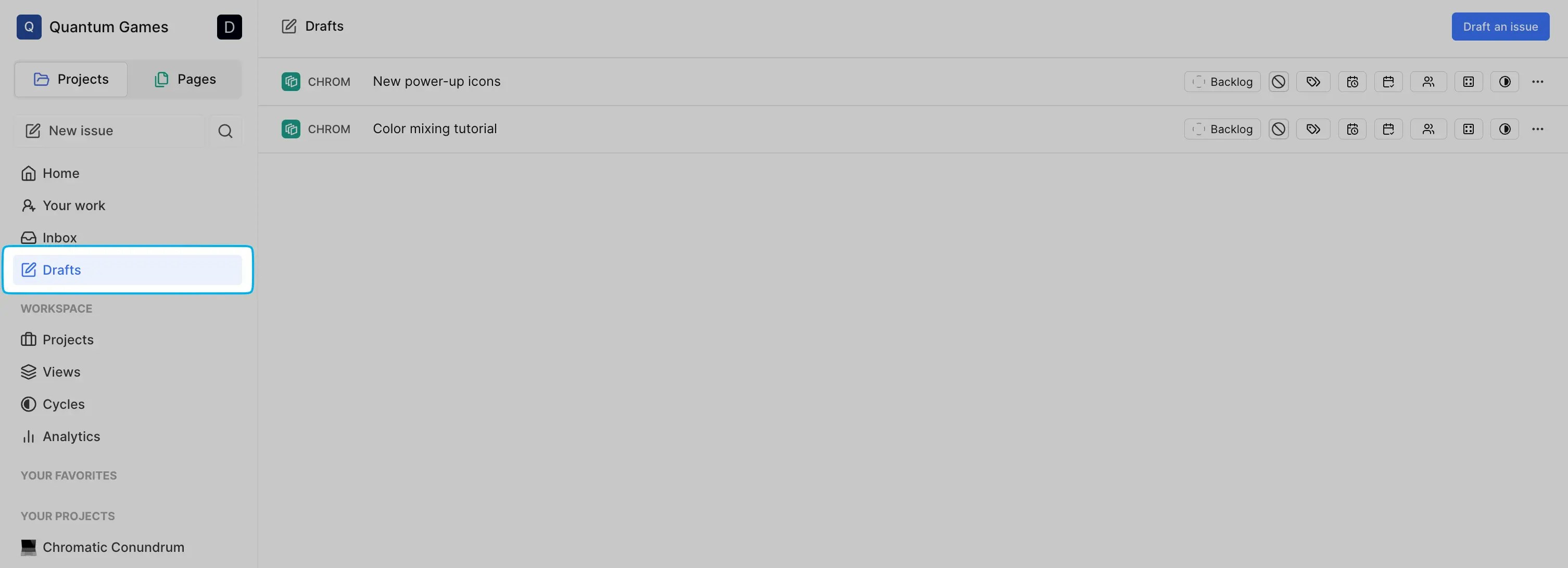
As soon as you start writing a work item, Plane auto-saves it for you. Should you stop midway or click away to a notification, all your work items, and soon, comments, are available in **Drafts** accessible from the sidebar. Find your draft from the preview text, edit it, delete it, or move the draft to a project when you're ready.
 Additionally, if you try to close the **Create work item** modal, you’ll see a confirmation box offering you the option to save it to Drafts.
  ## Create drafts manually[](#create-drafts-manually "Direct link to Create drafts manually")
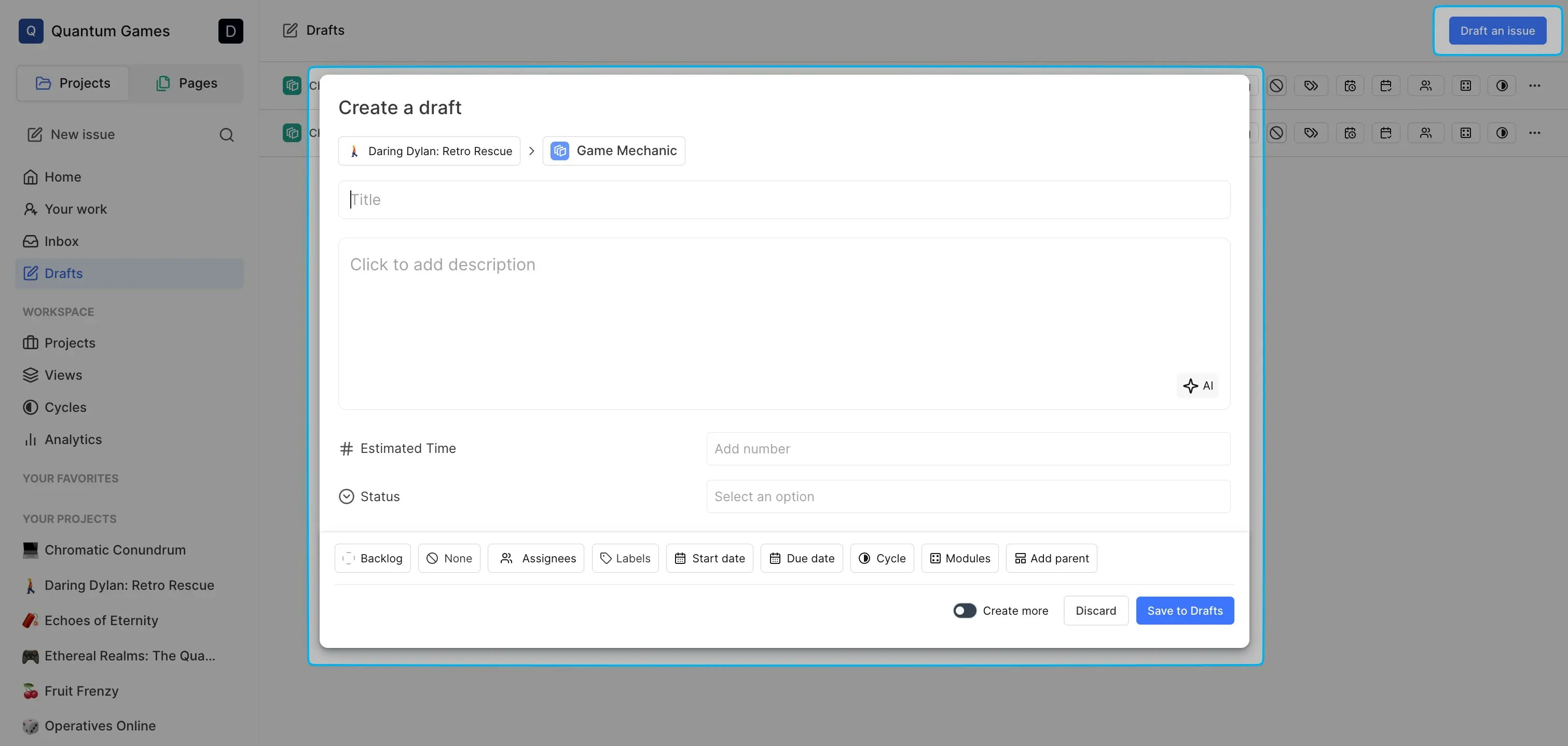
Just click **Draft a work item** at the top right of your **Drafts** screen, and write out a draft that you will pick up later.
## Create drafts manually[](#create-drafts-manually "Direct link to Create drafts manually")
Just click **Draft a work item** at the top right of your **Drafts** screen, and write out a draft that you will pick up later.
 ## Manage your drafts[](#manage-your-drafts "Direct link to Manage your drafts")
To manage your drafts, click the ellipsis (•••) next to any draft and choose one of several options.
## Manage your drafts[](#manage-your-drafts "Direct link to Manage your drafts")
To manage your drafts, click the ellipsis (•••) next to any draft and choose one of several options.  * **Edit** Select **Edit** to make changes to your draft as you would with a regular work item. Once you're done, just save your updates.
* **Make a copy** Need a duplicate? Simply select **Make a copy** to clone your draft.
* **Move to project** Ready to finalize your draft? Click **Move to project** to publish it as a regular work item. A confirmation modal will appear, giving you a chance to review it one last time. Assignees and team members will be notified only once the draft is moved to the project.
* **Delete** Created a draft you no longer need? Deleting it is easy. Click **Delete**, confirm, and it’s gone. A toast message will appear confirming the deletion.
Keep in mind, deleted drafts cannot be recovered. You'll always see a confirmation modal to prevent accidental deletions.
* **Edit** Select **Edit** to make changes to your draft as you would with a regular work item. Once you're done, just save your updates.
* **Make a copy** Need a duplicate? Simply select **Make a copy** to clone your draft.
* **Move to project** Ready to finalize your draft? Click **Move to project** to publish it as a regular work item. A confirmation modal will appear, giving you a chance to review it one last time. Assignees and team members will be notified only once the draft is moved to the project.
* **Delete** Created a draft you no longer need? Deleting it is easy. Click **Delete**, confirm, and it’s gone. A toast message will appear confirming the deletion.
Keep in mind, deleted drafts cannot be recovered. You'll always see a confirmation modal to prevent accidental deletions.