> ## Documentation Index
> Fetch the complete documentation index at: https://docs.onestack.cloud/llms.txt
> Use this file to discover all available pages before exploring further.
# Stay on top of your work items
> The Inbox is a space for tracking and managing updates to work items you're connected with. Whether you're assigned to a work item, its creator, mentioned in a discussion, or subscribed to its updates, you'll find everything here.
## Where to find Inbox[](#where-to-find-inbox "Direct link to Where to find Inbox")
Located in the sidebar on the left, directly below **Home** and **Your Work**, the **Inbox** is easily accessible with a simple click. This provides instant access to your personalized notification feed.  ## Work item notifications[](#work-item-notifications "Direct link to Work item notifications")
When you open the Inbox, you’ll see a chronological list of notifications related to work items assigned to you, the ones you’ve created, and the work items you’re subscribed to.
Each notification provides quick context, like the work item title, who updated it, and when it was updated.
## Work item notifications[](#work-item-notifications "Direct link to Work item notifications")
When you open the Inbox, you’ll see a chronological list of notifications related to work items assigned to you, the ones you’ve created, and the work items you’re subscribed to.
Each notification provides quick context, like the work item title, who updated it, and when it was updated.
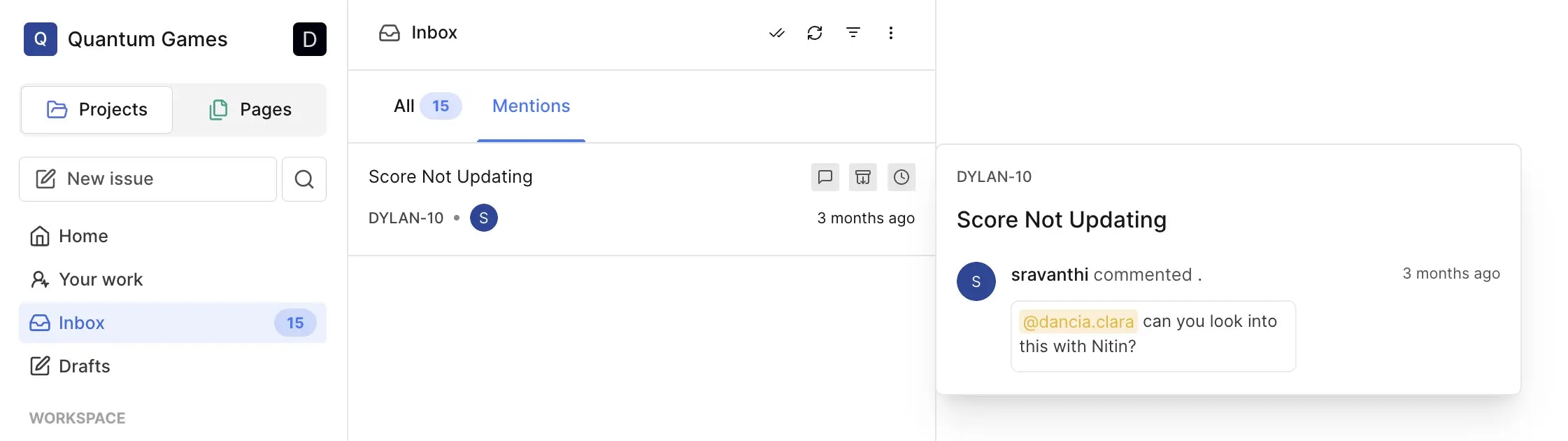 Hover over each notification to mark as unread, archive or snooze updates for specific work items. Clicking a notification opens the full work item details in the right pane.
The **Mentions** tab highlights notifications where you've been directly tagged or mentioned in work item comments.
Click the refresh icon in the top-right to load new notifications. Use the double tick icon to mark all notifications as read.
## Filter notifications[](#filter-notifications "Direct link to Filter notifications")
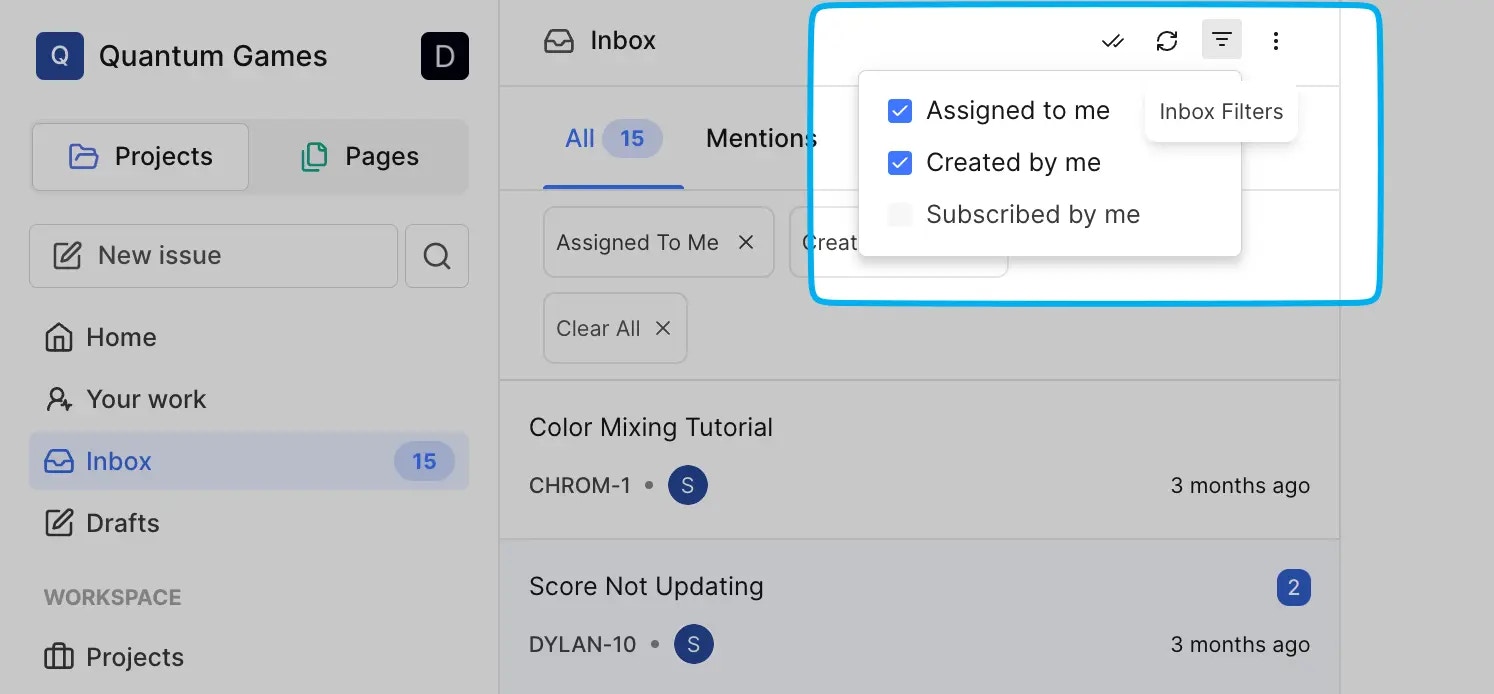
In the top-right corner of the Inbox pane, you’ll find the filters dropdown. Use it to customize your view by showing work items related to your involvement. You can activate one or multiple filters to focus on relevant notifications. The three-dot icon enables further filtering to show unread, archived, and snoozed work items.
Hover over each notification to mark as unread, archive or snooze updates for specific work items. Clicking a notification opens the full work item details in the right pane.
The **Mentions** tab highlights notifications where you've been directly tagged or mentioned in work item comments.
Click the refresh icon in the top-right to load new notifications. Use the double tick icon to mark all notifications as read.
## Filter notifications[](#filter-notifications "Direct link to Filter notifications")
In the top-right corner of the Inbox pane, you’ll find the filters dropdown. Use it to customize your view by showing work items related to your involvement. You can activate one or multiple filters to focus on relevant notifications. The three-dot icon enables further filtering to show unread, archived, and snoozed work items.
 ## Stacked notifications[](#stacked-notifications "Direct link to Stacked notifications")
Pro
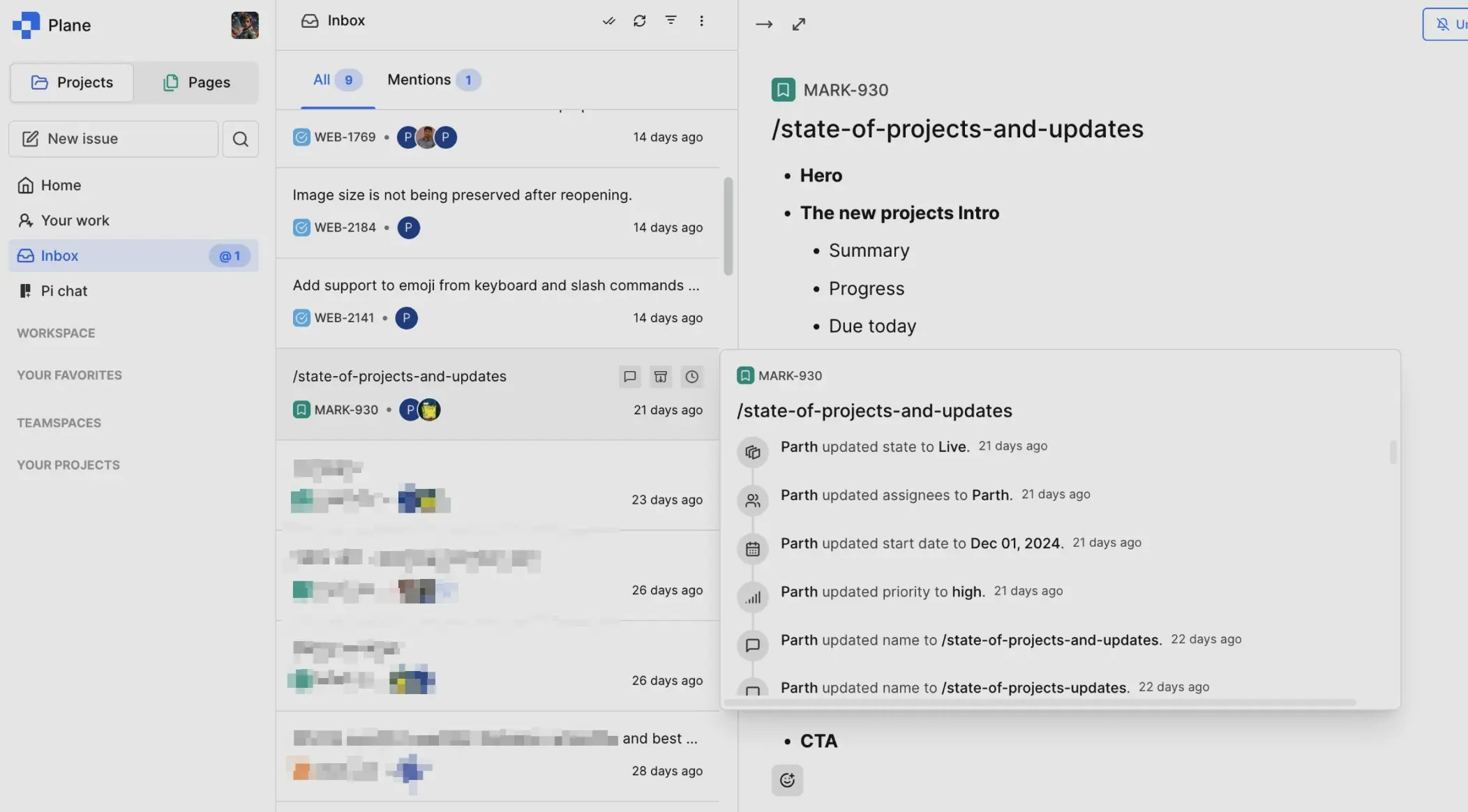
We’ve introduced stacked notifications to make your Inbox even more efficient. When there are changes to the same work item, they’ll be grouped into a parent notification. Hover over the notification to see all the grouped changes without sifting through a cluttered list.
## Stacked notifications[](#stacked-notifications "Direct link to Stacked notifications")
Pro
We’ve introduced stacked notifications to make your Inbox even more efficient. When there are changes to the same work item, they’ll be grouped into a parent notification. Hover over the notification to see all the grouped changes without sifting through a cluttered list.
 This ensures you stay informed without being overwhelmed by noise.
***
The Inbox is designed to save you time and help you stay organized while keeping track of everything that’s happening in your projects.
This ensures you stay informed without being overwhelmed by noise.
***
The Inbox is designed to save you time and help you stay organized while keeping track of everything that’s happening in your projects.