> ## Documentation Index
> Fetch the complete documentation index at: https://docs.onestack.cloud/llms.txt
> Use this file to discover all available pages before exploring further.
# Triage work items before adding them to your project
> Intake is a Plane-only feature that lets create work items following which and can move these work items inside a project. Intake can take bug reports, feature or service requests, or raise a ticket by stakeholders, customers, or clients. Work items created in Intake can then be accepted to move them to the Project’s workflow.
## Turn on Intake[](#turn-on-intake "Direct link to Turn on Intake")
Intake functions at the project level and is toggled off by default. Project `Admins` can turn on the Intake feature for the project.
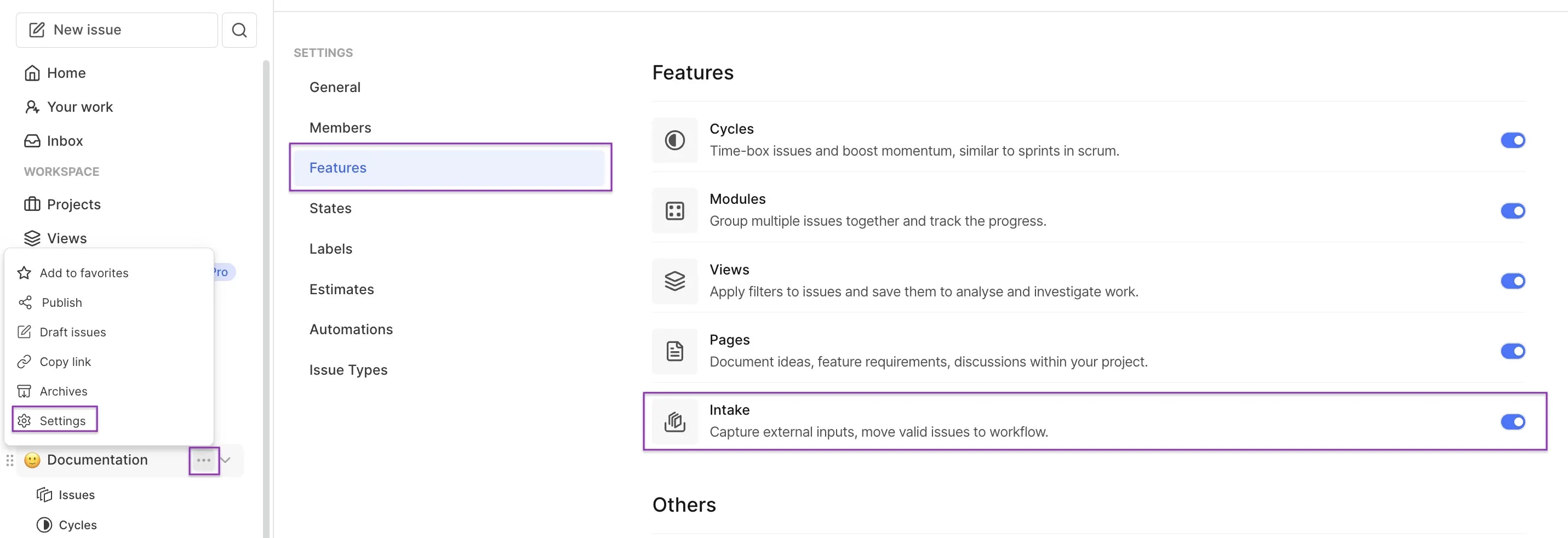
1. Click the three-dots icon next to your project name on the left pane and click **Settings**.
2. Select **Features** on the right pane.
3. Switch on the toggle button for the **Intake** feature to turn it on for the project.
 ## Create Work item in Intake[](#create-work-item-in-intake "Direct link to Create Work item in Intake")
Users with a `Guest` role can create work items in Intake. To create a work item:
1. Click on **Intake** under the project on the sidebar.
2. Click the **Add Work item** button at the top right corner.
## Create Work item in Intake[](#create-work-item-in-intake "Direct link to Create Work item in Intake")
Users with a `Guest` role can create work items in Intake. To create a work item:
1. Click on **Intake** under the project on the sidebar.
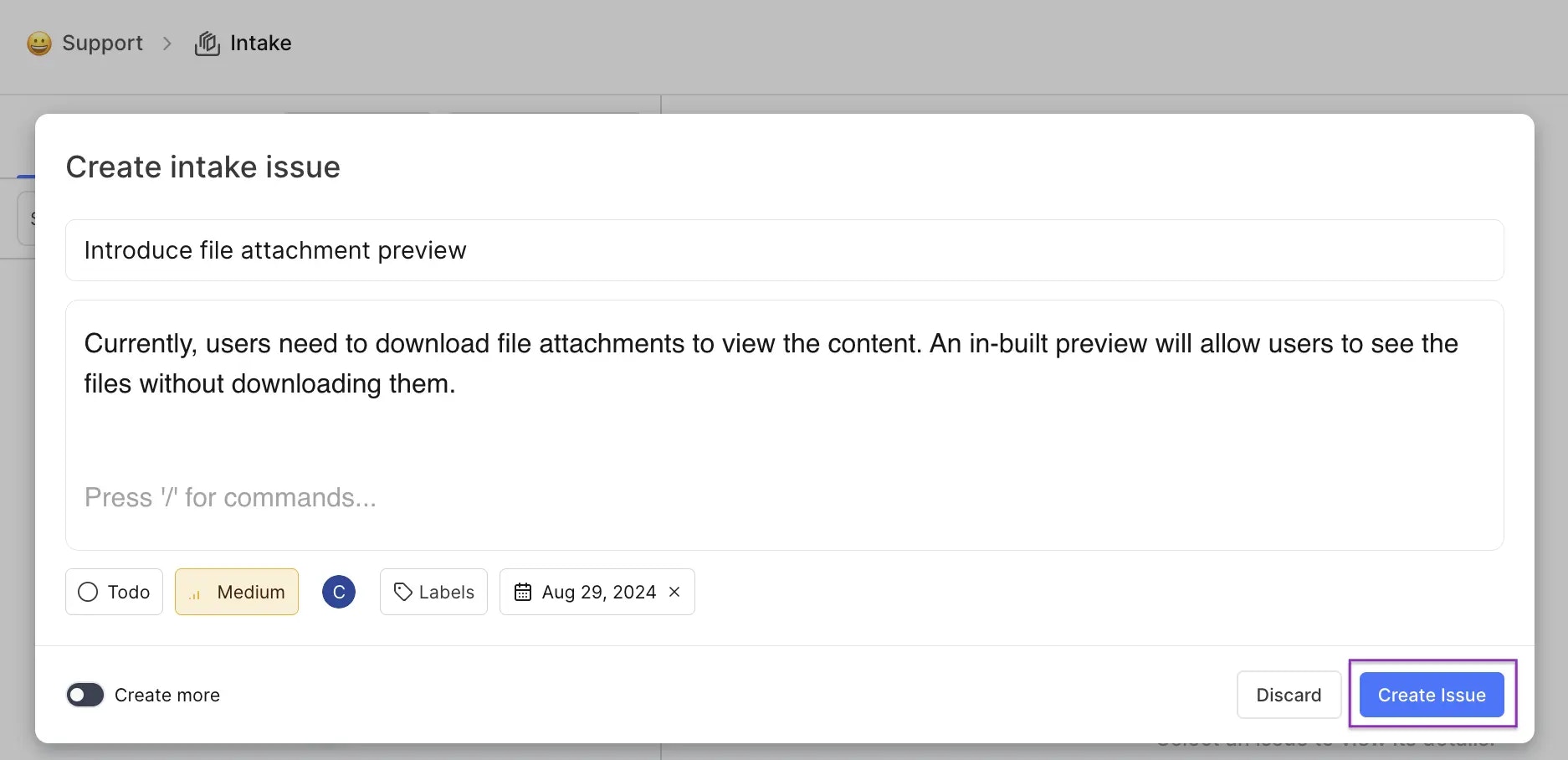
2. Click the **Add Work item** button at the top right corner.  3. Enter the required details and click the **Create Work item** button.
 ### Properties[](#properties "Direct link to Properties")
A `Guest` role can assign properties when creating an Intake work item. However, these properties can be overridden by the project `Admin` or `Member` later.
For a work item in the Intake, you can choose to assign the following properties:
| Property | Description |
| --------- | --------------------------------------------------------------------------------------------------------------------------------------------------- |
| State | If the work item in Intake is still being triaged, you can assign it to a state to help you identify the progress before moving it to your project. |
| Priority | Set the priority of the work item to align the expectations on how quickly the work item should be acted upon. |
| Assignees | Assign the team member who should triage or prioritize the work item. |
| Labels | Categorize work items using the labels available in the project. |
| Due date | Set when the work item needs to be prioritized or triaged by adding a due date. |
## Intake work item actions[](#intake-work-item-actions "Direct link to Intake work item actions")
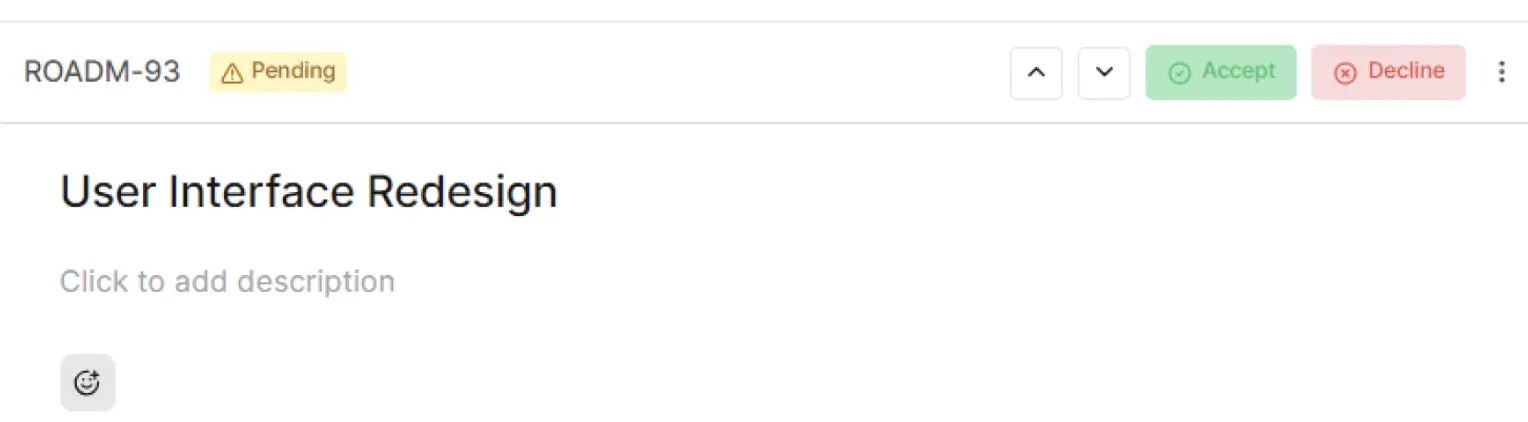
When a Guest creates a work item in Intake, it is added to the `Pending` state. Admin and Member roles can accept, decline, snooze or mark the work item as a duplicate.
### Accept work item[](#accept-work-item "Direct link to Accept work item")
### Properties[](#properties "Direct link to Properties")
A `Guest` role can assign properties when creating an Intake work item. However, these properties can be overridden by the project `Admin` or `Member` later.
For a work item in the Intake, you can choose to assign the following properties:
| Property | Description |
| --------- | --------------------------------------------------------------------------------------------------------------------------------------------------- |
| State | If the work item in Intake is still being triaged, you can assign it to a state to help you identify the progress before moving it to your project. |
| Priority | Set the priority of the work item to align the expectations on how quickly the work item should be acted upon. |
| Assignees | Assign the team member who should triage or prioritize the work item. |
| Labels | Categorize work items using the labels available in the project. |
| Due date | Set when the work item needs to be prioritized or triaged by adding a due date. |
## Intake work item actions[](#intake-work-item-actions "Direct link to Intake work item actions")
When a Guest creates a work item in Intake, it is added to the `Pending` state. Admin and Member roles can accept, decline, snooze or mark the work item as a duplicate.
### Accept work item[](#accept-work-item "Direct link to Accept work item")
 1. Open a pending work item in Intake.
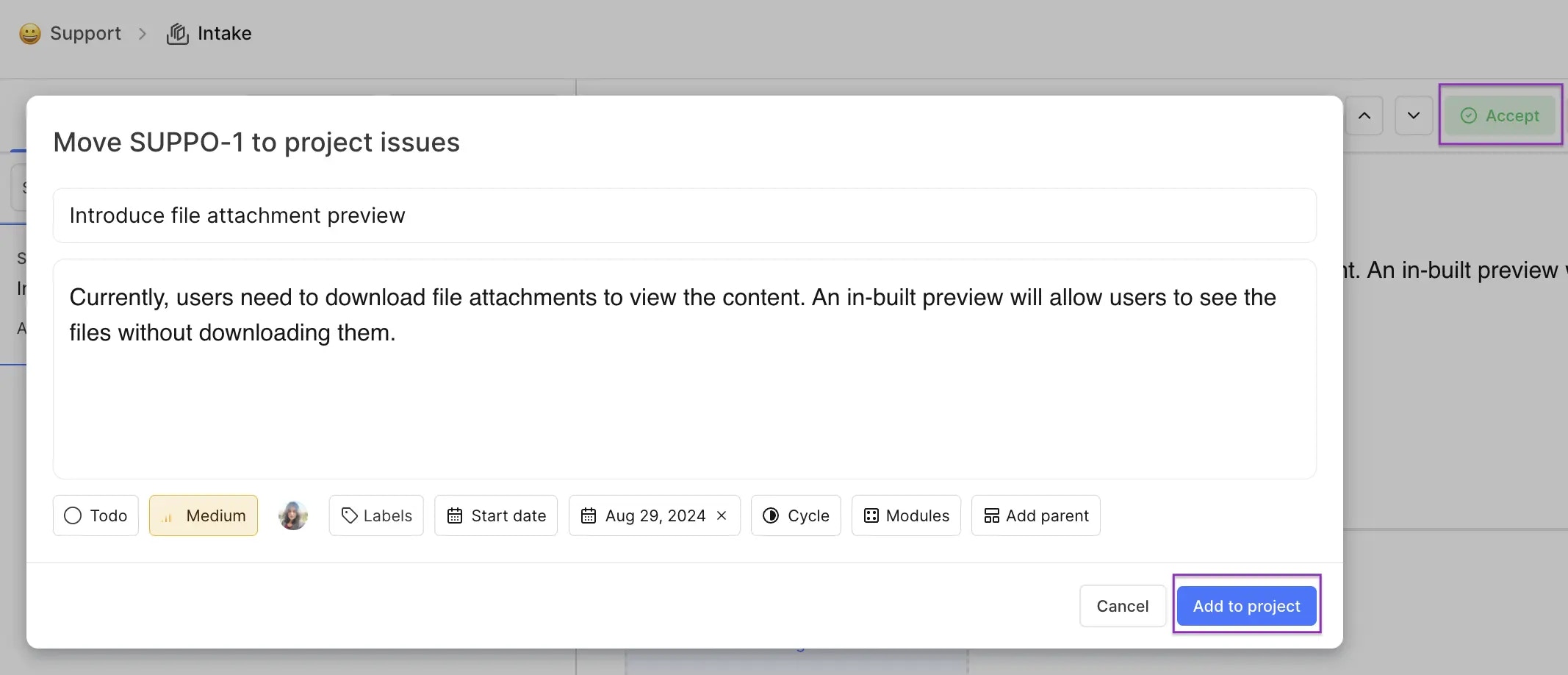
2. Click the **Accept** button on the top right. This will open a modal where you can change the work item details before moving it to your project.
3. Click the **Add to project** button to move the work item from **Intake** to **Work items** under the project. The work item will be visible under the **State** selected when creating or accepting the Intake work item.
### Decline work item[](#decline-work-item "Direct link to Decline work item")
If the work item is not relevant to your project, you can choose to decline it. Click the **Decline** button present on any pending work item to decline it. Once the work item is declined, it ends up in the `Cancelled` state under your project.
### Snooze work item[](#snooze-work-item "Direct link to Snooze work item")
An work item can be snoozed to review it at a later time.
1. Open a pending work item in Intake.
2. Click the **Accept** button on the top right. This will open a modal where you can change the work item details before moving it to your project.
3. Click the **Add to project** button to move the work item from **Intake** to **Work items** under the project. The work item will be visible under the **State** selected when creating or accepting the Intake work item.
### Decline work item[](#decline-work-item "Direct link to Decline work item")
If the work item is not relevant to your project, you can choose to decline it. Click the **Decline** button present on any pending work item to decline it. Once the work item is declined, it ends up in the `Cancelled` state under your project.
### Snooze work item[](#snooze-work-item "Direct link to Snooze work item")
An work item can be snoozed to review it at a later time.
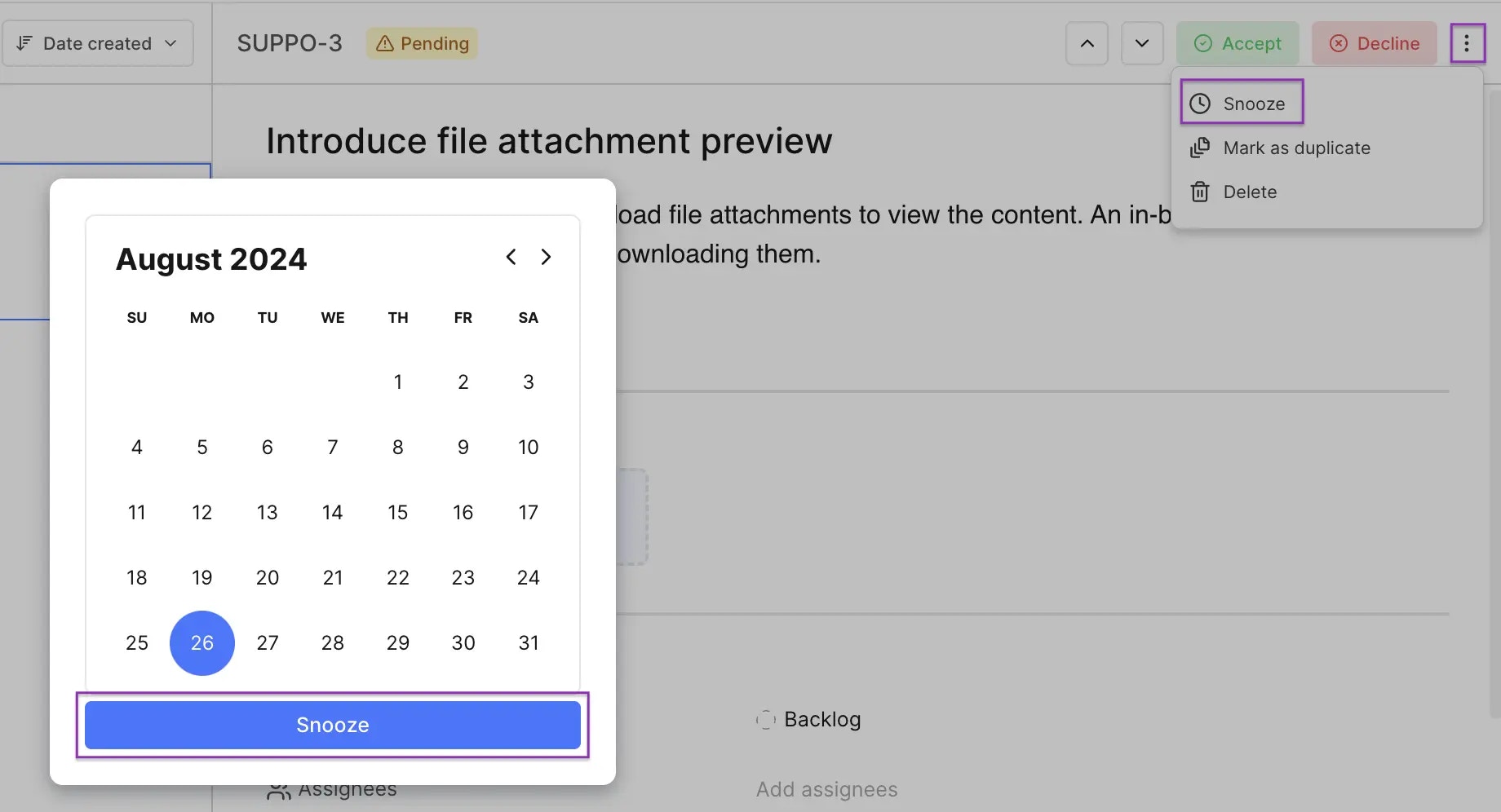 1. Open a pending work item in Intake.
2. Click on the three dots icon in the top right corner.
3. Select the **Snooze** option in the menu.
4. Select a date to review it later.
The work item is moved out of pending Intake work items and can be accessed in the **Filters** drop-down under `Open` work items. You can also un-snooze the work item from the three dots menu.
### Mark work item as duplicate[](#mark-work-item-as-duplicate "Direct link to Mark work item as duplicate")
In cases where a similar work item exists in your project, an Intake work item can be marked as duplicate.
1. Open a pending work item in Intake.
2. Click on the three dots icon in the top right corner.
3. Select the **Mark as duplicate** option in the menu.
4. Select a work item in the project that is a duplicate of the Intake work item.
1. Open a pending work item in Intake.
2. Click on the three dots icon in the top right corner.
3. Select the **Snooze** option in the menu.
4. Select a date to review it later.
The work item is moved out of pending Intake work items and can be accessed in the **Filters** drop-down under `Open` work items. You can also un-snooze the work item from the three dots menu.
### Mark work item as duplicate[](#mark-work-item-as-duplicate "Direct link to Mark work item as duplicate")
In cases where a similar work item exists in your project, an Intake work item can be marked as duplicate.
1. Open a pending work item in Intake.
2. Click on the three dots icon in the top right corner.
3. Select the **Mark as duplicate** option in the menu.
4. Select a work item in the project that is a duplicate of the Intake work item.
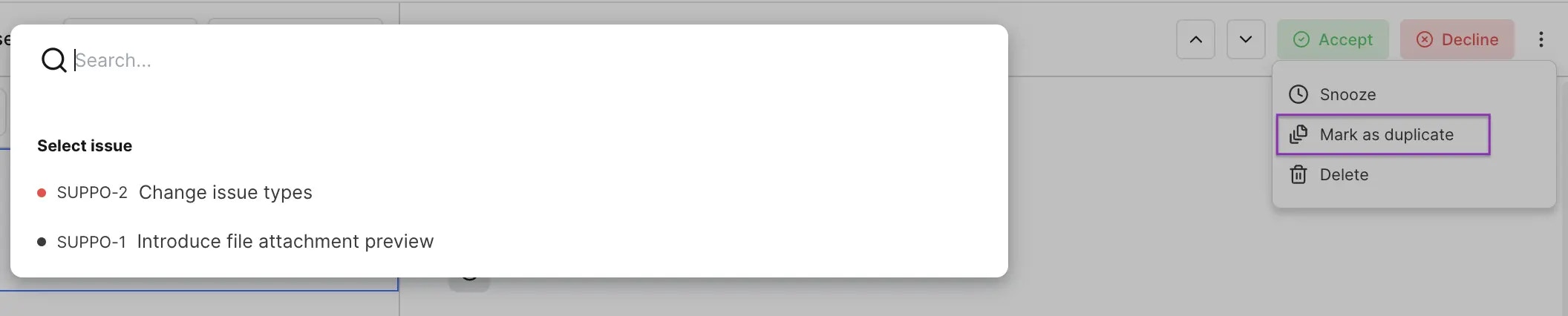 The work item is now declined with a ‘Duplicate’ label on it. It will also appear in the `Cancelled` state under your project.
### Delete work item[](#delete-work-item "Direct link to Delete work item")
Only `Admins` have permission to delete Intake work items before it goes through the workflow. Deleted work items will not appear under any label in the `Closed` work items of Intake.
## View Intake work items[](#view-intake-work-items "Direct link to View Intake work items")
You can view **Open** and **Closed** work items in Intake by clicking on the appropriate tabs.
The work item is now declined with a ‘Duplicate’ label on it. It will also appear in the `Cancelled` state under your project.
### Delete work item[](#delete-work-item "Direct link to Delete work item")
Only `Admins` have permission to delete Intake work items before it goes through the workflow. Deleted work items will not appear under any label in the `Closed` work items of Intake.
## View Intake work items[](#view-intake-work-items "Direct link to View Intake work items")
You can view **Open** and **Closed** work items in Intake by clicking on the appropriate tabs.
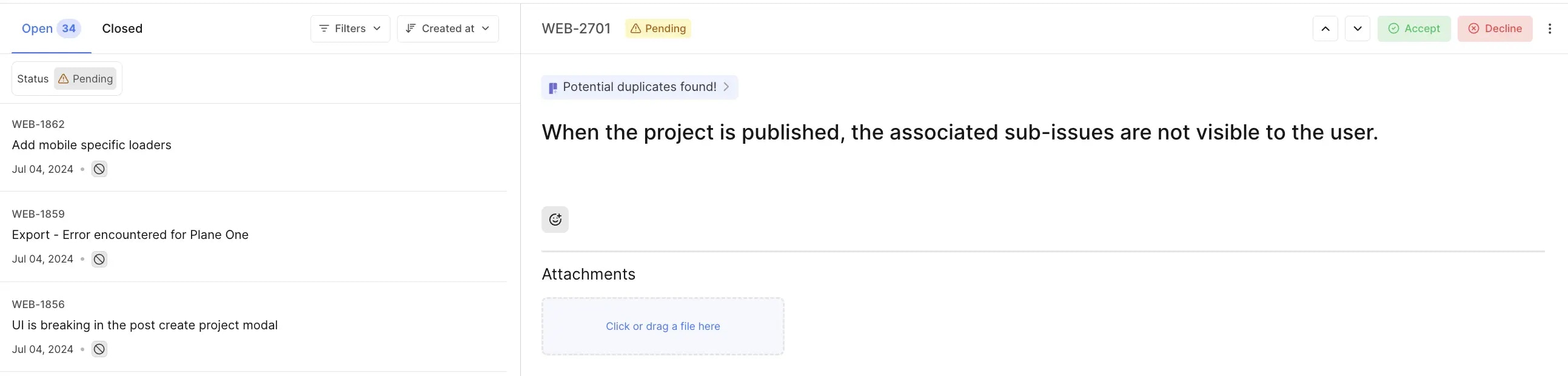 `Pending` or `Snoozed` work items are considered open work items. Further action can take place on such work items. Whereas, `Accepted`, `Declined`, and `Duplicate` appear under closed work items. No further action is required on closed work items.
### Sort and filter[](#sort-and-filter "Direct link to Sort and filter")
Like work items in the project, sorting and filtering can create a focused view of work items in Intake. Filters and sorting can be applied to a list of work items simultaneously.
Filters can be assigned from the **Filters** dropdown available on the left-hand side of the Intake page. Work items can be filtered by *Work item status*, *State*, *Priority*, *Assignee*, *Created by*, *Labels*, *Created date*, and *Last updated date*.
Next to the Filters dropdown, you can use the sort drop-down to arrange Intake work items sequentially. Work items can be sorted by *Date created*, *Date updated*, and *ID* in ascending or descending order.
## Additional features[](#additional-features "Direct link to Additional features")
* Intake work item description has a rich text editor that allows you to format text, attach pictures, links and files, or add tables and dividers.
`Pending` or `Snoozed` work items are considered open work items. Further action can take place on such work items. Whereas, `Accepted`, `Declined`, and `Duplicate` appear under closed work items. No further action is required on closed work items.
### Sort and filter[](#sort-and-filter "Direct link to Sort and filter")
Like work items in the project, sorting and filtering can create a focused view of work items in Intake. Filters and sorting can be applied to a list of work items simultaneously.
Filters can be assigned from the **Filters** dropdown available on the left-hand side of the Intake page. Work items can be filtered by *Work item status*, *State*, *Priority*, *Assignee*, *Created by*, *Labels*, *Created date*, and *Last updated date*.
Next to the Filters dropdown, you can use the sort drop-down to arrange Intake work items sequentially. Work items can be sorted by *Date created*, *Date updated*, and *ID* in ascending or descending order.
## Additional features[](#additional-features "Direct link to Additional features")
* Intake work item description has a rich text editor that allows you to format text, attach pictures, links and files, or add tables and dividers.
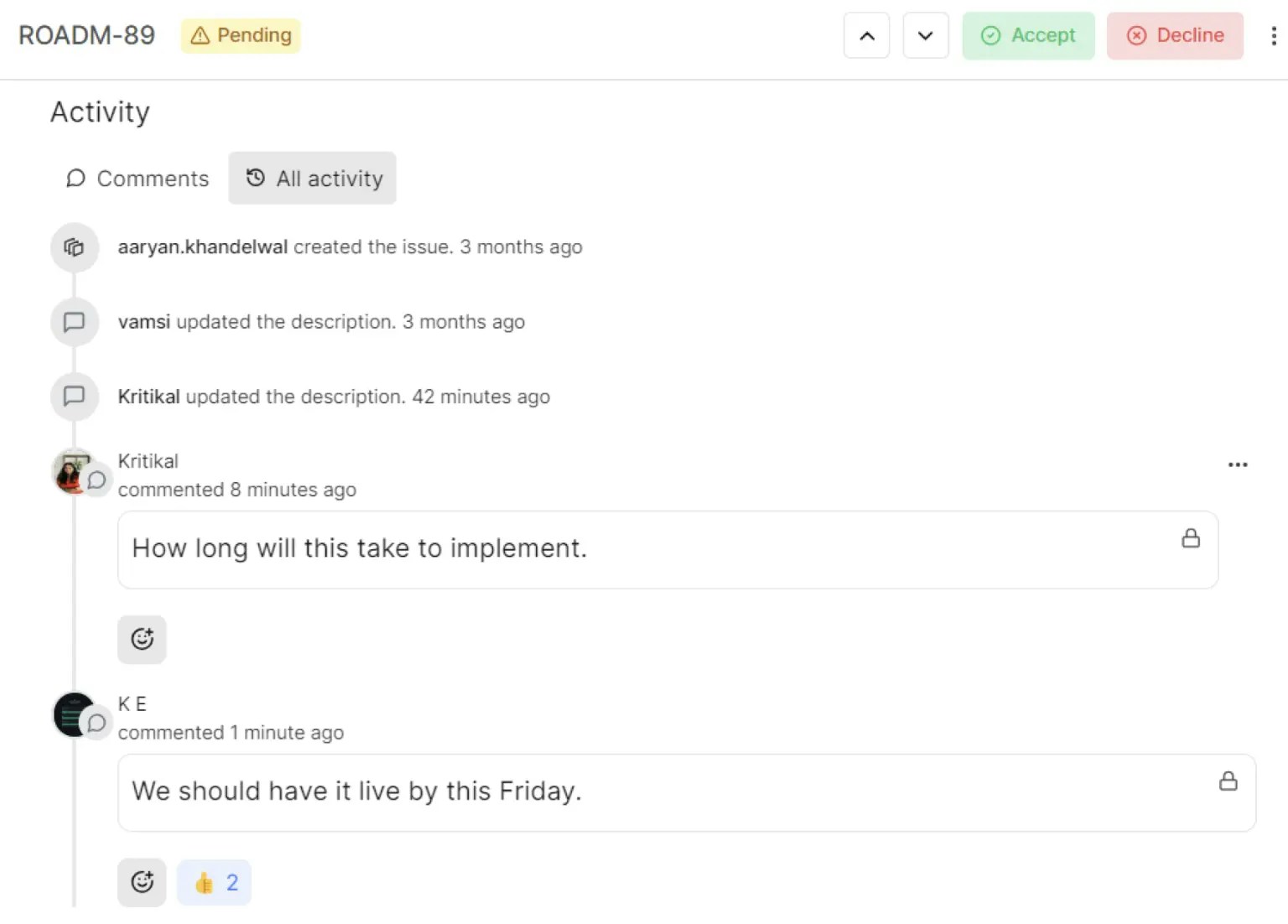
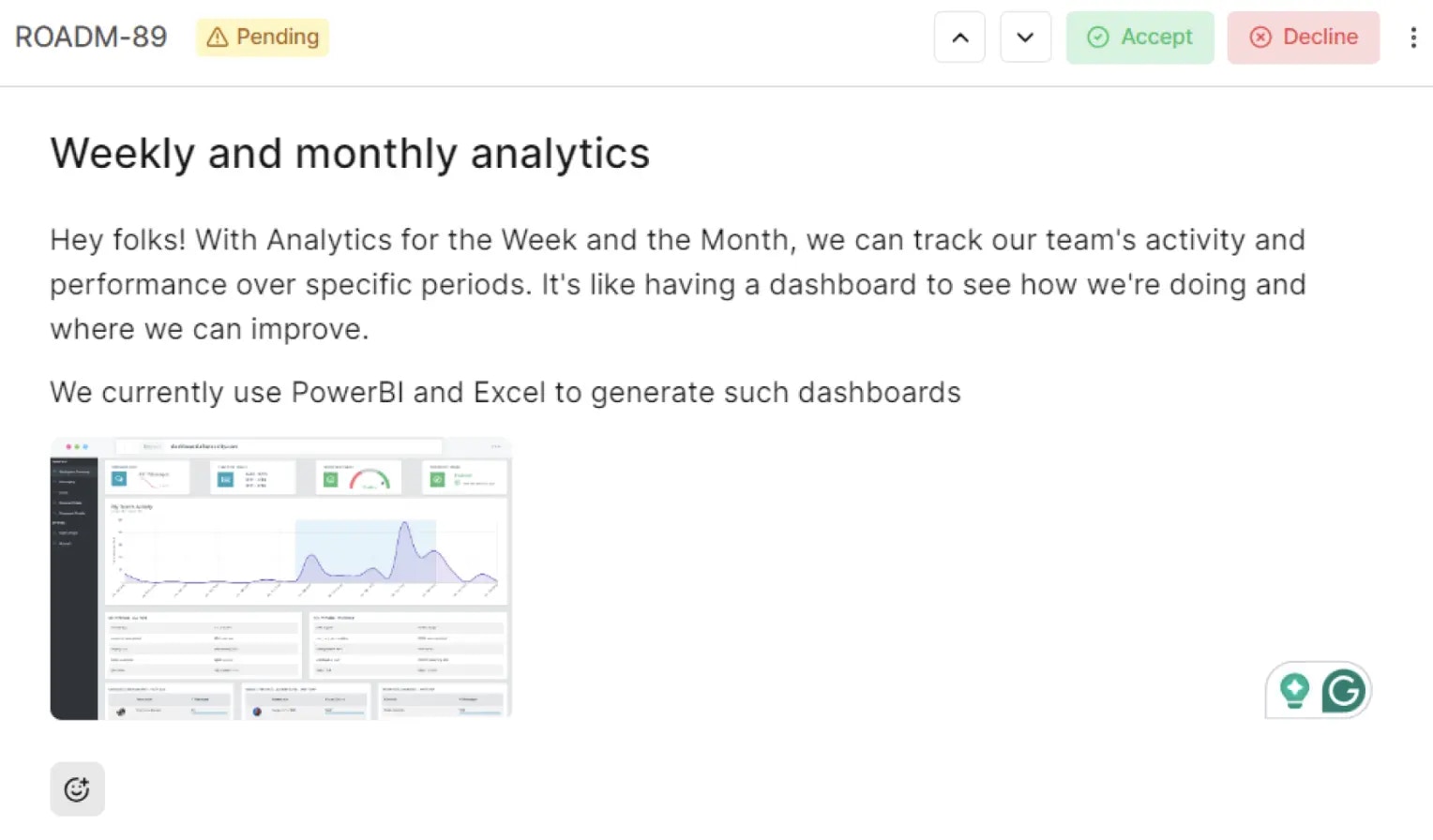 * Intake has an activity and comments section to know the status and see feedback from users and customers. All the changes made to the work item can be tracked in real-time under the **Activity** section.
 * The **Add Comment** box has a rich text editor where you can react with emojis and mention your teammates to communicate.
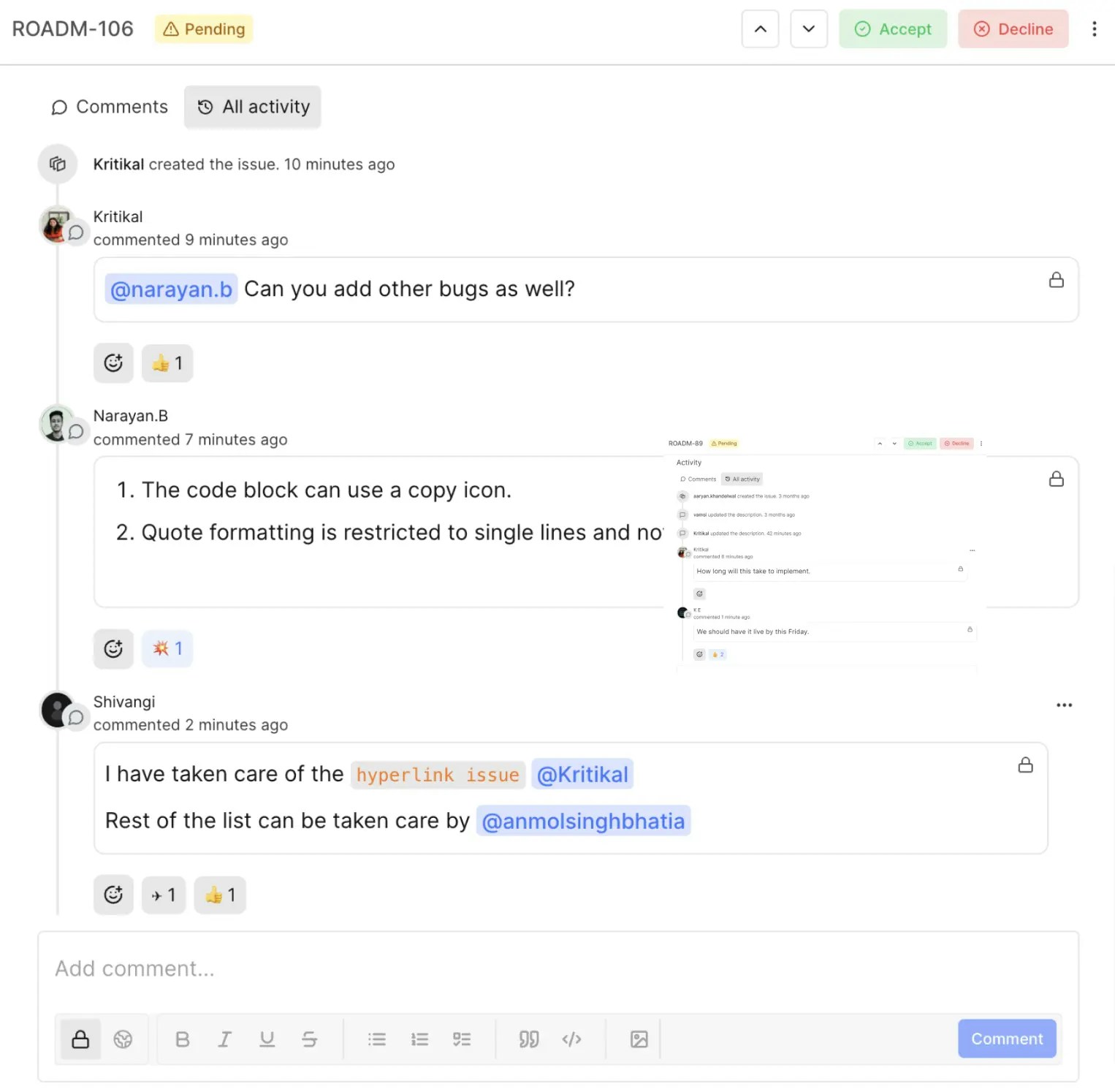 * You can review pending requests in Intake sequentially using 🔼 or 🔽 button.