> ## Documentation Index
> Fetch the complete documentation index at: https://docs.onestack.cloud/llms.txt
> Use this file to discover all available pages before exploring further.
# Estimate effort for work items
> Estimates in Plane help quantify the effort required for each work item in your project. Whether using a simple number scale or categories like T-shirt sizes, estimates provide a clearer idea of the work involved. They act as a proxy for complexity, helping teams gauge task scale quickly without detailed breakdowns. Estimates also aid in prioritizing, resource allocation, managing workload expectations, and identifying potential bottlenecks.
## Set up estimate system[](#set-up-estimate-system "Direct link to Set up estimate system")
Getting started with estimates in your project is quick and easy. Here’s how you can set it up:
1. By default, your project won’t have an estimate system in place. To set one up, go to **Project > Settings** and select the **Estimates** tab.
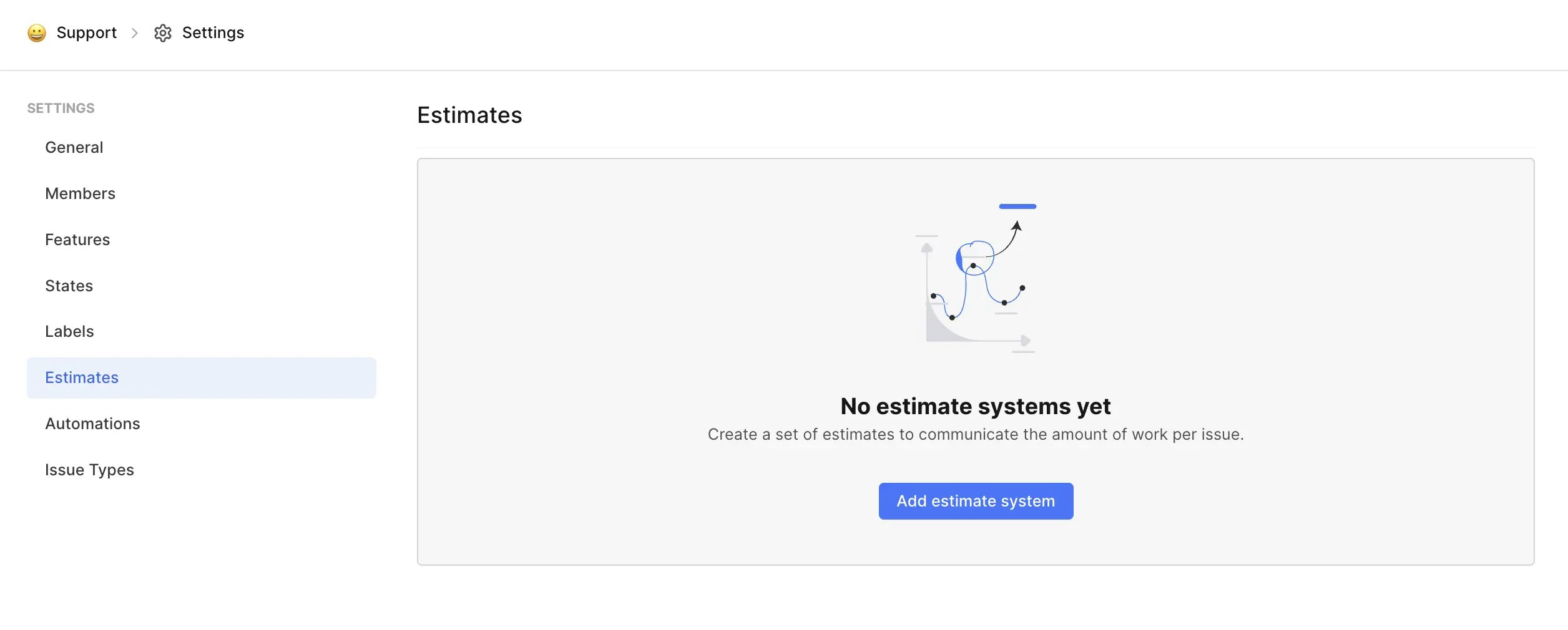 2. Click on **Add estimate system**.
3. You can choose from the following options:
* Points
* Categories
Check out [Types of estimates](#types-of-estimates) for more details.
2. Click on **Add estimate system**.
3. You can choose from the following options:
* Points
* Categories
Check out [Types of estimates](#types-of-estimates) for more details.
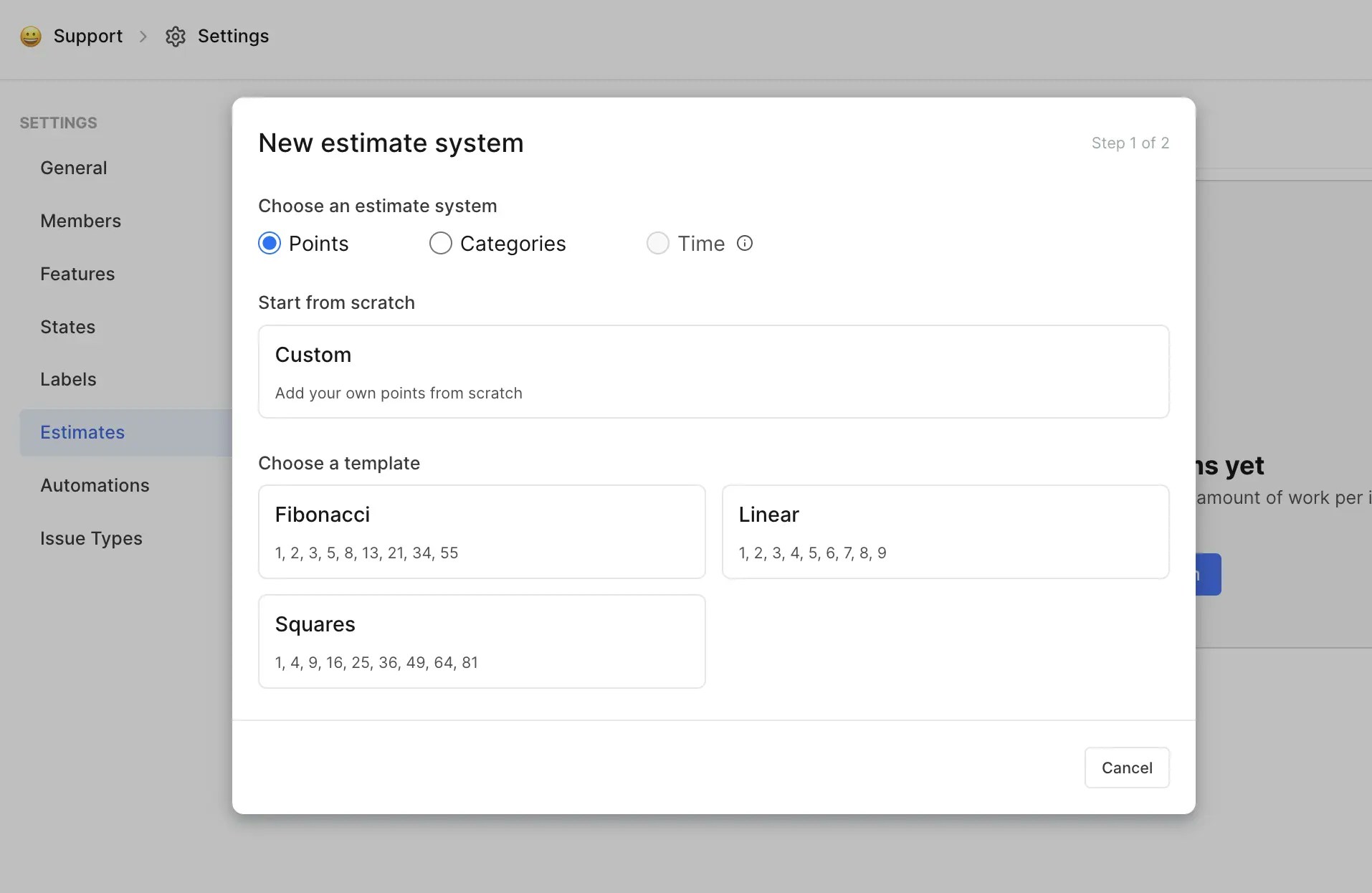 4. You can either choose a ready-made template and tweak it to fit your needs or create your own custom estimate system from scratch.
5. When you are done, turn on the **Enable estimates for my project** toggle.
4. You can either choose a ready-made template and tweak it to fit your needs or create your own custom estimate system from scratch.
5. When you are done, turn on the **Enable estimates for my project** toggle.  ## Types of estimates[](#types-of-estimates "Direct link to Types of estimates")
### Points[](#points "Direct link to Points")
This system uses numeric values to quantify effort, making it a great fit for teams that prefer to track progress based on numbers. Plane offers several preset progressions for you to choose from:
* **Linear** A simple, evenly spaced number progression.
* **Fibonacci** A more dynamic progression where each number is the sum of the previous two (e.g., 1, 2, 3, 5, 8, 13, etc.). This is useful when estimating tasks of varying complexity.
* **Squares** A progression where each value is the square of the number (e.g., 1, 4, 9, 16, etc.).
* **Custom** Create your own progression to match your team's specific needs.
### Category[](#category "Direct link to Category")
If you prefer to estimate effort by text categories rather than numbers, this is the system for you. Typical examples include:
* **T-shirt sizes** A common approach to estimating effort, this system uses sizes like XS, S, M, L, and XL to represent the complexity or effort of a work item. This method is popular in agile teams for its simplicity.
* **Easy to Hard** This system uses categories like "Easy", "Medium", and "Hard" to represent how difficult or time-consuming a work item might be. It's useful when you want to quickly categorize tasks without needing exact numbers.
* **Custom** You can create your own custom categories to fit your team’s workflow. Whether you want to use something like "Low", "Medium", "High" or something more specific to your project, the custom option allows complete flexibility.
This system provides a high-level estimate of effort based on intuitive categories, which is especially helpful in teams where relative effort matters more than precise numeric estimates.
## Edit estimate system[](#edit-estimate-system "Direct link to Edit estimate system")
## Types of estimates[](#types-of-estimates "Direct link to Types of estimates")
### Points[](#points "Direct link to Points")
This system uses numeric values to quantify effort, making it a great fit for teams that prefer to track progress based on numbers. Plane offers several preset progressions for you to choose from:
* **Linear** A simple, evenly spaced number progression.
* **Fibonacci** A more dynamic progression where each number is the sum of the previous two (e.g., 1, 2, 3, 5, 8, 13, etc.). This is useful when estimating tasks of varying complexity.
* **Squares** A progression where each value is the square of the number (e.g., 1, 4, 9, 16, etc.).
* **Custom** Create your own progression to match your team's specific needs.
### Category[](#category "Direct link to Category")
If you prefer to estimate effort by text categories rather than numbers, this is the system for you. Typical examples include:
* **T-shirt sizes** A common approach to estimating effort, this system uses sizes like XS, S, M, L, and XL to represent the complexity or effort of a work item. This method is popular in agile teams for its simplicity.
* **Easy to Hard** This system uses categories like "Easy", "Medium", and "Hard" to represent how difficult or time-consuming a work item might be. It's useful when you want to quickly categorize tasks without needing exact numbers.
* **Custom** You can create your own custom categories to fit your team’s workflow. Whether you want to use something like "Low", "Medium", "High" or something more specific to your project, the custom option allows complete flexibility.
This system provides a high-level estimate of effort based on intuitive categories, which is especially helpful in teams where relative effort matters more than precise numeric estimates.
## Edit estimate system[](#edit-estimate-system "Direct link to Edit estimate system")
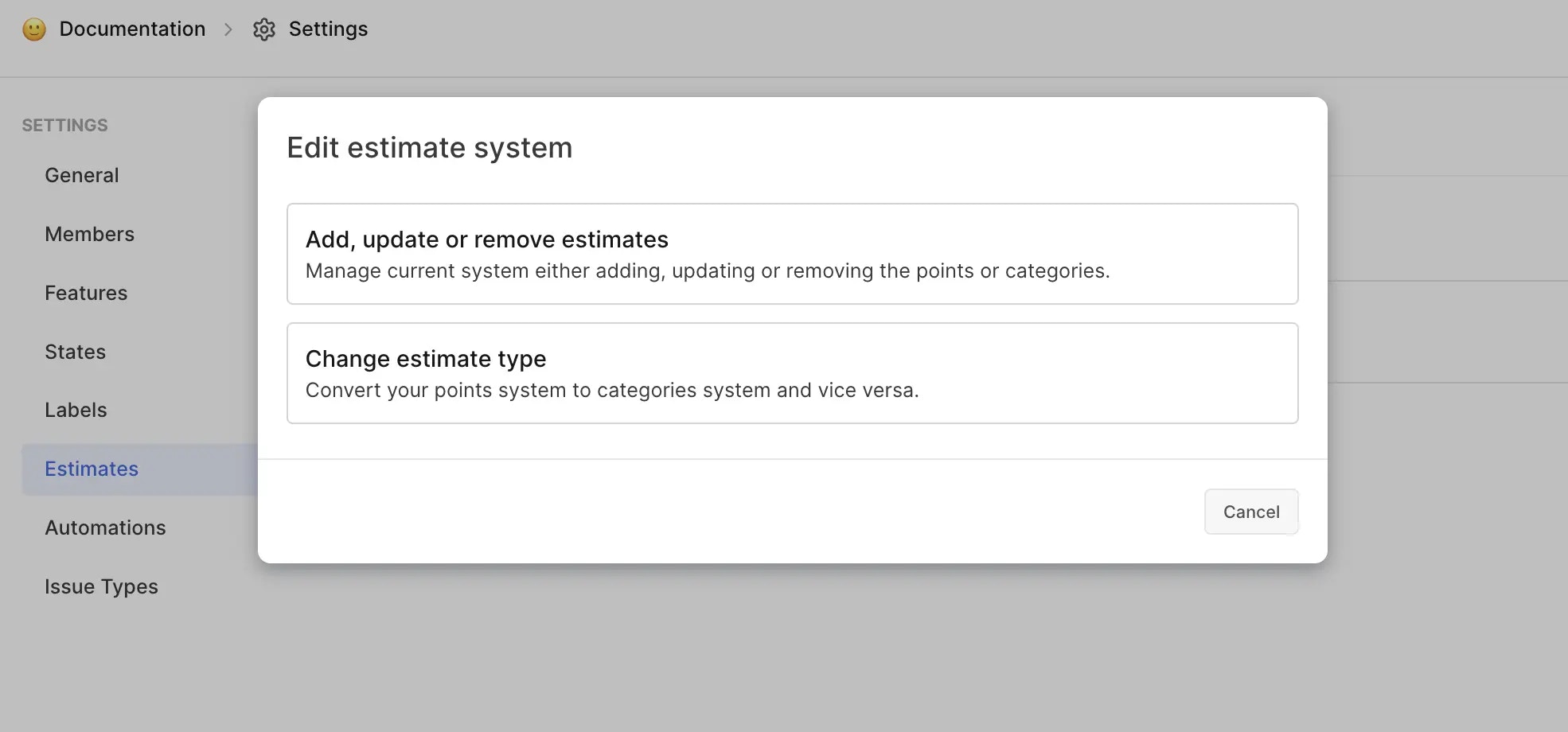 To update your estimate system, follow these steps:
1. Click the pencil icon next to the estimate system you’ve set up.
2. Select **Add, update or remove estimates**.
* Add new estimates as needed or remove ones that are no longer relevant.
3. Select **Change estimate type**.
* If a different type of estimate system suits your project better, you can switch between system types here.
In earlier versions of Plane, we allowed multiple estimate systems within a single project, giving you the ability to switch between them. Based on user feedback, we’ve simplified this process. Now, each project can only have one active estimate system, and older, inactive systems have been archived for better clarity and ease of use.
To update your estimate system, follow these steps:
1. Click the pencil icon next to the estimate system you’ve set up.
2. Select **Add, update or remove estimates**.
* Add new estimates as needed or remove ones that are no longer relevant.
3. Select **Change estimate type**.
* If a different type of estimate system suits your project better, you can switch between system types here.
In earlier versions of Plane, we allowed multiple estimate systems within a single project, giving you the ability to switch between them. Based on user feedback, we’ve simplified this process. Now, each project can only have one active estimate system, and older, inactive systems have been archived for better clarity and ease of use.