> ## Documentation Index
> Fetch the complete documentation index at: https://docs.onestack.cloud/llms.txt
> Use this file to discover all available pages before exploring further.
# Add, configure and control your work item types
> Pro
Work item Types unlock a whole new way of adding, editing, and moving work forward in Plane. The default work item type called `Issue` is great for starting with Plane, but as you advance in your project management journey, you find the need for names and properties unique to the type of work you are doing.
For example, your Marketing team may need a work item type called `Content` with the properties, `Channel`, `SEO done?`, and `Reviewer` — properties that aren't available on the default Work items. Your Engineering team, on the other hand, may want a work item type called `Bugs` with the properties `Version` and `Environment` to have more upfront info per bug reported.
Work item Types make these and infinite other use cases possible.
[Set up your workspace](https://demo.arcade.software/V1jNWxXip4waqo9CgkO3?embed\&embed_mobile=tab\&embed_desktop=inline\&show_copy_link=true)
## Create work item types[](#create-work-item-types "Direct link to Create work item types")
The Work item Types feature cannot be disabled once turned on for a Plane project.
> **Role**: Project Admins
1. Click the … icon next to your project name on the sidebar and click **Settings**.
2. Select **Work item Types** on the right pane.
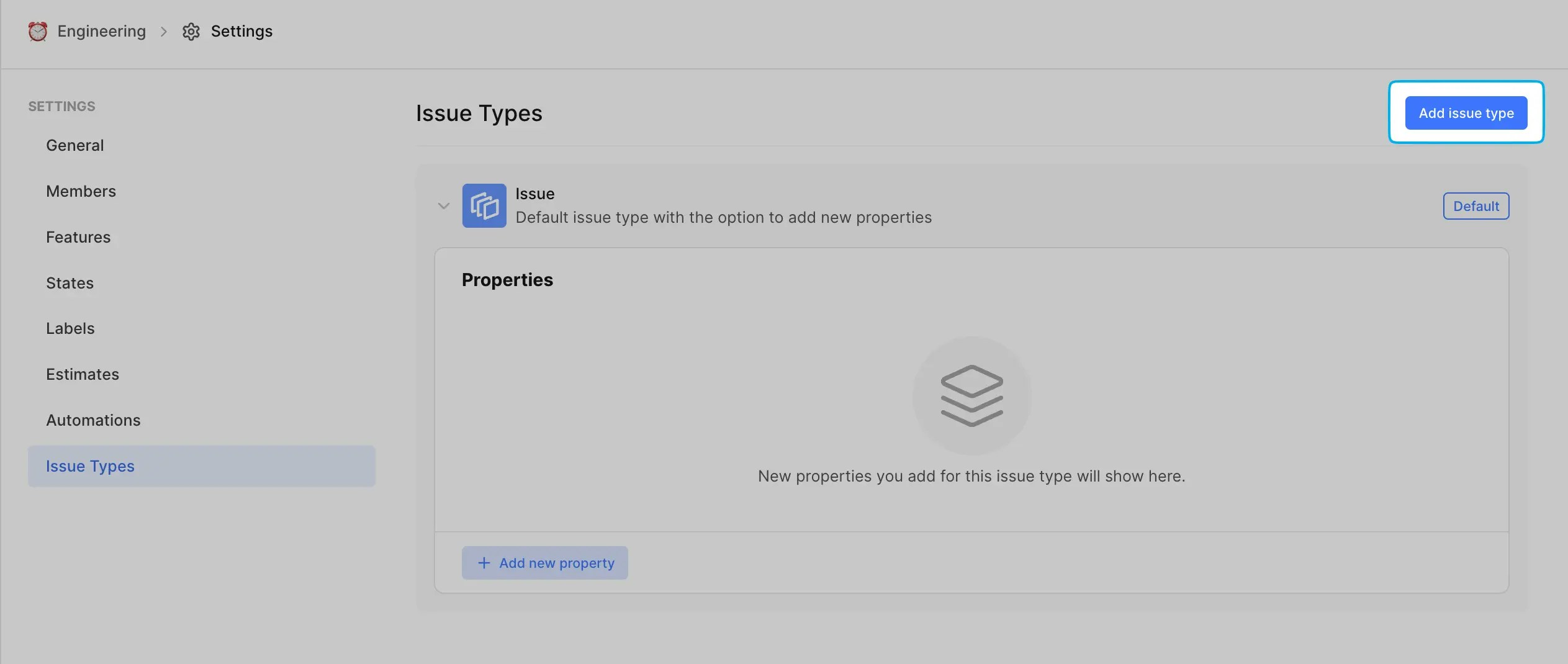
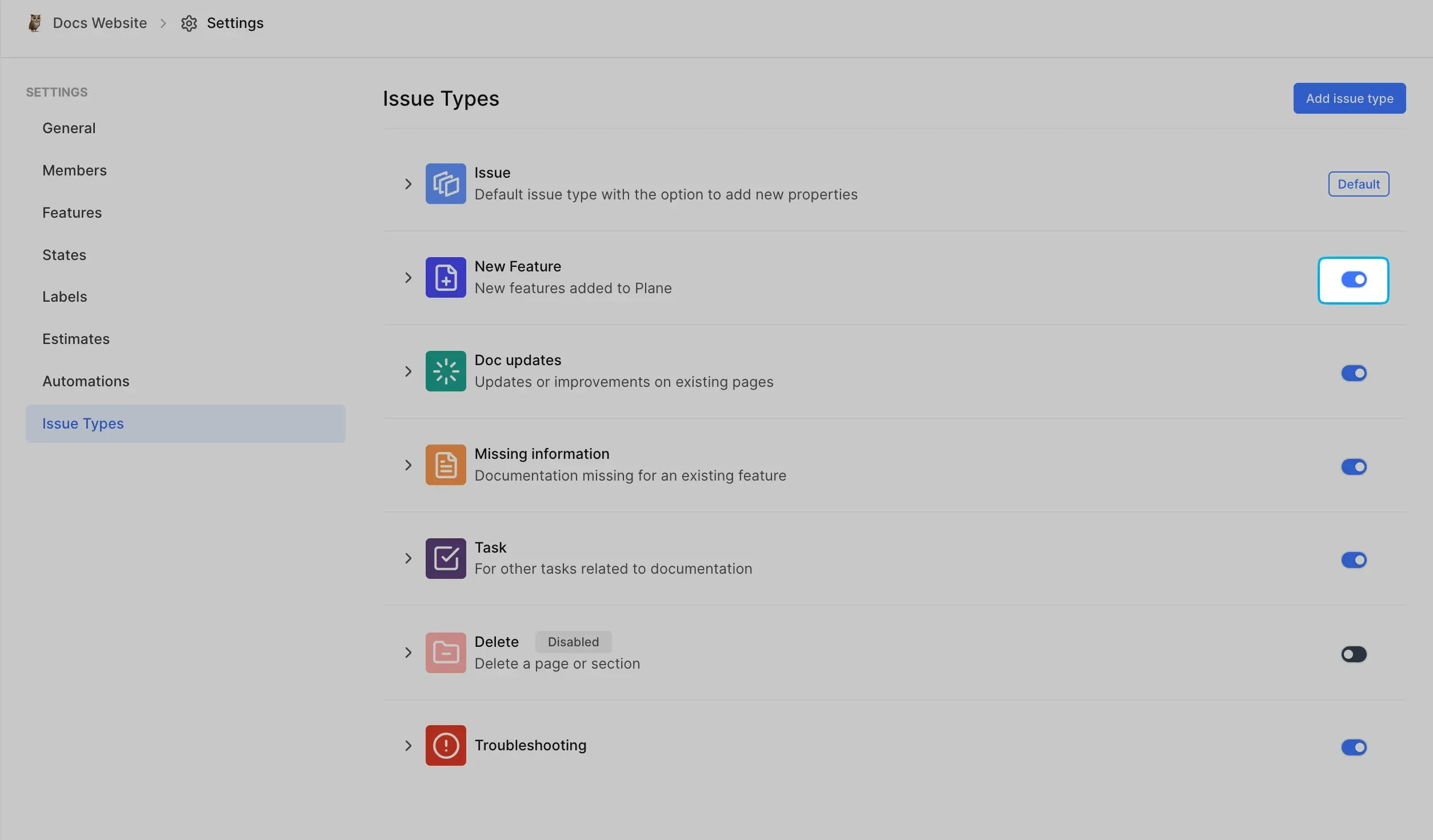
3. Click the **Enable** button to start creating work item types for your project. 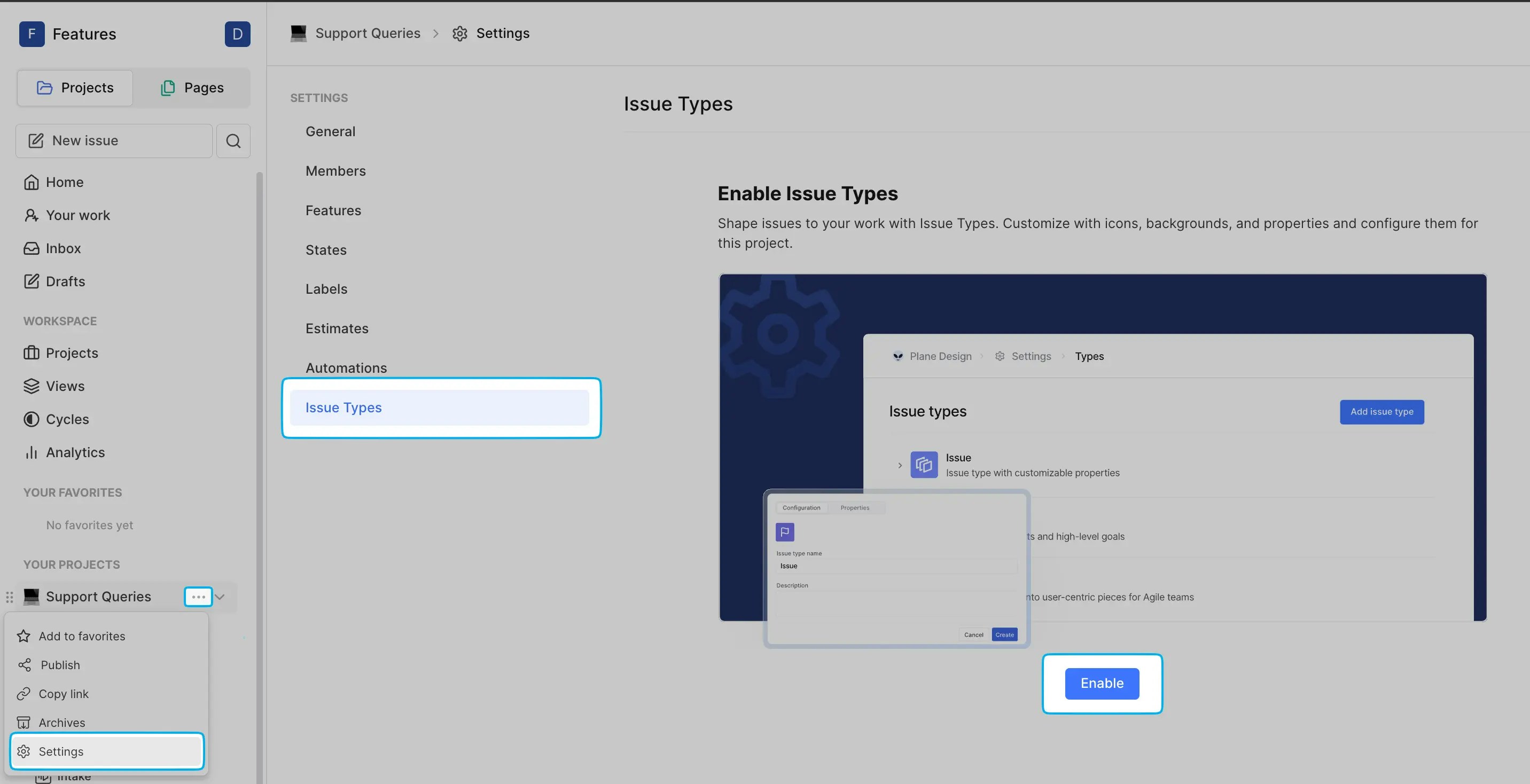 4. The default type is called `Issue`. Click the **Add Work item Type** button to create a new work item type.
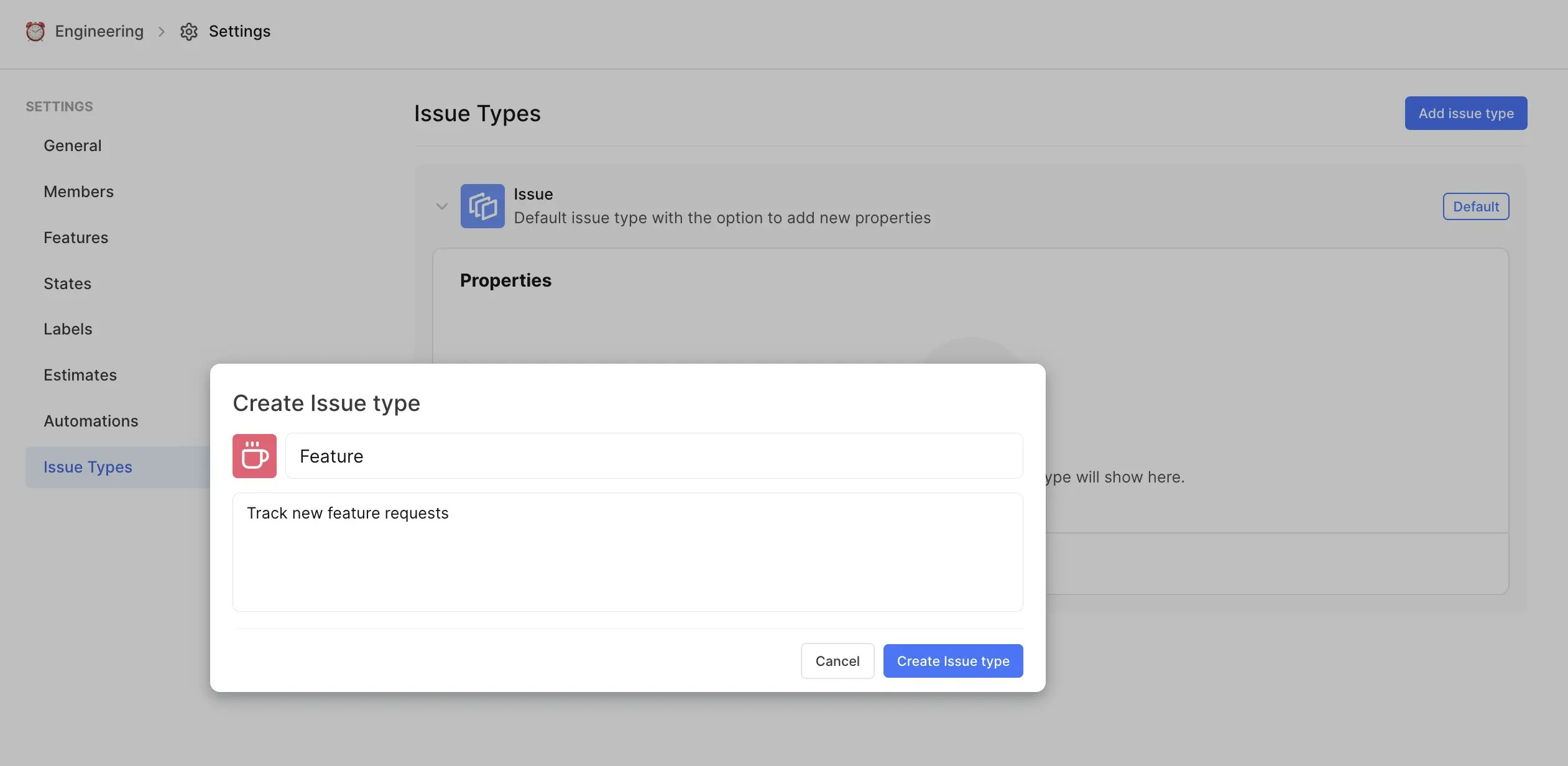
  5. In the **Create work item type** modal, type name, and description, and choose a background color and an icon to represent the work item type. Click the **Create work item type** button.
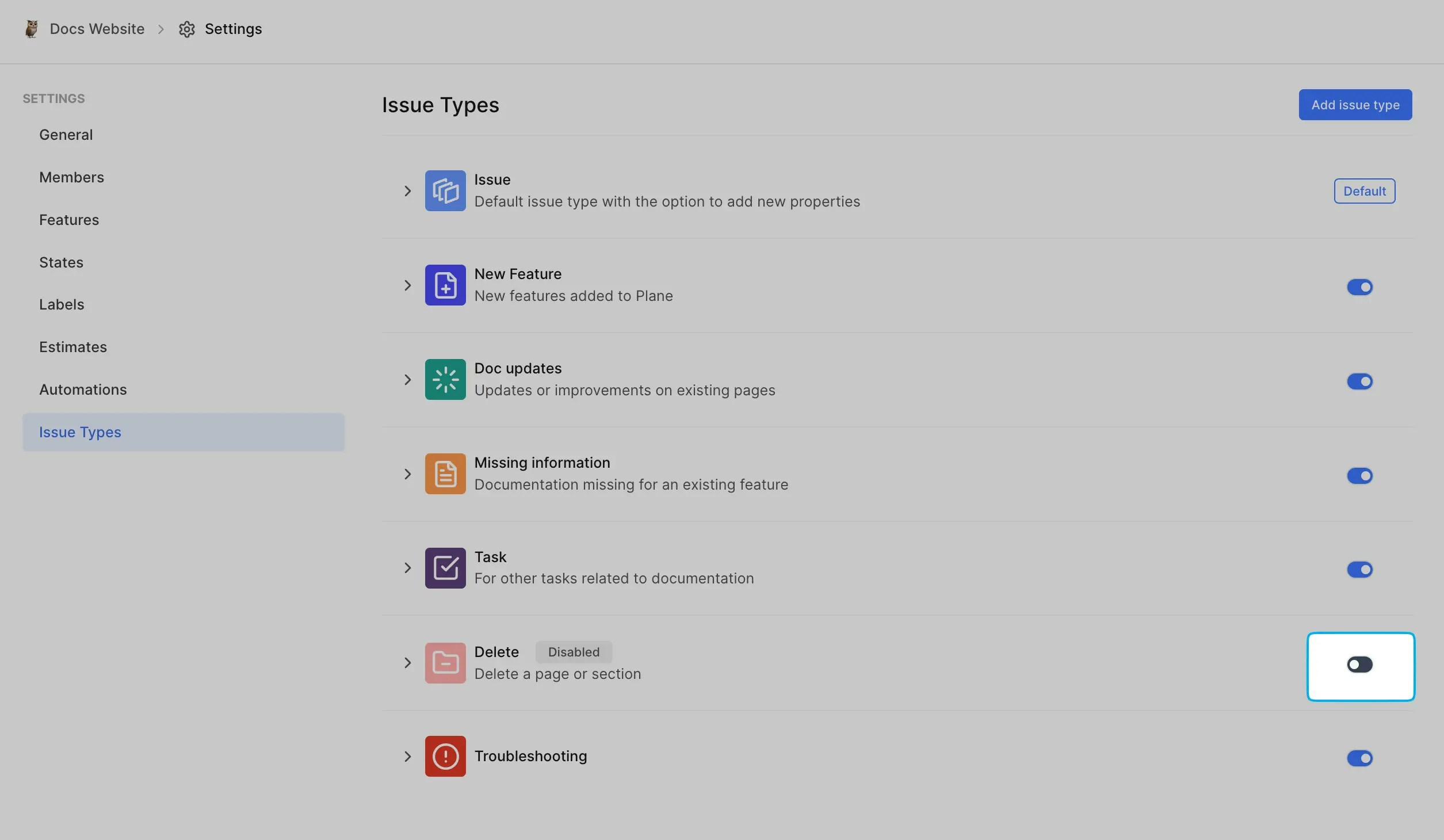
  6. Switch on the toggle button to allow users to select the work item type when creating work items and sub-work items.
  ### Examples of work item types[](#examples-of-work-item-types "Direct link to Examples of work item types")
* *IT development teams* `Bug` `Improvement` `Epic` `Story`
* *IT support teams* `Incident` `Change` `Service request` `New feature`
* *Product management* `Product launches` `User research` `Feature development` `Market analysis`
* *Production units (automobile)* `Production planning`, `Material procurement`, `Quality control`, `Inventory management`
* *Design agencies* `Revision requests` `Design drafting` `Client presentation` `Quality assurance`
* *NGOs* `Grant writing` `Volunteer coordination` `Beneficiary management`
## Add custom properties[](#add-custom-properties "Direct link to Add custom properties")
> **Role**: Project Admins
Adding custom properties to the default work item type Issue and other newly created work item types is possible.
1. Under the work item type, click **Add New Property** to create custom fields.
### Examples of work item types[](#examples-of-work-item-types "Direct link to Examples of work item types")
* *IT development teams* `Bug` `Improvement` `Epic` `Story`
* *IT support teams* `Incident` `Change` `Service request` `New feature`
* *Product management* `Product launches` `User research` `Feature development` `Market analysis`
* *Production units (automobile)* `Production planning`, `Material procurement`, `Quality control`, `Inventory management`
* *Design agencies* `Revision requests` `Design drafting` `Client presentation` `Quality assurance`
* *NGOs* `Grant writing` `Volunteer coordination` `Beneficiary management`
## Add custom properties[](#add-custom-properties "Direct link to Add custom properties")
> **Role**: Project Admins
Adding custom properties to the default work item type Issue and other newly created work item types is possible.
1. Under the work item type, click **Add New Property** to create custom fields. 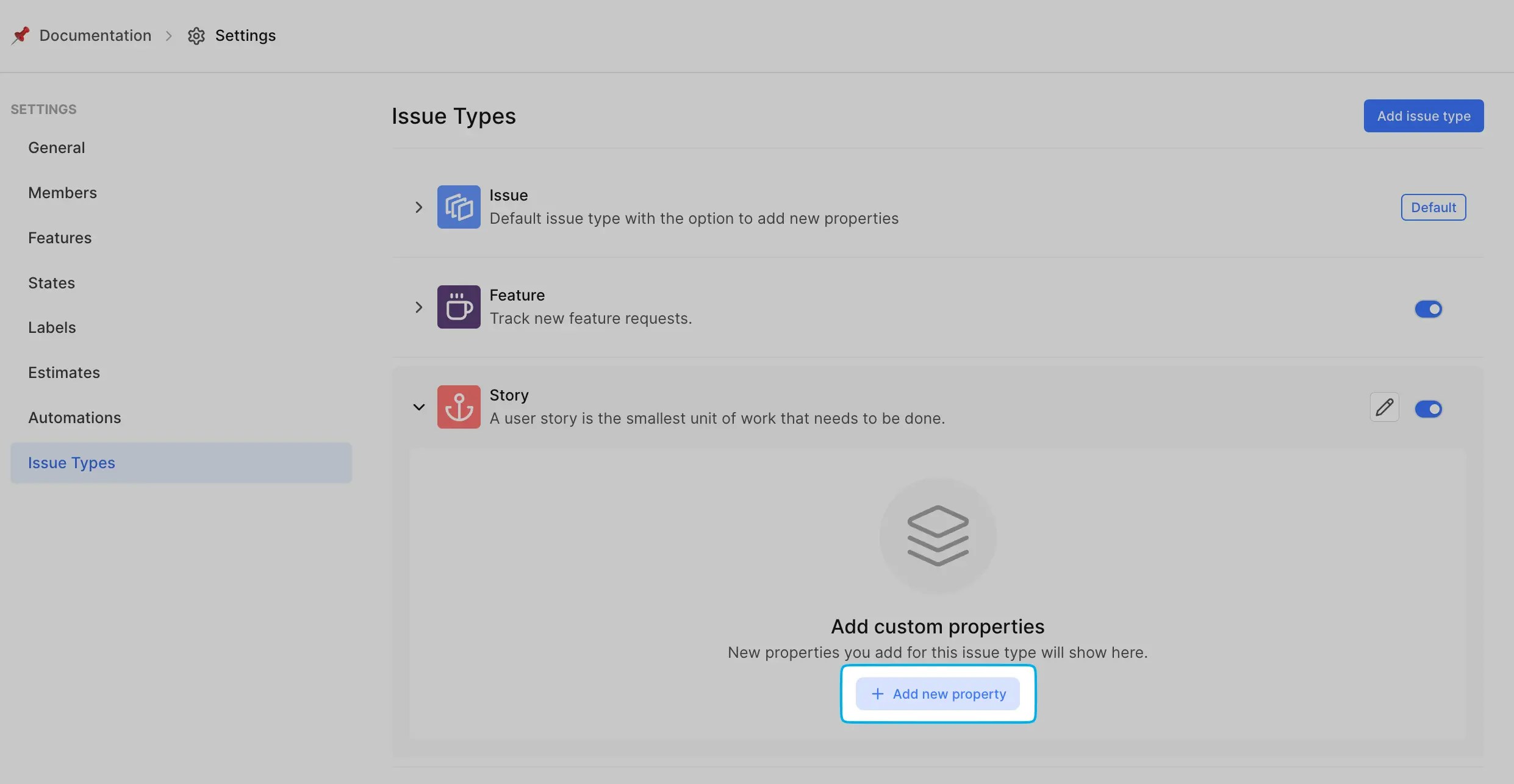 2. Specify values for **Title**, **Description** and **Property type** of the new property.
 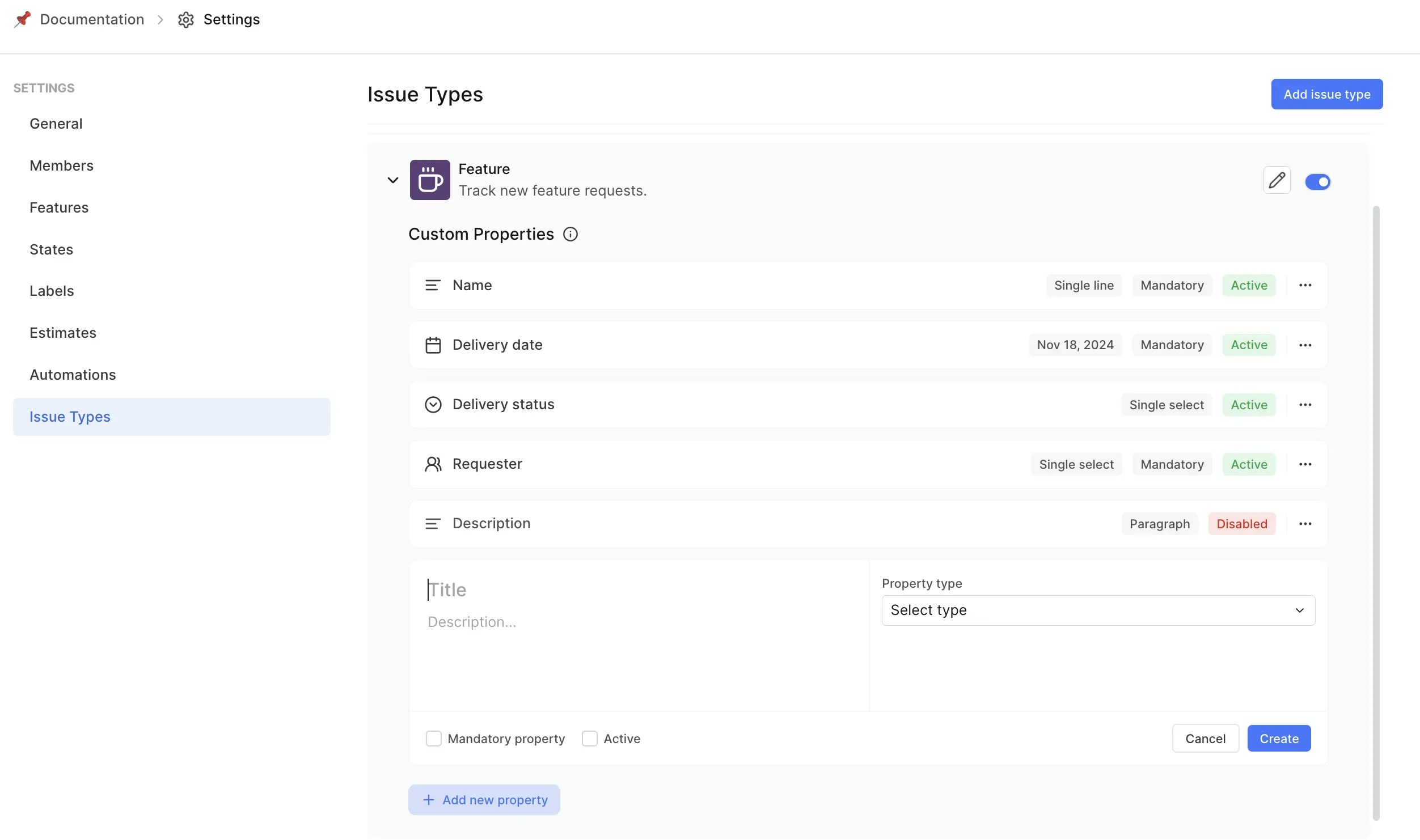 3. Select the **Mandatory property** checkbox if it's a required field. Select the **Active** checkbox to make the property visible in work items.
4. Click **Create** to add the property to the work item type.
Before you delete properties, switch off the **Active** toggle button to avoid data loss.
### Property types[](#property-types "Direct link to Property types")
Here's a list of all the property types and attributes that Plane provides for creating custom fields:
| Property type | Attributes | Notes |
| ----------------- | ---------------------------------------- | ---------------------------------------------------------------------------------------------------------------- |
| **Text** | Single line, Paragraph, Read-only | The **Read-only** attribute cannot be marked as mandatory. Enter text in the Read only data box for this option. |
| **Number** | Default value | An optional default value can be given to this property type. |
| **Dropdown** | Single select, Multi select, Add options | Specify the values for the dropdown under **Add options**. |
| **Boolean** | True/False | Default value is false. This attribute cannot be marked as mandatory. |
| **Date** | Date Format | Consistent date format across all properties. |
| **Member picker** | Single Select, Multi select | Displays a list of all project members. |
### Examples of custom properties[](#examples-of-custom-properties "Direct link to Examples of custom properties")
* *Product launch* `Launch date` `Geography` `Budget` `Approval status` `Stakeholder`
* *Bug* `Affected version` `Resolved version` `Environment` `Steps to reproduce` `Approval status` `Customer impact`
* *Final design approval* `Final design files` `Approval checklist` `Client approval date` `Responsible person`
## Use work item types[](#use-work-item-types "Direct link to Use work item types")
Once the project Admin sets up the work item types any project member can use them when creating work items or sub-work items.
* In the **Create new work item** modal, the user can choose the desired work item type from the list at the top left corner. By default, the work item type `Issue` is selected displaying both system-defined and custom properties.
* Changing the work item type will update the modal to display the relevant properties for that type.
* The system ensures that all properties marked as mandatory are filled before creating the work item.
3. Select the **Mandatory property** checkbox if it's a required field. Select the **Active** checkbox to make the property visible in work items.
4. Click **Create** to add the property to the work item type.
Before you delete properties, switch off the **Active** toggle button to avoid data loss.
### Property types[](#property-types "Direct link to Property types")
Here's a list of all the property types and attributes that Plane provides for creating custom fields:
| Property type | Attributes | Notes |
| ----------------- | ---------------------------------------- | ---------------------------------------------------------------------------------------------------------------- |
| **Text** | Single line, Paragraph, Read-only | The **Read-only** attribute cannot be marked as mandatory. Enter text in the Read only data box for this option. |
| **Number** | Default value | An optional default value can be given to this property type. |
| **Dropdown** | Single select, Multi select, Add options | Specify the values for the dropdown under **Add options**. |
| **Boolean** | True/False | Default value is false. This attribute cannot be marked as mandatory. |
| **Date** | Date Format | Consistent date format across all properties. |
| **Member picker** | Single Select, Multi select | Displays a list of all project members. |
### Examples of custom properties[](#examples-of-custom-properties "Direct link to Examples of custom properties")
* *Product launch* `Launch date` `Geography` `Budget` `Approval status` `Stakeholder`
* *Bug* `Affected version` `Resolved version` `Environment` `Steps to reproduce` `Approval status` `Customer impact`
* *Final design approval* `Final design files` `Approval checklist` `Client approval date` `Responsible person`
## Use work item types[](#use-work-item-types "Direct link to Use work item types")
Once the project Admin sets up the work item types any project member can use them when creating work items or sub-work items.
* In the **Create new work item** modal, the user can choose the desired work item type from the list at the top left corner. By default, the work item type `Issue` is selected displaying both system-defined and custom properties.
* Changing the work item type will update the modal to display the relevant properties for that type.
* The system ensures that all properties marked as mandatory are filled before creating the work item. 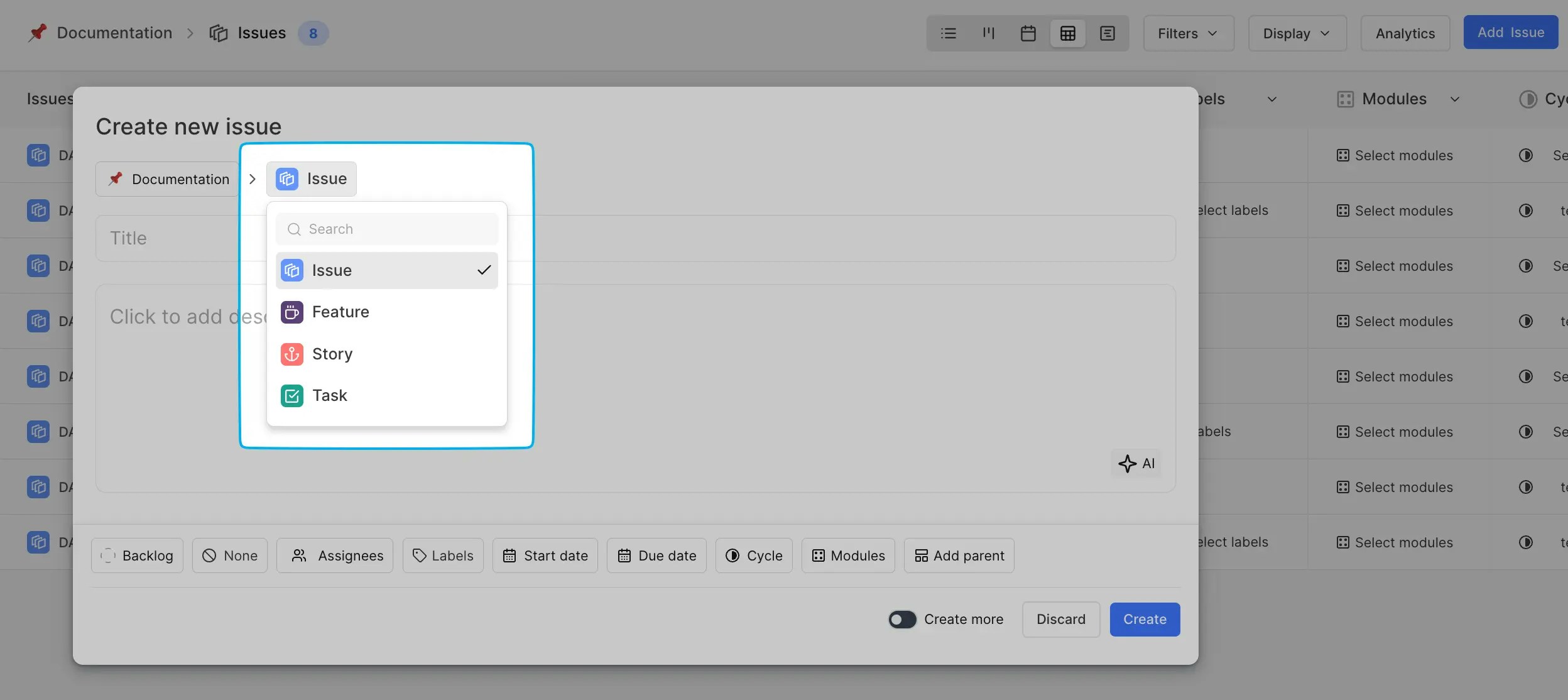 When viewing work items, the work item type is displayed with an icon near the title for easy identification. Any custom properties added will also appear in the list of properties, and changes to these values are tracked in the work item's activity trail.
## Switch work item types[](#switch-work-item-types "Direct link to Switch work item types")
You can easily switch the work item's type at any time. Just follow these steps:
1. Open the work item you’d like to update.
2. Hover over to the right of the work item ID and click **Switch work item type**. Alternatively, you can click **Edit** from the work item's ellipsis (•••) menu to open the **Update work item** modal directly.
When viewing work items, the work item type is displayed with an icon near the title for easy identification. Any custom properties added will also appear in the list of properties, and changes to these values are tracked in the work item's activity trail.
## Switch work item types[](#switch-work-item-types "Direct link to Switch work item types")
You can easily switch the work item's type at any time. Just follow these steps:
1. Open the work item you’d like to update.
2. Hover over to the right of the work item ID and click **Switch work item type**. Alternatively, you can click **Edit** from the work item's ellipsis (•••) menu to open the **Update work item** modal directly. 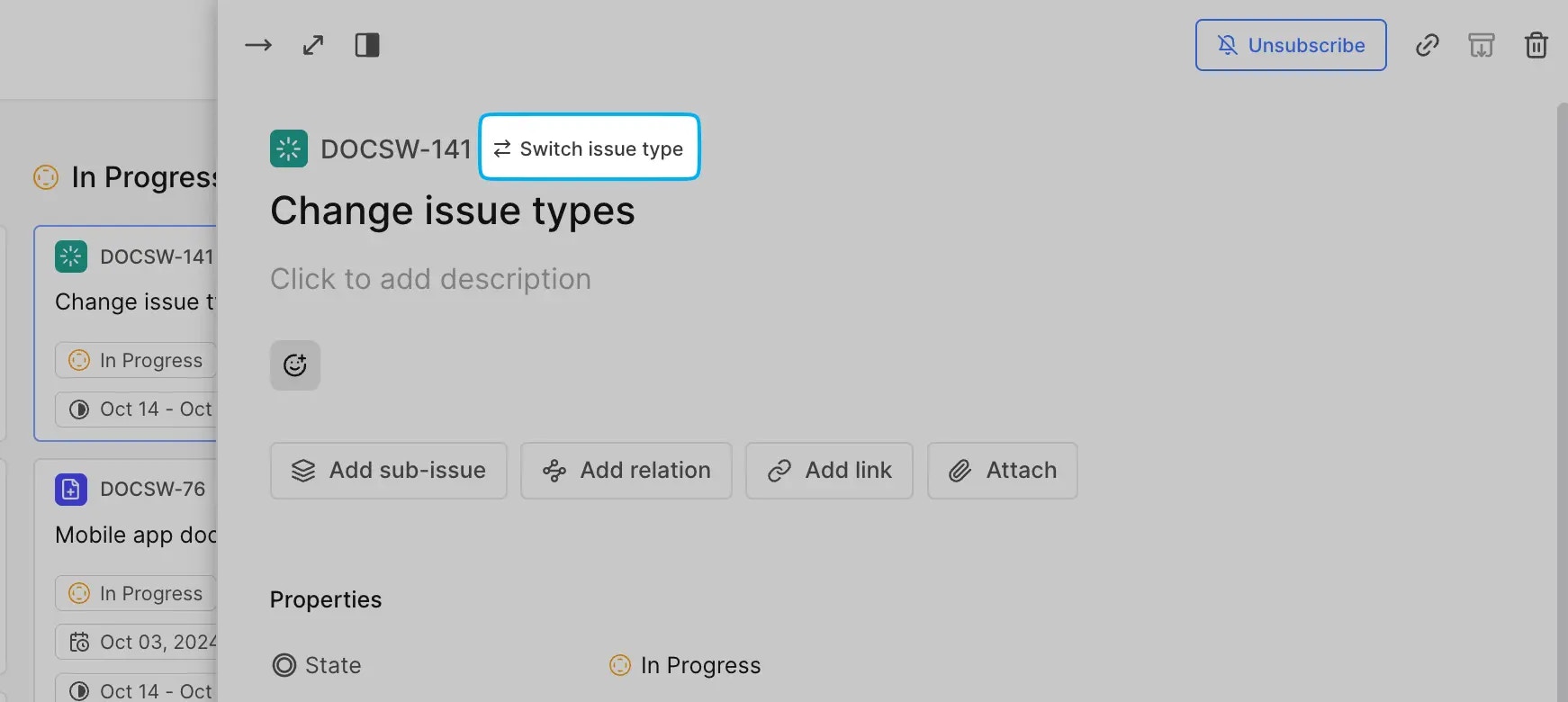 3. Choose the new work item type from the dropdown next to your project name.
 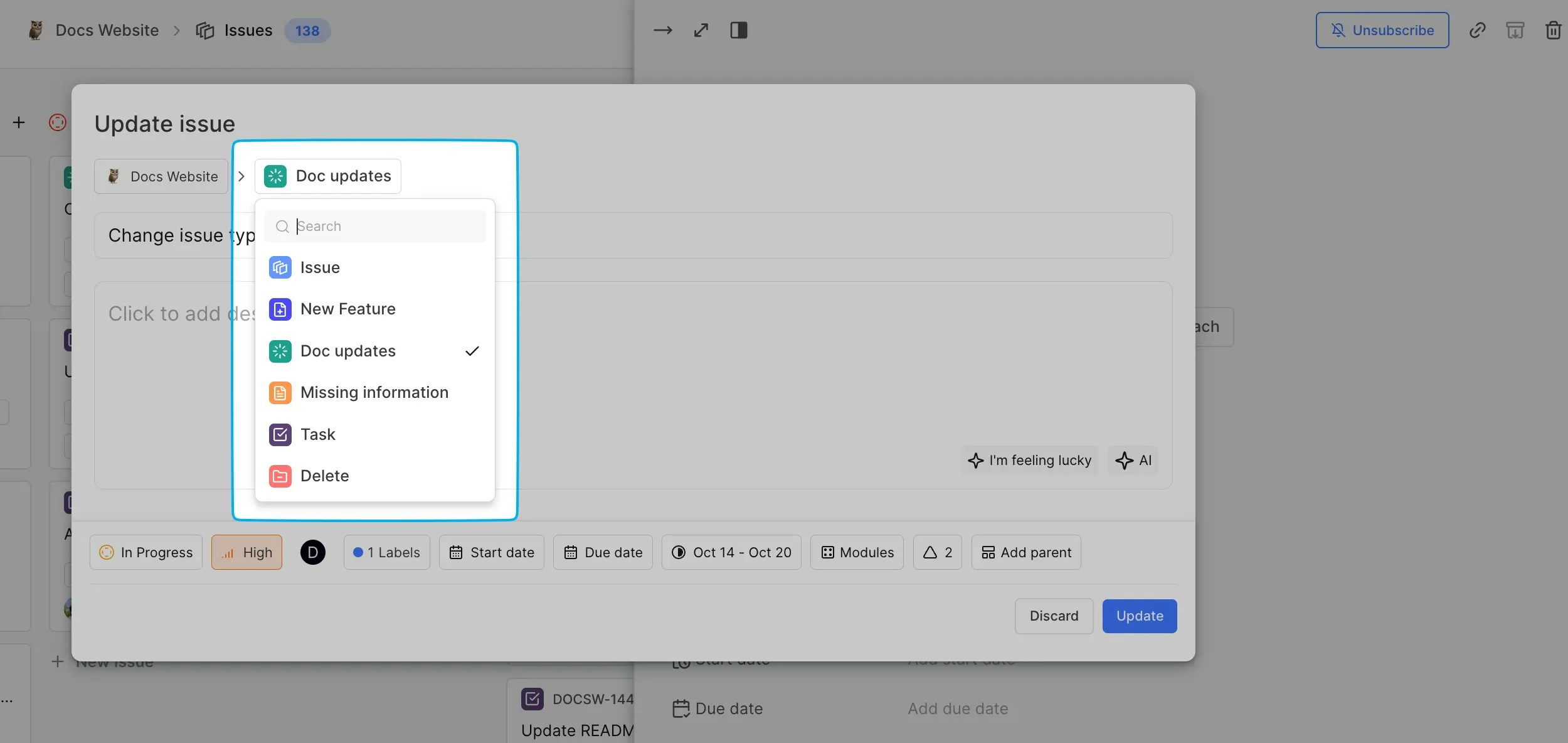 4. Click **Update** to save your changes.
## Bulk update work item types[](#bulk-update-work-item-types "Direct link to Bulk update work item types")
You can change the work item types for several work items at once. Here’s how:
1. Switch to the **Spreadsheet** layout in the Work items page.
2. Select the work items you want to update.
3. At the bottom of your screen, open the **Work item type** dropdown and pick the new work item type.
4. Click **Update** to save your changes.
## Bulk update work item types[](#bulk-update-work-item-types "Direct link to Bulk update work item types")
You can change the work item types for several work items at once. Here’s how:
1. Switch to the **Spreadsheet** layout in the Work items page.
2. Select the work items you want to update.
3. At the bottom of your screen, open the **Work item type** dropdown and pick the new work item type. 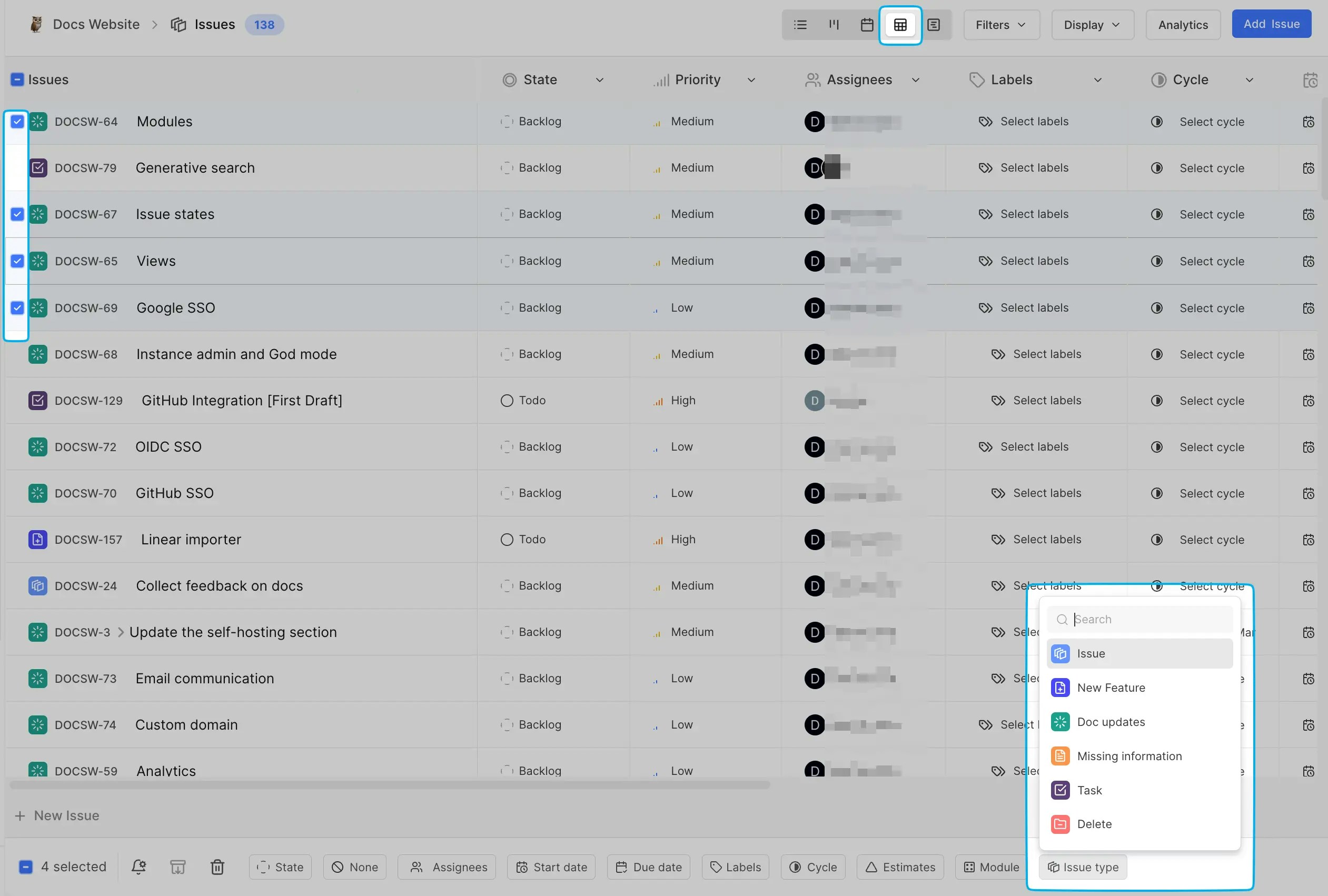 4. Click **Update** to apply the changes.
## Disable work item types[](#disable-work-item-types "Direct link to Disable work item types")
You can temporarily pause the creation of new work items for a specific work item type without affecting existing ones.
1. Head to the **Work item types** screen in your project's settings.
2. Toggle off the switch next to the work item type you want to disable.
4. Click **Update** to apply the changes.
## Disable work item types[](#disable-work-item-types "Direct link to Disable work item types")
You can temporarily pause the creation of new work items for a specific work item type without affecting existing ones.
1. Head to the **Work item types** screen in your project's settings.
2. Toggle off the switch next to the work item type you want to disable.