> ## Documentation Index
> Fetch the complete documentation index at: https://docs.onestack.cloud/llms.txt
> Use this file to discover all available pages before exploring further.
# Work items
> In Plane, a work item serves as the fundamental unit of work. They represent the tasks you need to accomplish to make progress Think of work items as the to-dos of your project management flow—assignable, trackable, and actionable.
## Create work item[](#create-work-item "Direct link to Create work item")
The quickest way to add a new work item is to press `C` on your keyboard. By default, the work item will be assigned to the project you are currently on or the one you last visited.
You can also head over to the **Work items** tab in the sidebar and click **Add Work item** at the top right of the screen.
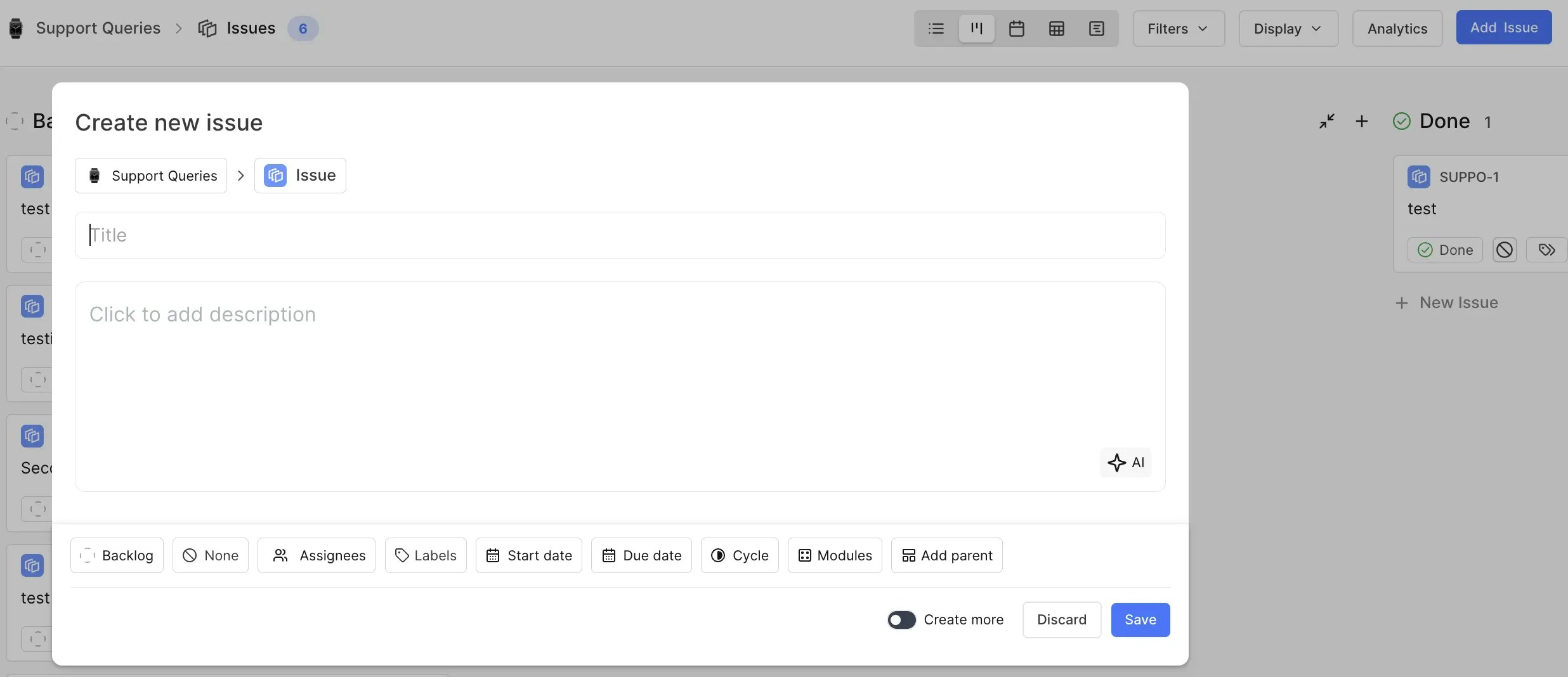 In the **Create new work item** modal, you can define all the attributes of the work item, including title, description, assignees, state, priority, labels, due dates, and more. You can also turn on the **Create more** option to add multiple work items one after the other.
When you create a work item, Plane assigns it a sequential identifier based on your project (e.g., PROJ-1).
Plane automatically saves your half-written work items so you can access them later in [Drafts](/core-concepts/drafts), in case you're not ready to finalize them or if you accidentally close the modal.
### Quick add work items[](#quick-add-work-items "Direct link to Quick add work items")
For when you're in the middle of your workflow and need to jot something down fast, Plane lets you create a work item with minimal input and come back to refine it later.
In the **Create new work item** modal, you can define all the attributes of the work item, including title, description, assignees, state, priority, labels, due dates, and more. You can also turn on the **Create more** option to add multiple work items one after the other.
When you create a work item, Plane assigns it a sequential identifier based on your project (e.g., PROJ-1).
Plane automatically saves your half-written work items so you can access them later in [Drafts](/core-concepts/drafts), in case you're not ready to finalize them or if you accidentally close the modal.
### Quick add work items[](#quick-add-work-items "Direct link to Quick add work items")
For when you're in the middle of your workflow and need to jot something down fast, Plane lets you create a work item with minimal input and come back to refine it later.
 ## View work item details[](#view-work-item-details "Direct link to View work item details")
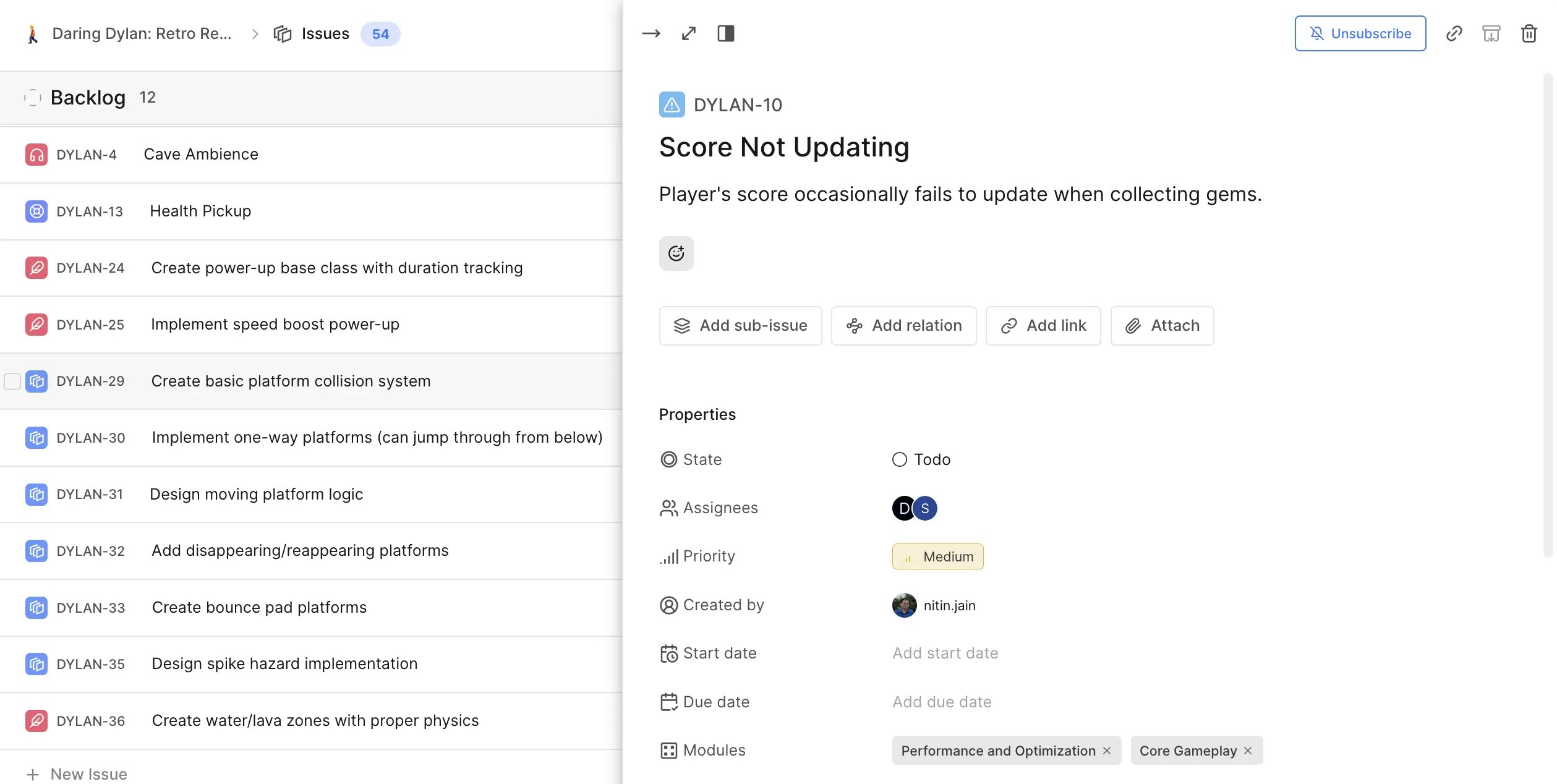
An work item in your board opens by default in the peek overview mode, which allows for easy switching between contexts when browsing multiple work items simultaneously. In this mode, you can choose different styles, such as modal, full screen, or side peek, with side peek being the default option.
## View work item details[](#view-work-item-details "Direct link to View work item details")
An work item in your board opens by default in the peek overview mode, which allows for easy switching between contexts when browsing multiple work items simultaneously. In this mode, you can choose different styles, such as modal, full screen, or side peek, with side peek being the default option.
 ## Set work item properties[](#set-work-item-properties "Direct link to Set work item properties")
You can set various properties for a work item, including its state, assignees, priority, start date, and due date. For a complete list of all available properties, check out the [Properties](/core-concepts/issues/properties) page.
## Create sub-work items[](#create-sub-work-items "Direct link to Create sub-work items")
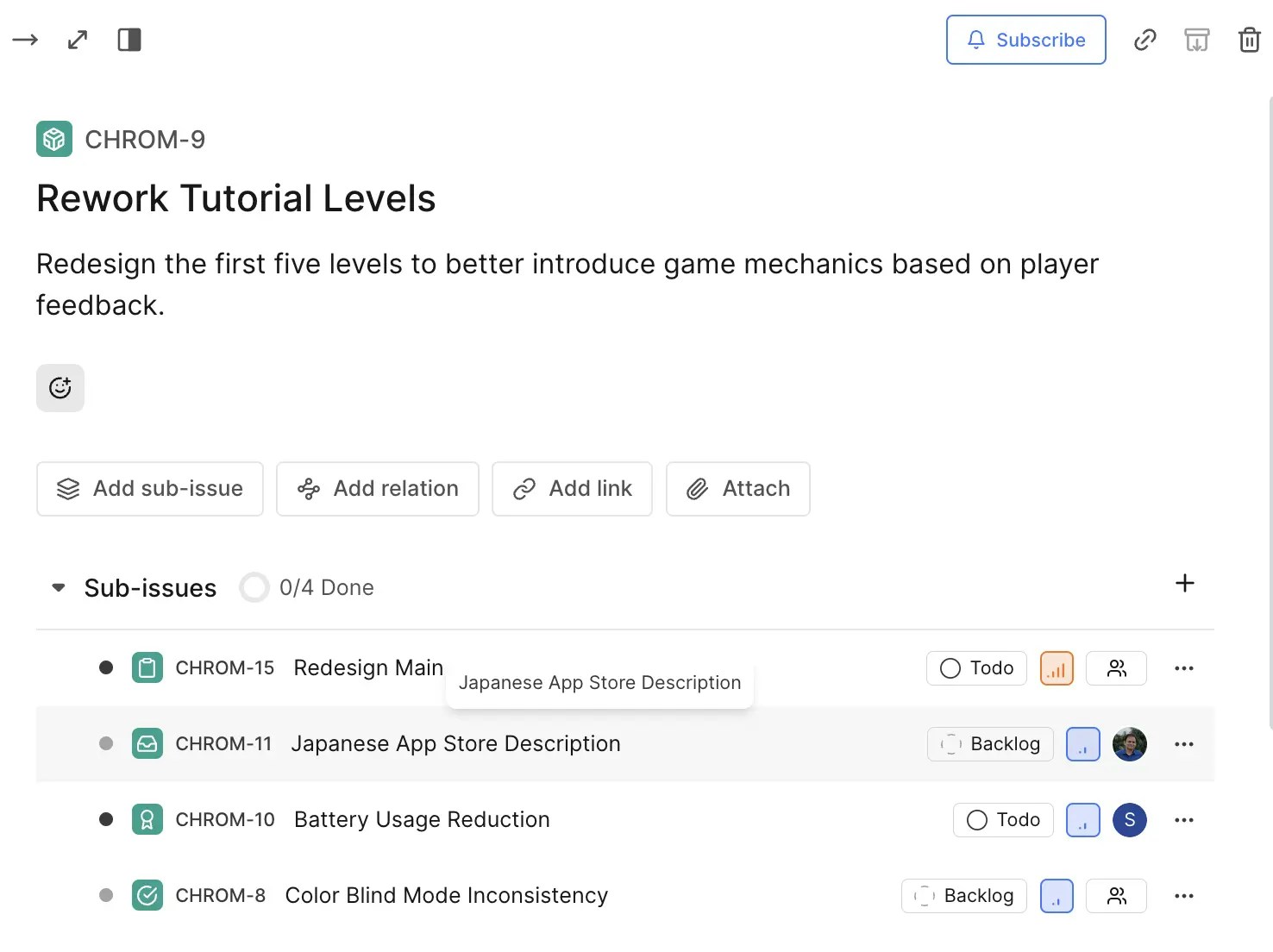
Break down larger tasks into smaller, manageable components by creating sub-work items. Sub-work items can be either newly created or linked to existing work items, giving you flexibility in organizing work.
## Set work item properties[](#set-work-item-properties "Direct link to Set work item properties")
You can set various properties for a work item, including its state, assignees, priority, start date, and due date. For a complete list of all available properties, check out the [Properties](/core-concepts/issues/properties) page.
## Create sub-work items[](#create-sub-work-items "Direct link to Create sub-work items")
Break down larger tasks into smaller, manageable components by creating sub-work items. Sub-work items can be either newly created or linked to existing work items, giving you flexibility in organizing work.
 ## Add relations[](#add-relations "Direct link to Add relations")
You can also set up relations and dependencies between work items using the **Relations** property. These relationships help clarify how work items are interconnected and how the completion of one task might affect another.
## Add relations[](#add-relations "Direct link to Add relations")
You can also set up relations and dependencies between work items using the **Relations** property. These relationships help clarify how work items are interconnected and how the completion of one task might affect another.
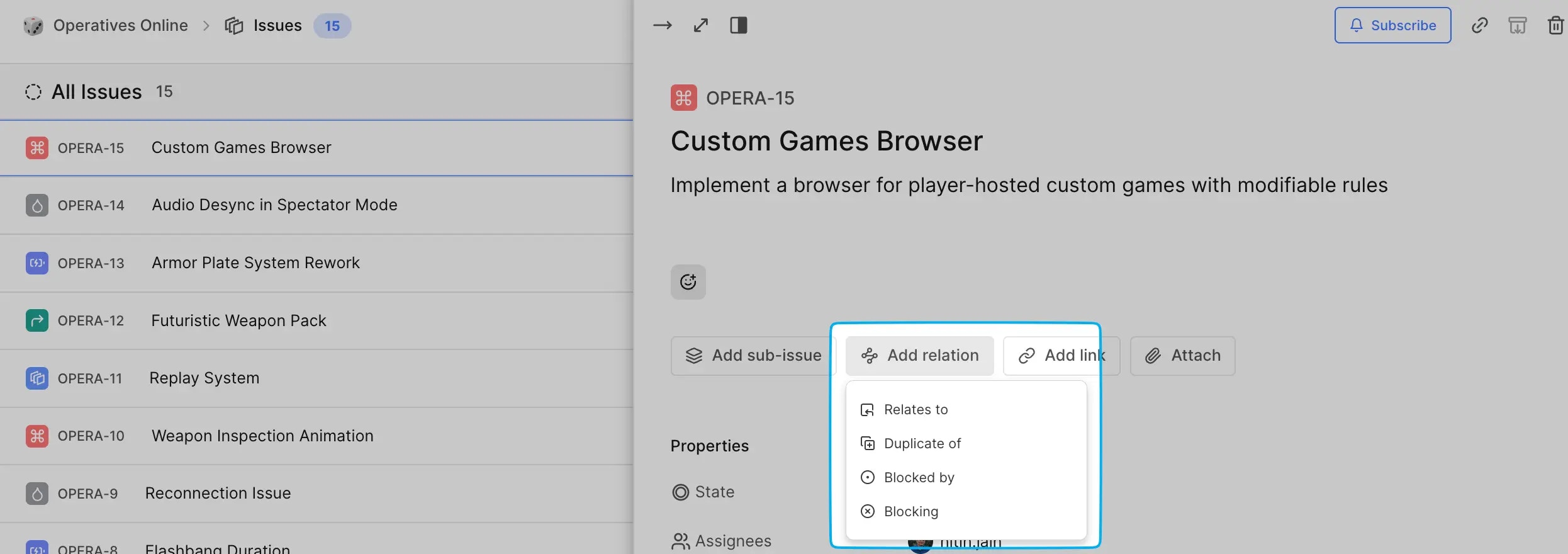 * **Relates to** This relation is used when two work items are linked by some kind of context or dependency, but one does not directly affect the other’s completion.
* **Duplicate of** This relation is used when one work item is a duplicate of another. The original work item remains active, while the duplicate work item is linked and typically closed or archived.
* **Blocking** When a work item is marked as Blocking, it means that the work item needs to be resolved first before the second work item can progress.
* **Blocked by** If a work item is marked as Blocked by, it indicates that the work item cannot proceed until the blocking work item is completed.
## Add links and attachments[](#add-links-and-attachments "Direct link to Add links and attachments")
You can easily add links and upload attachments to work items in Plane to provide additional context or resources.
* **Relates to** This relation is used when two work items are linked by some kind of context or dependency, but one does not directly affect the other’s completion.
* **Duplicate of** This relation is used when one work item is a duplicate of another. The original work item remains active, while the duplicate work item is linked and typically closed or archived.
* **Blocking** When a work item is marked as Blocking, it means that the work item needs to be resolved first before the second work item can progress.
* **Blocked by** If a work item is marked as Blocked by, it indicates that the work item cannot proceed until the blocking work item is completed.
## Add links and attachments[](#add-links-and-attachments "Direct link to Add links and attachments")
You can easily add links and upload attachments to work items in Plane to provide additional context or resources.
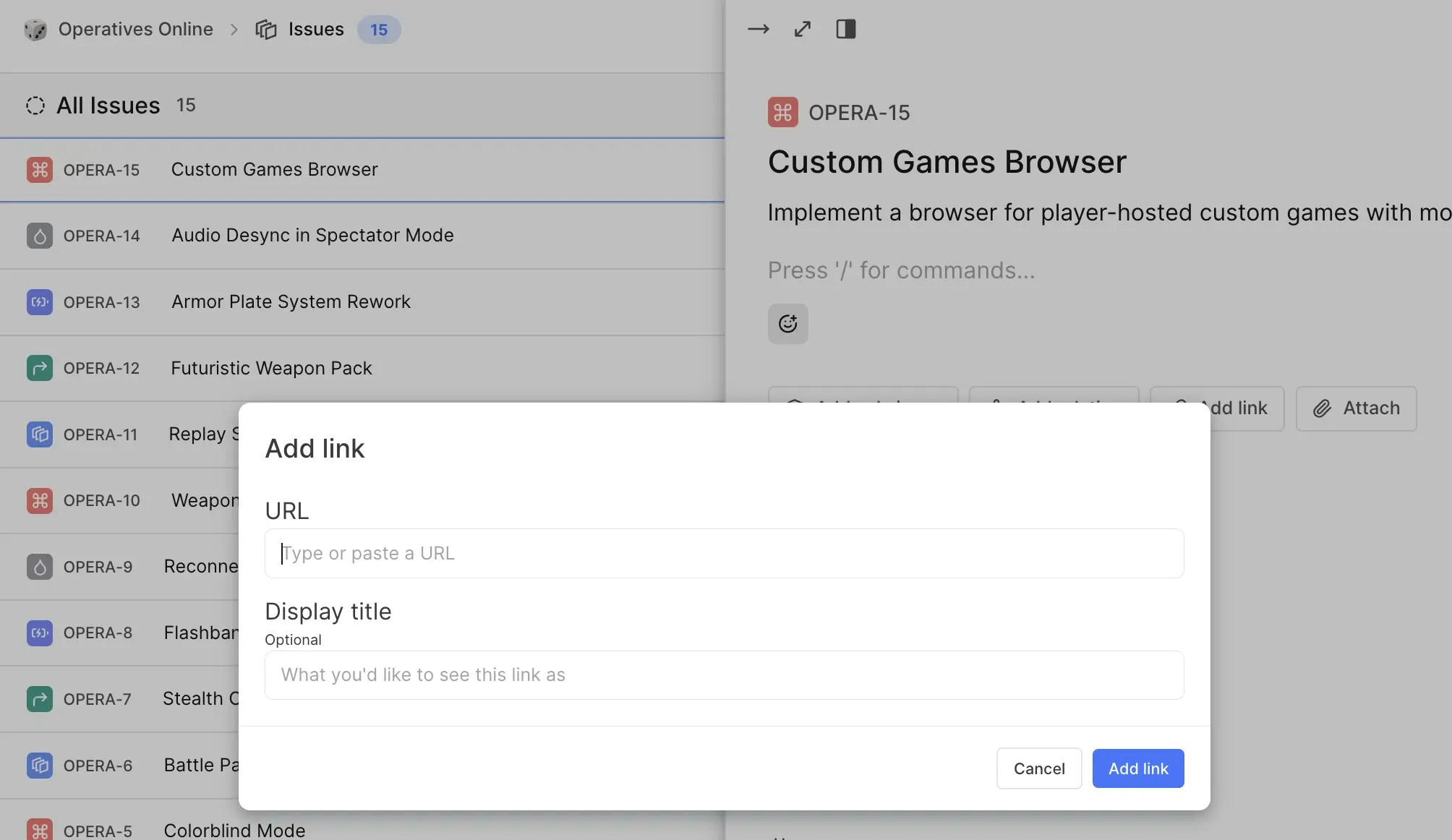 You can link to external resources, documentation, or related work items by adding URLs in the **Add link** modal. This helps in providing quick access to important references without cluttering the work item itself.
Plane allows you to upload different file types directly to the work item. Use the **Attach** button to upload attachments.
### Supported file types[](#supported-file-types "Direct link to Supported file types")
* **Images** JPEG, PNG, GIF, SVG, WebP, TIFF, BMP
* **Documents** PDF, Microsoft Word, Microsoft Excel, Microsoft PowerPoint, Plain Text, Rich Text Format (RTF), OpenDocument Spreadsheet, OpenDocument Text, OpenDocument Presentation, OpenDocument Graphics
* **Audio** MP3, WAV, OGG, MIDI, AAC, FLAC, M4A
* **Video** MP4, MPEG, OGG Video, WebM, QuickTime, AVI, WMV
* **Archives** ZIP, RAR, TAR, GZIP
* **Microsoft Visio** Visio Files
* **Netpbm formats** Portable Graymap, Portable Bitmap, Portable Pixmap
* **OpenOffice Base** Database files
* **3D models** GLTF Binary, GLTF JSON, OBJ
* **Fonts** TrueType, OpenType, WOFF, WOFF2
* **Other** CSS, JavaScript, JSON, XML, CSV
## View work item activity[](#view-work-item-activity "Direct link to View work item activity")
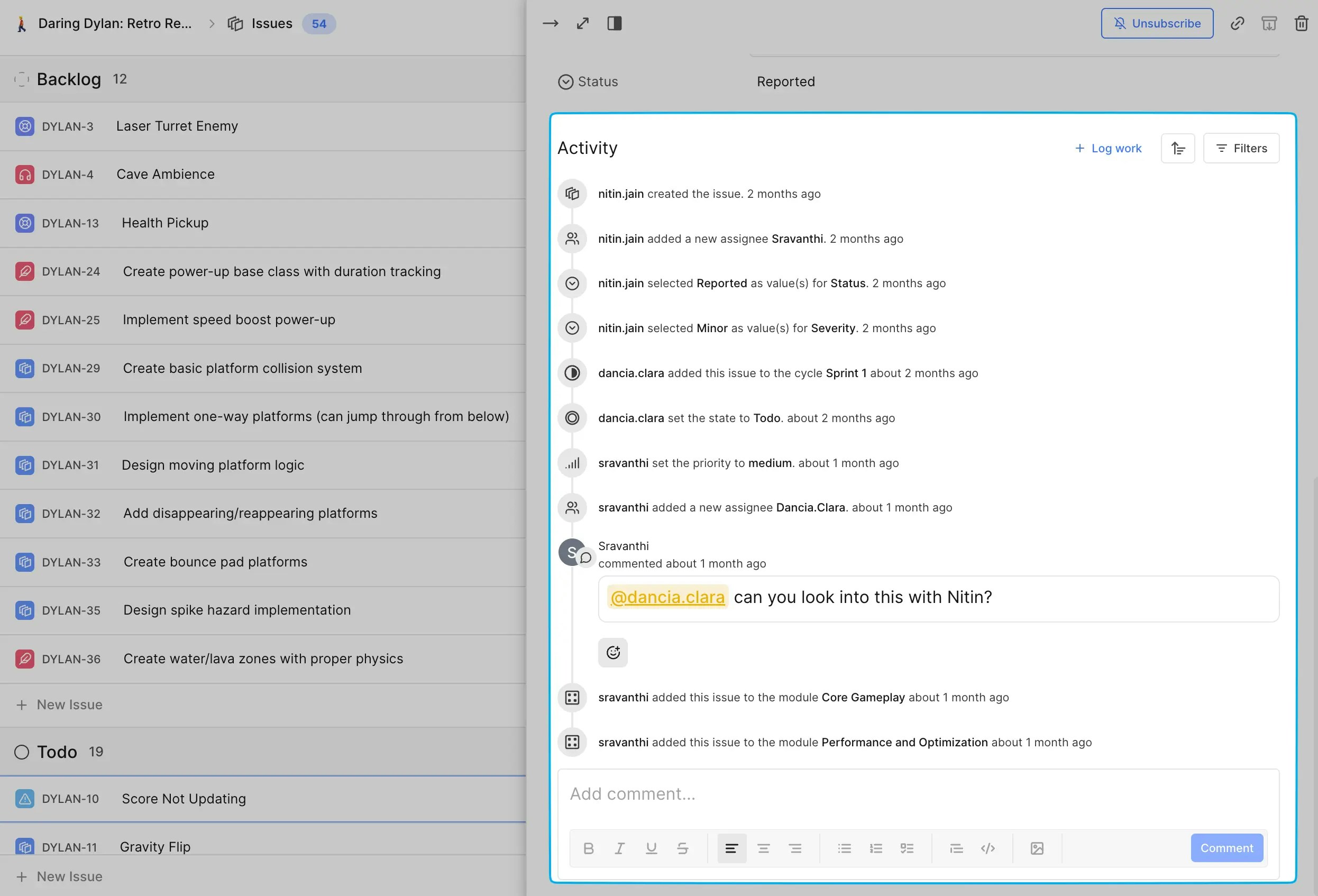
Inside each work item, you’ll find an Activity log tracking updates like status changes, reassignments, or due date modifications. This feed also logs comments, which support rich formatting for discussions, updates, or sharing resources related to the work item.
You can filter the activity log to display specific types of acticity, such as comments, updates, or [worklogs](/core-concepts/issues/time-tracking). Additionally, you can sort the log by activity date in either ascending or descending order.
You can link to external resources, documentation, or related work items by adding URLs in the **Add link** modal. This helps in providing quick access to important references without cluttering the work item itself.
Plane allows you to upload different file types directly to the work item. Use the **Attach** button to upload attachments.
### Supported file types[](#supported-file-types "Direct link to Supported file types")
* **Images** JPEG, PNG, GIF, SVG, WebP, TIFF, BMP
* **Documents** PDF, Microsoft Word, Microsoft Excel, Microsoft PowerPoint, Plain Text, Rich Text Format (RTF), OpenDocument Spreadsheet, OpenDocument Text, OpenDocument Presentation, OpenDocument Graphics
* **Audio** MP3, WAV, OGG, MIDI, AAC, FLAC, M4A
* **Video** MP4, MPEG, OGG Video, WebM, QuickTime, AVI, WMV
* **Archives** ZIP, RAR, TAR, GZIP
* **Microsoft Visio** Visio Files
* **Netpbm formats** Portable Graymap, Portable Bitmap, Portable Pixmap
* **OpenOffice Base** Database files
* **3D models** GLTF Binary, GLTF JSON, OBJ
* **Fonts** TrueType, OpenType, WOFF, WOFF2
* **Other** CSS, JavaScript, JSON, XML, CSV
## View work item activity[](#view-work-item-activity "Direct link to View work item activity")
Inside each work item, you’ll find an Activity log tracking updates like status changes, reassignments, or due date modifications. This feed also logs comments, which support rich formatting for discussions, updates, or sharing resources related to the work item.
You can filter the activity log to display specific types of acticity, such as comments, updates, or [worklogs](/core-concepts/issues/time-tracking). Additionally, you can sort the log by activity date in either ascending or descending order.
 ## Subscribe to notifications[](#subscribe-to-notifications "Direct link to Subscribe to notifications")
You’ll automatically receive email notifications for updates on work items that you’ve created or are assigned to. You can also view these notifications directly in **Inbox** on the sidebar. If you'd like to start receiving notifications for a work item you’re interested in, click **Subscribe** at the top right of the work item detail page.
If you no longer want to receive updates, simply click **Unsubscribe** to stop the notifications.
You can subscribe other users to the work item by mentioning them using `@username` in the comments or the work item description. This ensures they’re notified about the updates and stay in the loop.
## Archive work items[](#archive-work-items "Direct link to Archive work items")
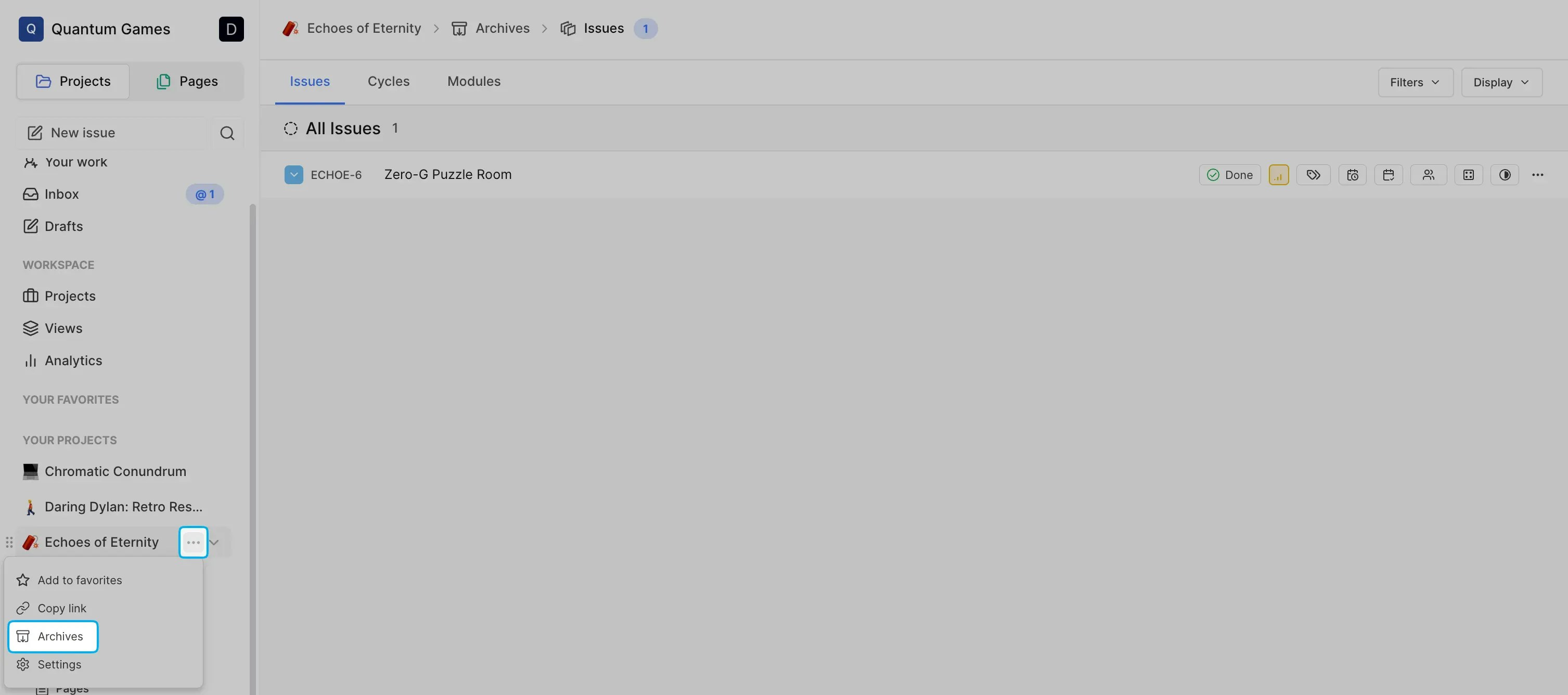
Completed or canceled work items can be archived, and automations can be set up to archive such work items. Archived work items can be found under the three dots menu next to your project name.
## Subscribe to notifications[](#subscribe-to-notifications "Direct link to Subscribe to notifications")
You’ll automatically receive email notifications for updates on work items that you’ve created or are assigned to. You can also view these notifications directly in **Inbox** on the sidebar. If you'd like to start receiving notifications for a work item you’re interested in, click **Subscribe** at the top right of the work item detail page.
If you no longer want to receive updates, simply click **Unsubscribe** to stop the notifications.
You can subscribe other users to the work item by mentioning them using `@username` in the comments or the work item description. This ensures they’re notified about the updates and stay in the loop.
## Archive work items[](#archive-work-items "Direct link to Archive work items")
Completed or canceled work items can be archived, and automations can be set up to archive such work items. Archived work items can be found under the three dots menu next to your project name.
 ## Delete work items[](#delete-work-items "Direct link to Delete work items")
You can delete work items that were created accidentally or are no longer relevant to the project. Deleted work items cannot be recovered, so be sure to review them carefully before removal. Once deleted, the work item is permanently removed from the project.
## Set up automations[](#set-up-automations "Direct link to Set up automations")
Within your project, you can set up automations to perform the following tasks:
* **Auto-archive closed work items** You can set up an automation to archive work items that are marked as closed. This helps keep your active project board clean and organized, while still retaining closed work items for reference. You can customize the time period after which closed work items will automatically be moved to the archive.
## Delete work items[](#delete-work-items "Direct link to Delete work items")
You can delete work items that were created accidentally or are no longer relevant to the project. Deleted work items cannot be recovered, so be sure to review them carefully before removal. Once deleted, the work item is permanently removed from the project.
## Set up automations[](#set-up-automations "Direct link to Set up automations")
Within your project, you can set up automations to perform the following tasks:
* **Auto-archive closed work items** You can set up an automation to archive work items that are marked as closed. This helps keep your active project board clean and organized, while still retaining closed work items for reference. You can customize the time period after which closed work items will automatically be moved to the archive.  * **Auto-close work items** You can also automate the closing of work items that are still open after a certain period of time. This is useful for ensuring that work items don’t remain open unnecessarily, helping to keep your project board organized and up to date. The automation will move all open work items matching the time period to a selected closed state.