> ## Documentation Index
> Fetch the complete documentation index at: https://docs.onestack.cloud/llms.txt
> Use this file to discover all available pages before exploring further.
# Break your project down into Modules
> Modules are smaller, focused projects that help users group and organize work items within specific time frames. They allow teams to break down their work into manageable chunks and track progress towards specific goals or objectives. They can serve various purposes: tracking progress on a new feature, managing a milestone like a marketing campaign, or representing discrete pieces of your software architecture such as a microservice.
## Turn on Modules[](#turn-on-modules "Direct link to Turn on Modules")
By default, Modules are turned on for all new projects. If you need to turn them on or off later, head to [Project settings](/core-concepts/projects/overview#project-settings) and toggle the Modules feature as needed.
## Create Module[](#create-module "Direct link to Create Module")
To create a new Module:
1. Press `M` from anywhere in the project or navigate to the Modules page on the sidebar and click **Add Module**.
2. Provide a name for the Module.
3. Optionally, add a description, state, designate a lead, and set start and due dates (these can also be added later).
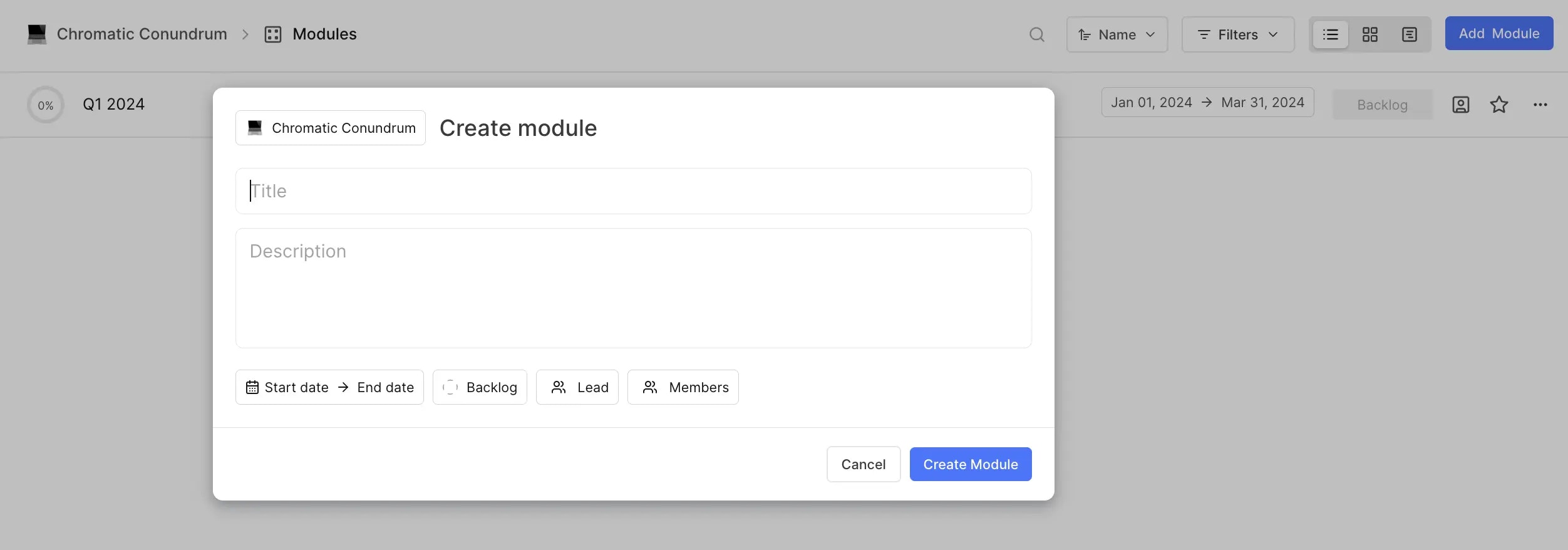 You can add Members to the Module irrespective of whether they are the assignees in the work items present in the Module.
## Add work items to Module[](#add-work-items-to-module "Direct link to Add work items to Module")
Once your Module is created, you can populate it with work items:
* Add new or existing work items directly from the Module page.
You can add Members to the Module irrespective of whether they are the assignees in the work items present in the Module.
## Add work items to Module[](#add-work-items-to-module "Direct link to Add work items to Module")
Once your Module is created, you can populate it with work items:
* Add new or existing work items directly from the Module page.  * Assign multiple Modules to a work item from its properties. For instance, a work item can belong to both a Feature module and a Release module simultaneously.
  ## Module states[](#module-states "Direct link to Module states")
Modules can be in one of the following states:
* **Backlog** - Newly created Modules start here by default.
* **Planned** - Indicating that the Module has been scheduled.
* **In Progress** - Work on the Module has started.
* **Paused** - Temporarily on hold.
* **Completed** - All work items in the Module are in the Done state.
* **Cancelled** - The Module has been discontinued.
These states provide a clear picture of where each Module stands in your project timeline. Users can plan their Modules with these statuses, offering clarity about the progress and current stage of each Module.
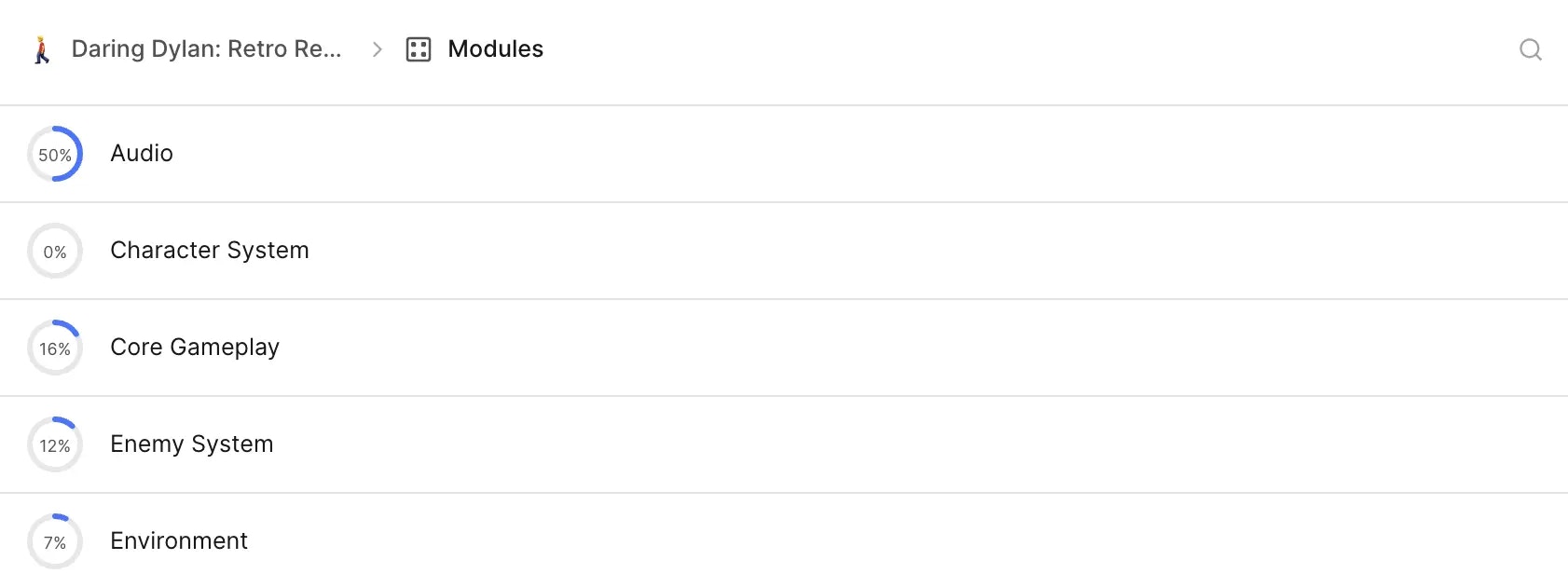
## Module progress[](#module-progress "Direct link to Module progress")
Module progress is calculated based on the number of completed work items within the Module. This offers a quick overview of how much work remains before the Module can be closed. Each Module comes with analytics and metrics, empowering teams to assess performance and the success of their goals.
## Module states[](#module-states "Direct link to Module states")
Modules can be in one of the following states:
* **Backlog** - Newly created Modules start here by default.
* **Planned** - Indicating that the Module has been scheduled.
* **In Progress** - Work on the Module has started.
* **Paused** - Temporarily on hold.
* **Completed** - All work items in the Module are in the Done state.
* **Cancelled** - The Module has been discontinued.
These states provide a clear picture of where each Module stands in your project timeline. Users can plan their Modules with these statuses, offering clarity about the progress and current stage of each Module.
## Module progress[](#module-progress "Direct link to Module progress")
Module progress is calculated based on the number of completed work items within the Module. This offers a quick overview of how much work remains before the Module can be closed. Each Module comes with analytics and metrics, empowering teams to assess performance and the success of their goals.
 ## View Module details[](#view-module-details "Direct link to View Module details")
* To view the work items within a module, simply click on the module itself.
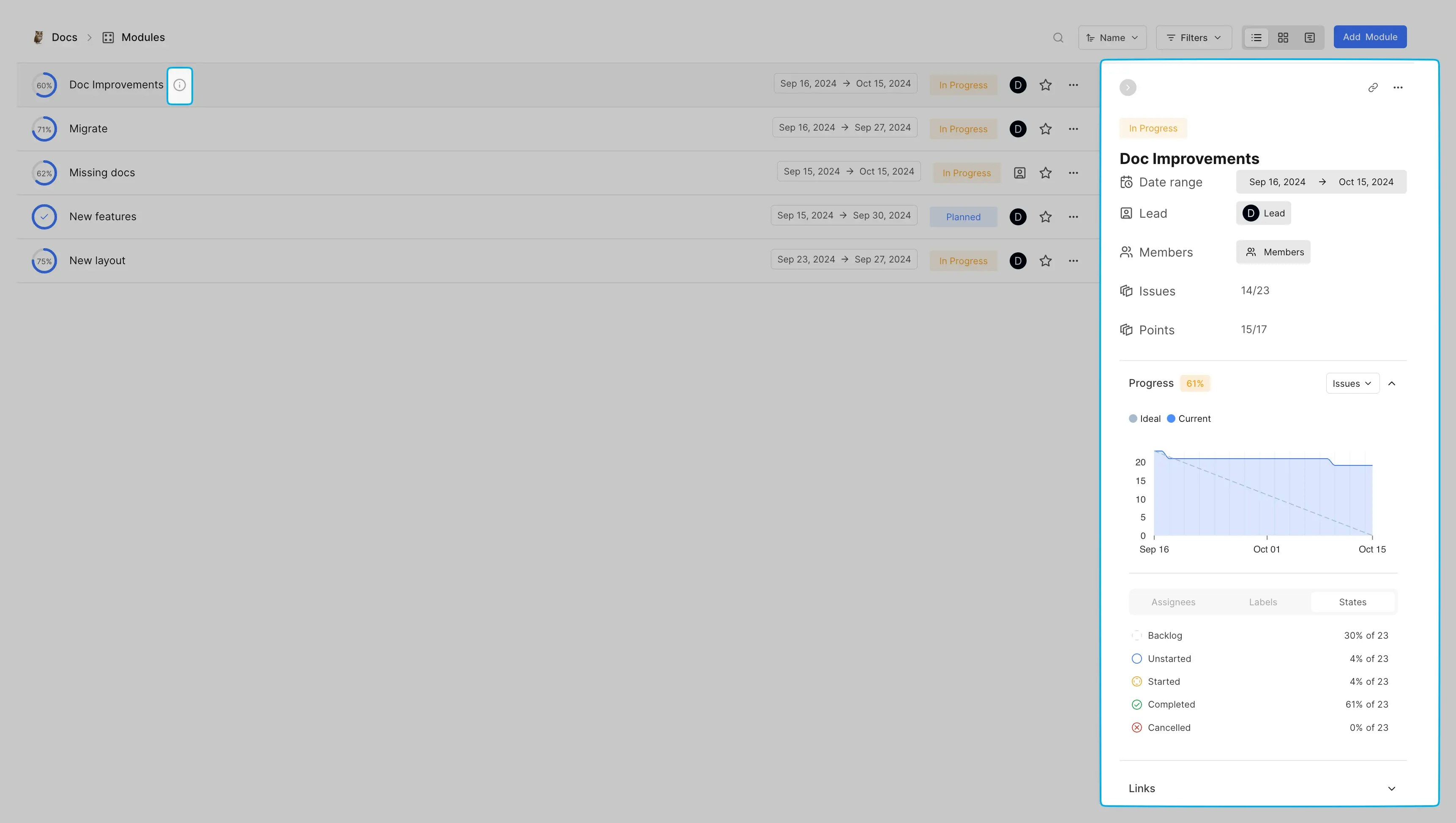
* For detailed information about the module, click the info icon next to the module name. This will display the following details:
* Name, description, Members, and assigned lead
* Start and due dates
* Work items in the Module and their statuses
* Progress indicators
* Additional properties like assignees, labels and states
## View Module details[](#view-module-details "Direct link to View Module details")
* To view the work items within a module, simply click on the module itself.
* For detailed information about the module, click the info icon next to the module name. This will display the following details:
* Name, description, Members, and assigned lead
* Start and due dates
* Work items in the Module and their statuses
* Progress indicators
* Additional properties like assignees, labels and states
 ## Search, sort, and filter Modules[](#search-sort-and-filter-modules "Direct link to Search, sort, and filter Modules")
Quickly locate specific Modules using the search, sorting, and filtering options. You can sort Modules by name, state, or due date, and apply filters to focus on relevant Modules.
## Module layouts[](#module-layouts "Direct link to Module layouts")
Visualize your Modules in different layouts:
* **List layout** – For simple ordered list of Modules in the project.
* **Gallery layout** – Displays Modules as cards, with a clear breakdown of work item counts by state for better visibility.
* **Timeline layout** – Displays the sequence of goals and their progress, helping you ensure your project is on track.
## Search, sort, and filter Modules[](#search-sort-and-filter-modules "Direct link to Search, sort, and filter Modules")
Quickly locate specific Modules using the search, sorting, and filtering options. You can sort Modules by name, state, or due date, and apply filters to focus on relevant Modules.
## Module layouts[](#module-layouts "Direct link to Module layouts")
Visualize your Modules in different layouts:
* **List layout** – For simple ordered list of Modules in the project.
* **Gallery layout** – Displays Modules as cards, with a clear breakdown of work item counts by state for better visibility.
* **Timeline layout** – Displays the sequence of goals and their progress, helping you ensure your project is on track.  Easily share a Module by copying its link. Mark frequently used Modules as favorites for quick access.
## Archive Module[](#archive-module "Direct link to Archive Module")
Archive completed Modules to declutter your views while preserving historical data. This feature is ideal for concealing older, no-longer-active Modules. You can access them in the project's **Archives** option.
## Delete Module[](#delete-module "Direct link to Delete Module")
If a Module is no longer needed, you can delete it. Deleting a Module removes its progress analytics and de-links all associated work items.
Easily share a Module by copying its link. Mark frequently used Modules as favorites for quick access.
## Archive Module[](#archive-module "Direct link to Archive Module")
Archive completed Modules to declutter your views while preserving historical data. This feature is ideal for concealing older, no-longer-active Modules. You can access them in the project's **Archives** option.
## Delete Module[](#delete-module "Direct link to Delete Module")
If a Module is no longer needed, you can delete it. Deleting a Module removes its progress analytics and de-links all associated work items.