> ## Documentation Index
> Fetch the complete documentation index at: https://docs.onestack.cloud/llms.txt
> Use this file to discover all available pages before exploring further.
# Group multiple projects using Initiatives
> Pro
Initiatives is designed to help you manage and track progress across multiple related projects under a unified objective. This feature is particularly useful if you need a high-level view of how various projects align with strategic goals.
Use Initiatives when you need to:
* Align multiple projects with a broader organizational goal.
* Manage and monitor groups of related projects efficiently.
* Provide stakeholders with an aggregated view of progress and status.
## Enable Initiatives[](#enable-initiatives "Direct link to Enable Initiatives")
To start using Initiatives, you'll need to enable the feature:
1. Go to [Workspace settings](/core-concepts/workspaces/overview#workspace-settings).
2. Select the **Initiatives** tab on the right pane.
3. Toggle on the **Enable Initiatives** option.
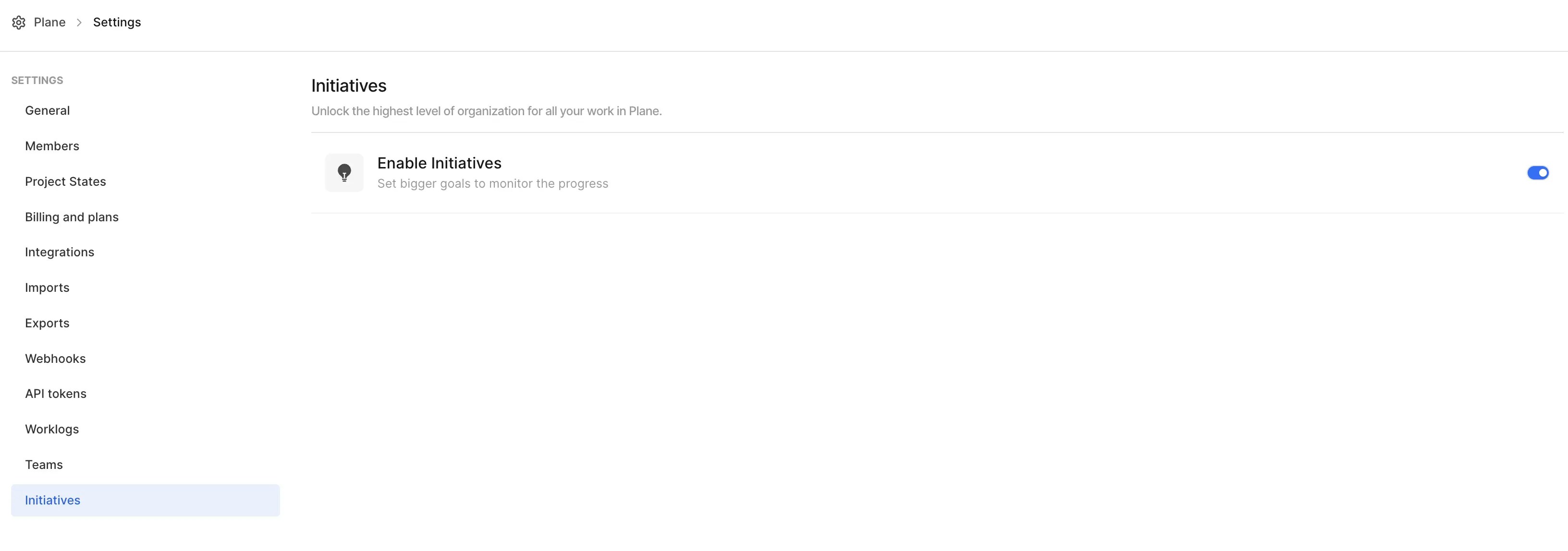 Once enabled, you'll see an **Initiatives** option in the sidebar under **Workspace** section.
## Create Initiatives[](#create-initiatives "Direct link to Create Initiatives")
Once enabled, you'll see an **Initiatives** option in the sidebar under **Workspace** section.
## Create Initiatives[](#create-initiatives "Direct link to Create Initiatives")
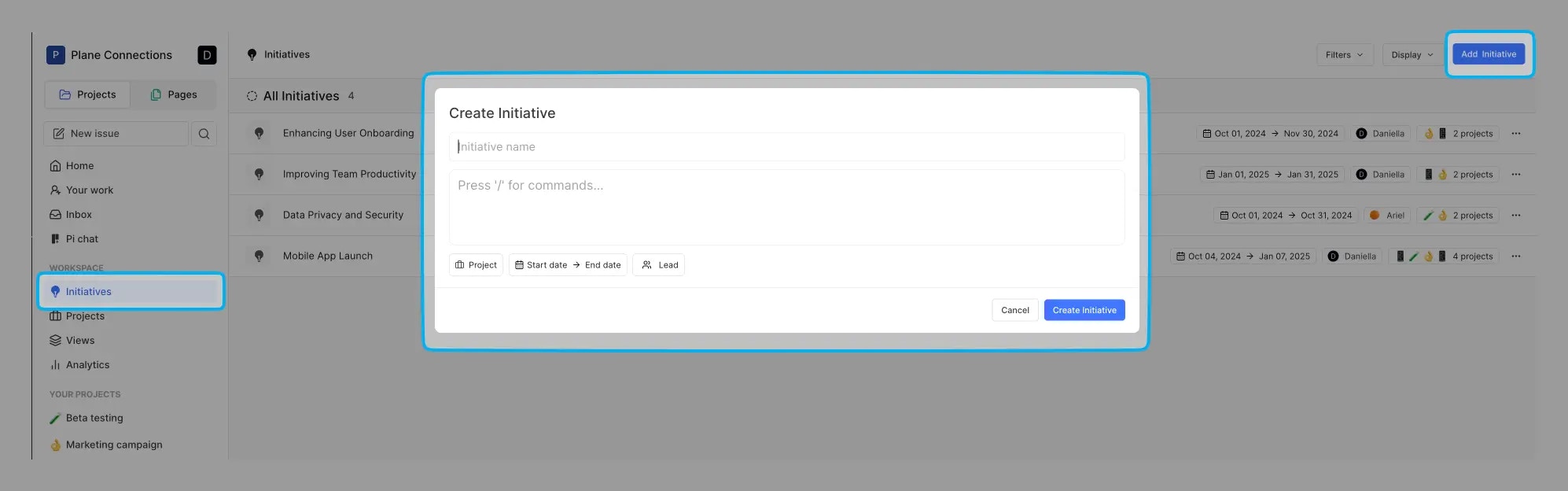 Follow these steps to set up an Initiative:
1. Navigate to the **Initiatives** section in the sidebar.
2. Click the **Add Initiative** button on the top right of the screen.
3. Provide the following details:
* **Title**: Name your Initiative.
* **Description**: Add context about the goal of the Initiative.
* **Projects**: Select related projects to associate with the Initiative.
* **Start and End Dates**: Define the timeline.
* **Lead**: Assign a person responsible for the Initiative.
4. Click **Create Initiative**.
## View and manage Initiatives[](#view-and-manage-initiatives "Direct link to View and manage Initiatives")
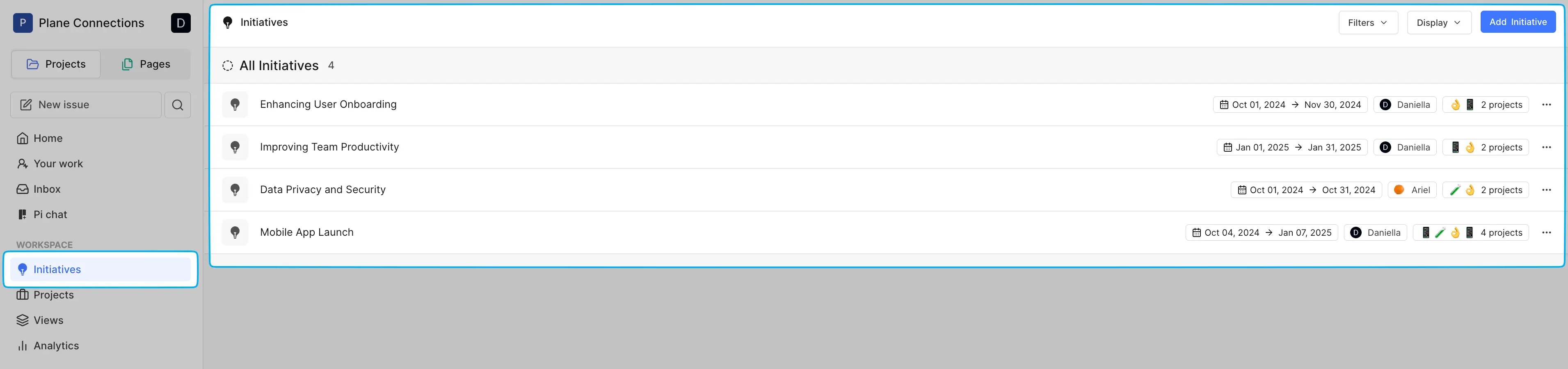
Once created, you can view all Initiatives in the **Initiatives** section on the sidebar.
Follow these steps to set up an Initiative:
1. Navigate to the **Initiatives** section in the sidebar.
2. Click the **Add Initiative** button on the top right of the screen.
3. Provide the following details:
* **Title**: Name your Initiative.
* **Description**: Add context about the goal of the Initiative.
* **Projects**: Select related projects to associate with the Initiative.
* **Start and End Dates**: Define the timeline.
* **Lead**: Assign a person responsible for the Initiative.
4. Click **Create Initiative**.
## View and manage Initiatives[](#view-and-manage-initiatives "Direct link to View and manage Initiatives")
Once created, you can view all Initiatives in the **Initiatives** section on the sidebar.
 Selecting an Initiative opens its detailed view, which includes:
### Progress overview[](#progress-overview "Direct link to Progress overview")
Selecting an Initiative opens its detailed view, which includes:
### Progress overview[](#progress-overview "Direct link to Progress overview")
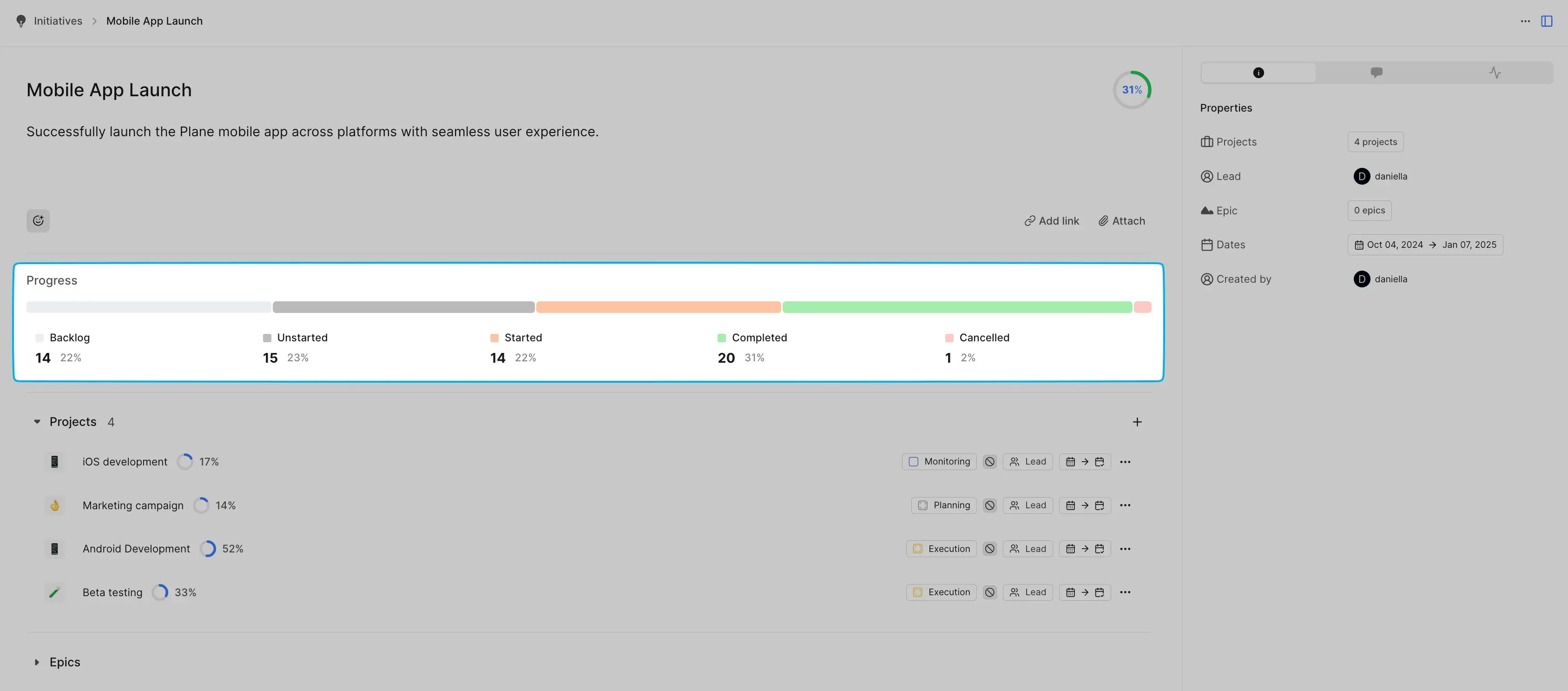 A progress bar indicating a visual representation of project progress categorized as:
* Backlog
* Unstarted
* Started
* Completed
* Cancelled
The percentages and counts for each category are automatically calculated based on the associated projects.
Use Initiatives for a top-down view of progress. For detailed updates, navigate to individual projects.
### Projects list[](#projects-list "Direct link to Projects list")
A progress bar indicating a visual representation of project progress categorized as:
* Backlog
* Unstarted
* Started
* Completed
* Cancelled
The percentages and counts for each category are automatically calculated based on the associated projects.
Use Initiatives for a top-down view of progress. For detailed updates, navigate to individual projects.
### Projects list[](#projects-list "Direct link to Projects list")
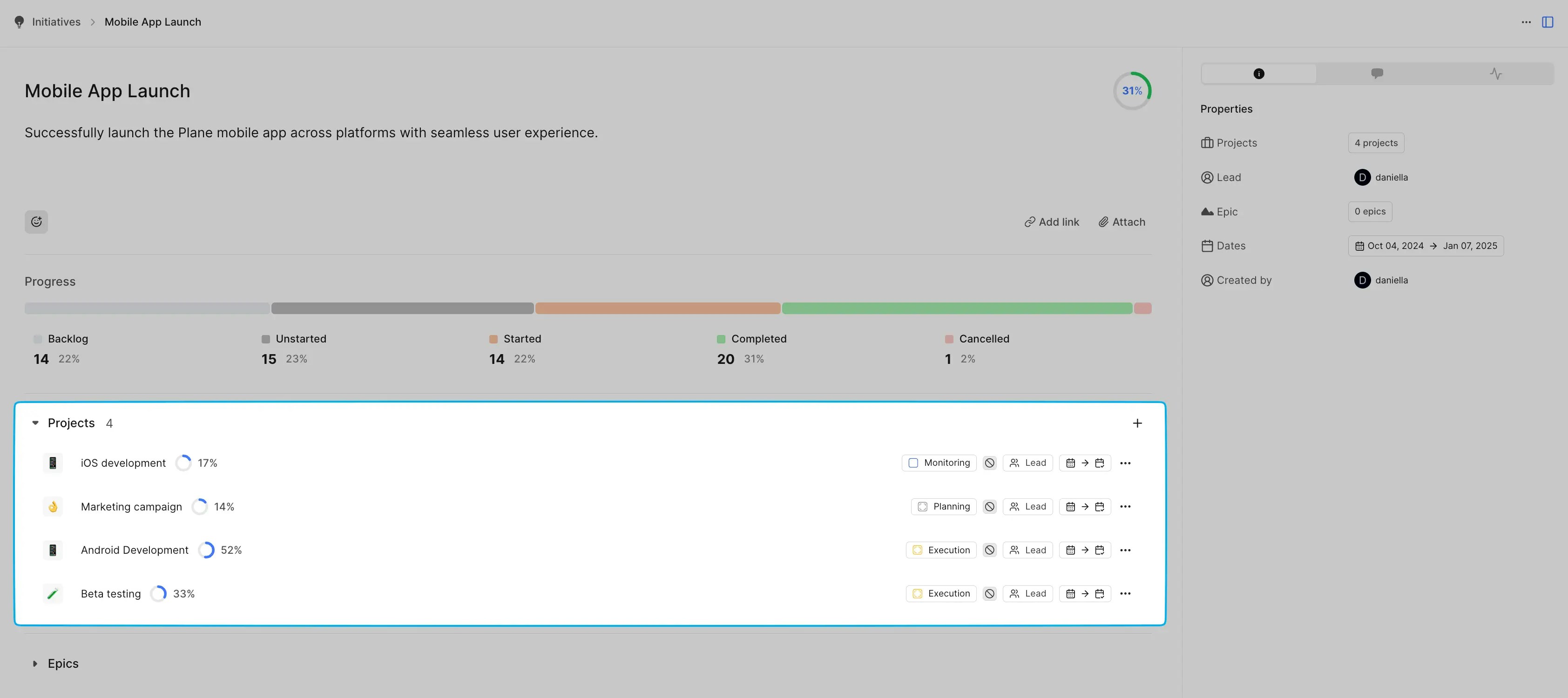 A list of all associated projects, including:
* Project names
* Work item count and status
* Assigned leads
* Start and end dates
You cannot add or edit project updates directly from the Initiative view.
### Track Epics across projects[](#track-epics-across-projects "Direct link to Track Epics across projects")
A list of all associated projects, including:
* Project names
* Work item count and status
* Assigned leads
* Start and end dates
You cannot add or edit project updates directly from the Initiative view.
### Track Epics across projects[](#track-epics-across-projects "Direct link to Track Epics across projects")
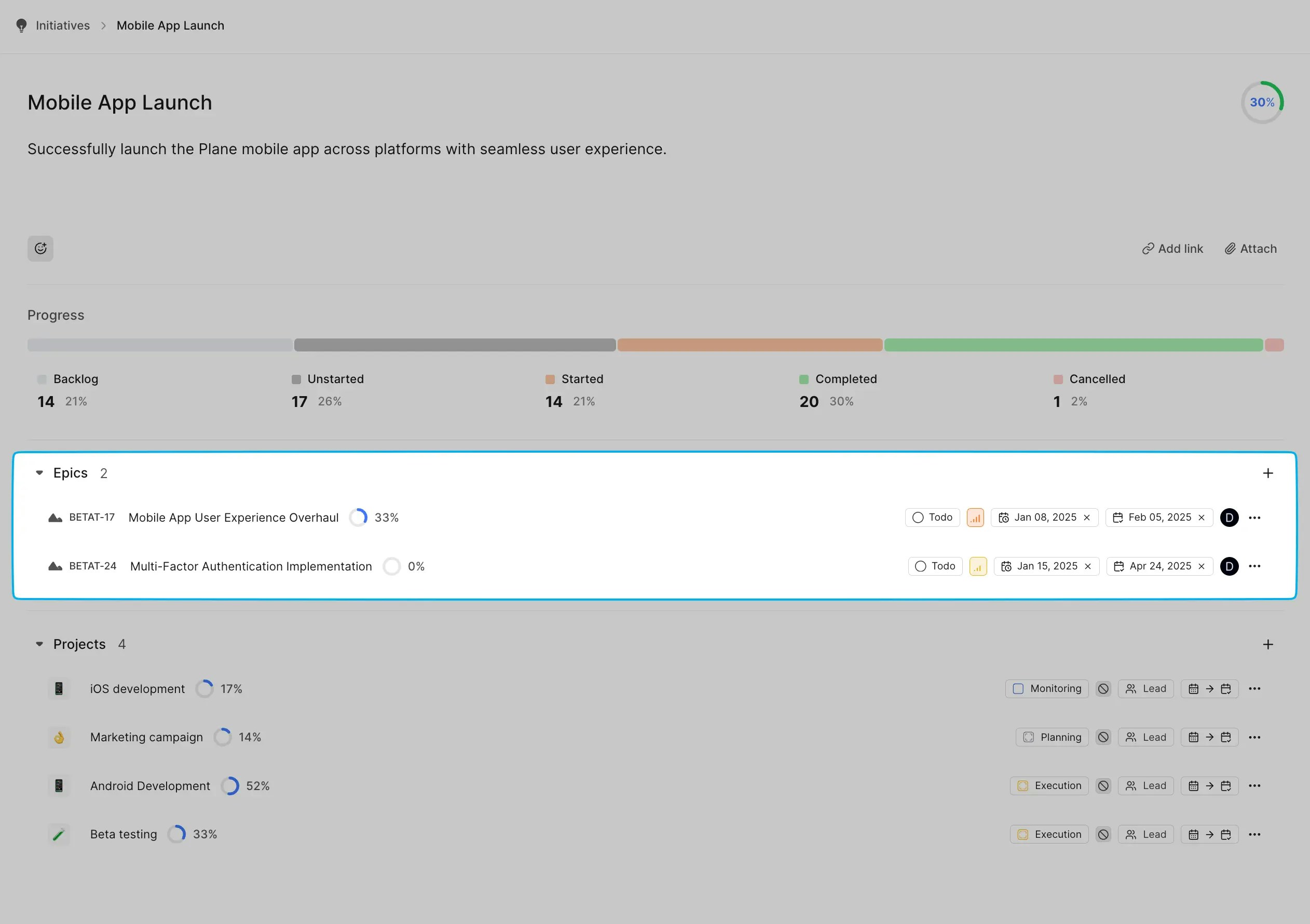 With Initiatives, you can bring together Epics from different projects into a single, high-level view. This helps you track progress across multiple workstreams in one place, giving you a clear picture of how everything is moving forward.
Here’s how it helps:
* Group related Epics from different projects under one Initiative to keep everything connected.
* Get a centralized view of progress, dependencies, and blockers across multiple projects.
* No more jumping between projects—track and manage Epics in one place.
After you create an Initiative and add Epics from any project. From there, you can monitor overall progress, update statuses, and ensure everything stays on track.
This is perfect for cross-functional teams working on company-wide objectives, product launches, or any effort that spans multiple projects.
### Properties, comments, and activity[](#properties-comments-and-activity "Direct link to Properties, comments, and activity")
* The Info tab on the side panel of an Initiative provides a quick snapshot of key properties and metadata associated with the Initiative.
With Initiatives, you can bring together Epics from different projects into a single, high-level view. This helps you track progress across multiple workstreams in one place, giving you a clear picture of how everything is moving forward.
Here’s how it helps:
* Group related Epics from different projects under one Initiative to keep everything connected.
* Get a centralized view of progress, dependencies, and blockers across multiple projects.
* No more jumping between projects—track and manage Epics in one place.
After you create an Initiative and add Epics from any project. From there, you can monitor overall progress, update statuses, and ensure everything stays on track.
This is perfect for cross-functional teams working on company-wide objectives, product launches, or any effort that spans multiple projects.
### Properties, comments, and activity[](#properties-comments-and-activity "Direct link to Properties, comments, and activity")
* The Info tab on the side panel of an Initiative provides a quick snapshot of key properties and metadata associated with the Initiative.  * Add comments to discuss updates or highlight issues.
  * View the activity log for all updates related to the Initiative.
  ## Sort and filter Initiatives[](#sort-and-filter-initiatives "Direct link to Sort and filter Initiatives")
To make managing Initiatives easier, Plane provides options to filter and sort them based on various criteria:
**Filter Initiatives**:
* By the assigned lead with options to select multiple leads or search for a specific person.
* Based on their start date. Quick options include "1 week from now," "2 weeks from now," "1 month from now," and a custom date selector.
* Based on their target completion date, similar to the start date options.
**Sort Initiatives**:
* **Group By** Organize your Initiatives by categories like Lead or Created By. You can also choose "None" to view Initiatives in a flat list.
* **Order By** Sort Initiatives manually, by the last created date, or by the last updated date to prioritize the most relevant ones.
These filtering and sorting tools make it easier to focus on specific Initiatives or prioritize your view based on team needs.
## Sort and filter Initiatives[](#sort-and-filter-initiatives "Direct link to Sort and filter Initiatives")
To make managing Initiatives easier, Plane provides options to filter and sort them based on various criteria:
**Filter Initiatives**:
* By the assigned lead with options to select multiple leads or search for a specific person.
* Based on their start date. Quick options include "1 week from now," "2 weeks from now," "1 month from now," and a custom date selector.
* Based on their target completion date, similar to the start date options.
**Sort Initiatives**:
* **Group By** Organize your Initiatives by categories like Lead or Created By. You can also choose "None" to view Initiatives in a flat list.
* **Order By** Sort Initiatives manually, by the last created date, or by the last updated date to prioritize the most relevant ones.
These filtering and sorting tools make it easier to focus on specific Initiatives or prioritize your view based on team needs.