> ## Documentation Index
> Fetch the complete documentation index at: https://docs.onestack.cloud/llms.txt
> Use this file to discover all available pages before exploring further.
# Workspaces
> Think of a Workspace in Plane as your command center—the place where everything comes together. It’s the top-level space that holds all your projects, work items, cycles, modules, and pages.
Picture it like this: a Workspace in Plane is similar to a server in Discord or an organization in Slack. It’s where your team gathers to work on projects, track progress, and get things done. You can create your own projects, invite others to join, and collaborate as a group—or just do your own thing if that’s how you roll.
## Create Workspace[](#create-workspace "Direct link to Create Workspace")
If you’re new to Plane, you’ll create your first workspace as part of the onboarding process. It’s super straightforward, and once set up, you’re ready to dive in.
If you want to create a new workspace, click the **Create workspace** option in the dropdown menu that appears when you select your current workspace name at the top left of the sidebar.
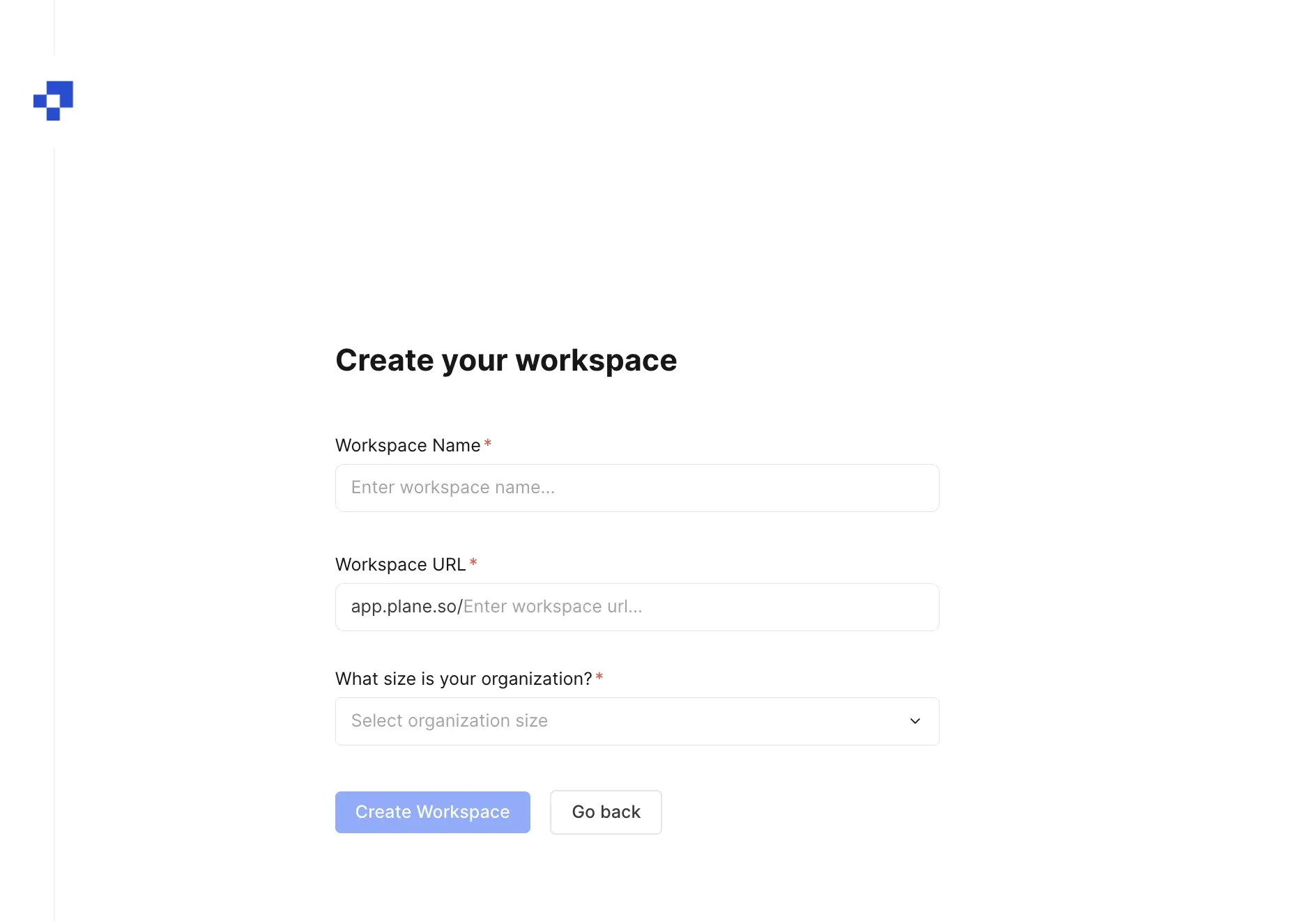 If you are a team member or contributor and are invited to a workspace, you don’t need to create your own. Just accept the invite, and you’ll land right in the workspace, ready to work on the assigned tasks.
Whether you’re using Plane cloud or self-hosting it, each workspace gets a unique URL (slug). While you can have duplicate workspace names, the URLs need to be different for a smoother experience.
## What's inside a Workspace[](#whats-inside-a-workspace "Direct link to What's inside a Workspace")
Every Workspace in Plane has two main components:
* **Projects** Projects serve as the cornerstone for all activities within the product. You can create work items, assign tasks to members, and track progress for whatever you’re working on. If you envision your organization as NASA, each mission can be likened to a project. [Learn more here](/core-concepts/projects/overview).
* **Members** Invite your teammates, collaborators, or managers to join your workspace. Each user gets a role, like Admin or Member, to control what they can do. [Explore roles here](/core-concepts/workspaces/members).
## Workspace settings[](#workspace-settings "Direct link to Workspace settings")
To configure the Workspace, add members, integrations, import or export data, navigate to workspace settings. Click on the Workspace name and select **Workspace settings** from the dropdown menu.
If you are a team member or contributor and are invited to a workspace, you don’t need to create your own. Just accept the invite, and you’ll land right in the workspace, ready to work on the assigned tasks.
Whether you’re using Plane cloud or self-hosting it, each workspace gets a unique URL (slug). While you can have duplicate workspace names, the URLs need to be different for a smoother experience.
## What's inside a Workspace[](#whats-inside-a-workspace "Direct link to What's inside a Workspace")
Every Workspace in Plane has two main components:
* **Projects** Projects serve as the cornerstone for all activities within the product. You can create work items, assign tasks to members, and track progress for whatever you’re working on. If you envision your organization as NASA, each mission can be likened to a project. [Learn more here](/core-concepts/projects/overview).
* **Members** Invite your teammates, collaborators, or managers to join your workspace. Each user gets a role, like Admin or Member, to control what they can do. [Explore roles here](/core-concepts/workspaces/members).
## Workspace settings[](#workspace-settings "Direct link to Workspace settings")
To configure the Workspace, add members, integrations, import or export data, navigate to workspace settings. Click on the Workspace name and select **Workspace settings** from the dropdown menu.  ## Switch Workspaces[](#switch-workspaces "Direct link to Switch Workspaces")
Got multiple workspaces for different teams or clients? Switching is simple. Use the workspace menu in the left sidebar to hop between them anytime. Right now, all your workspaces need to be tied to the same email address.
## Delete Workspace[](#delete-workspace "Direct link to Delete Workspace")
Workspace admins are the only ones who can delete a workspace. This option is in Workspace settings, but keep in mind: deleting a workspace wipes out everything—work items, cycles, modules, you name it.
Plane doesn’t have automatic backups yet, so if you’re deleting a workspace, make sure to export anything important first.
## Switch Workspaces[](#switch-workspaces "Direct link to Switch Workspaces")
Got multiple workspaces for different teams or clients? Switching is simple. Use the workspace menu in the left sidebar to hop between them anytime. Right now, all your workspaces need to be tied to the same email address.
## Delete Workspace[](#delete-workspace "Direct link to Delete Workspace")
Workspace admins are the only ones who can delete a workspace. This option is in Workspace settings, but keep in mind: deleting a workspace wipes out everything—work items, cycles, modules, you name it.
Plane doesn’t have automatic backups yet, so if you’re deleting a workspace, make sure to export anything important first.