> ## Documentation Index
> Fetch the complete documentation index at: https://docs.onestack.cloud/llms.txt
> Use this file to discover all available pages before exploring further.
# Manage projects on your mobile
> The Plane mobile app is available on Android and iOS devices.
With the mobile app, you can easily manage your projects on the go. Whether you're creating, assigning, or tracking work items, stay connected with your team and keep work moving forward no matter where you are. Download the app to experience project management at your fingertips!
## System requirements[](#system-requirements "Direct link to System requirements")
| OS | Version |
| ------- | ------------------------------ |
| Android | Android 5+ (SDK 21+) or higher |
| iOS | iOS 13 or higher |
## Download[](#download "Direct link to Download")
Head over to [Download](https://plane.so/download) to install the app for Android or iOS.
Sign-up isn't available through the mobile app. To use the app, you'll need to be a member of at least one workspace.
## Sign in[](#sign-in "Direct link to Sign in")
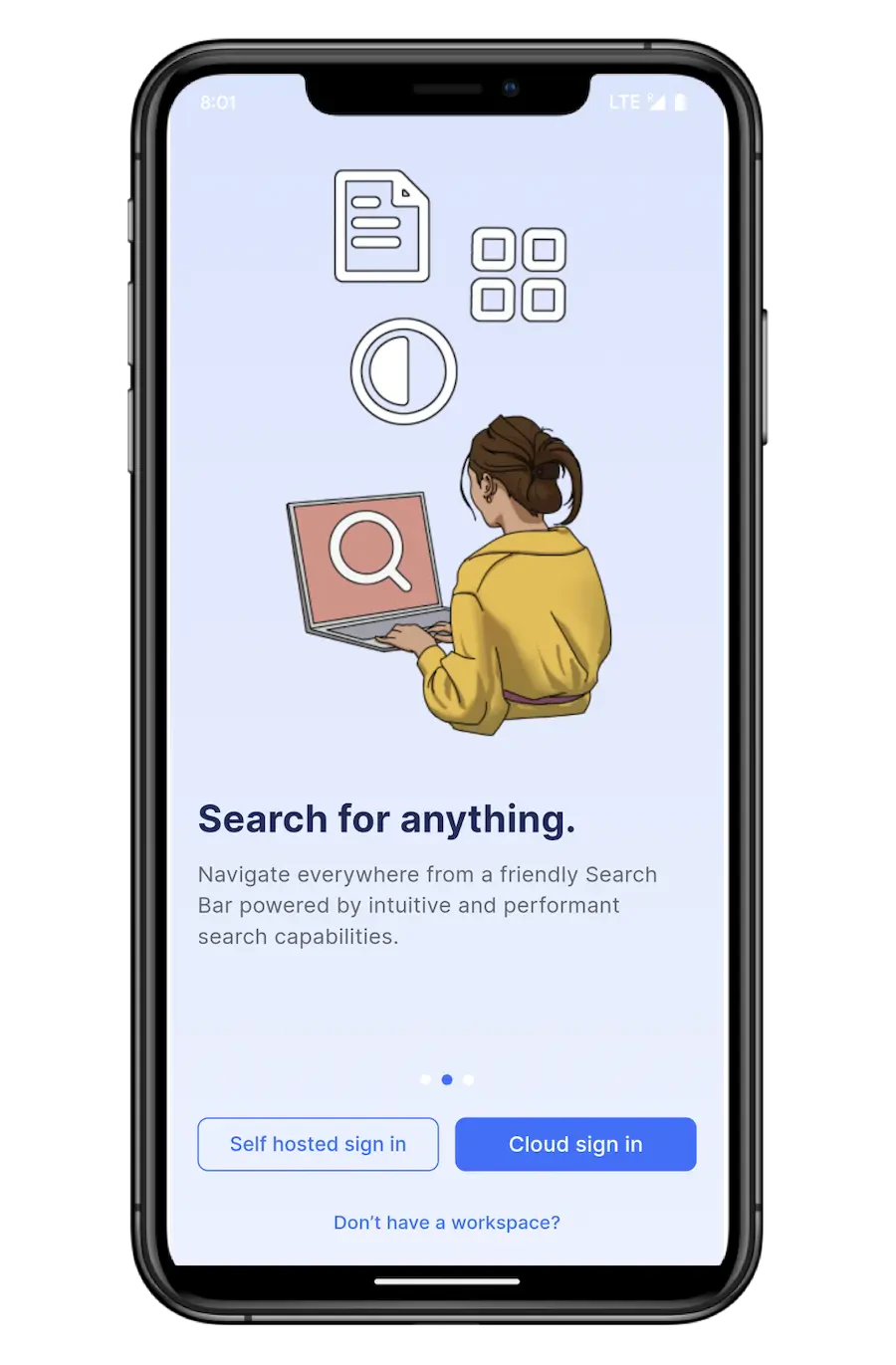
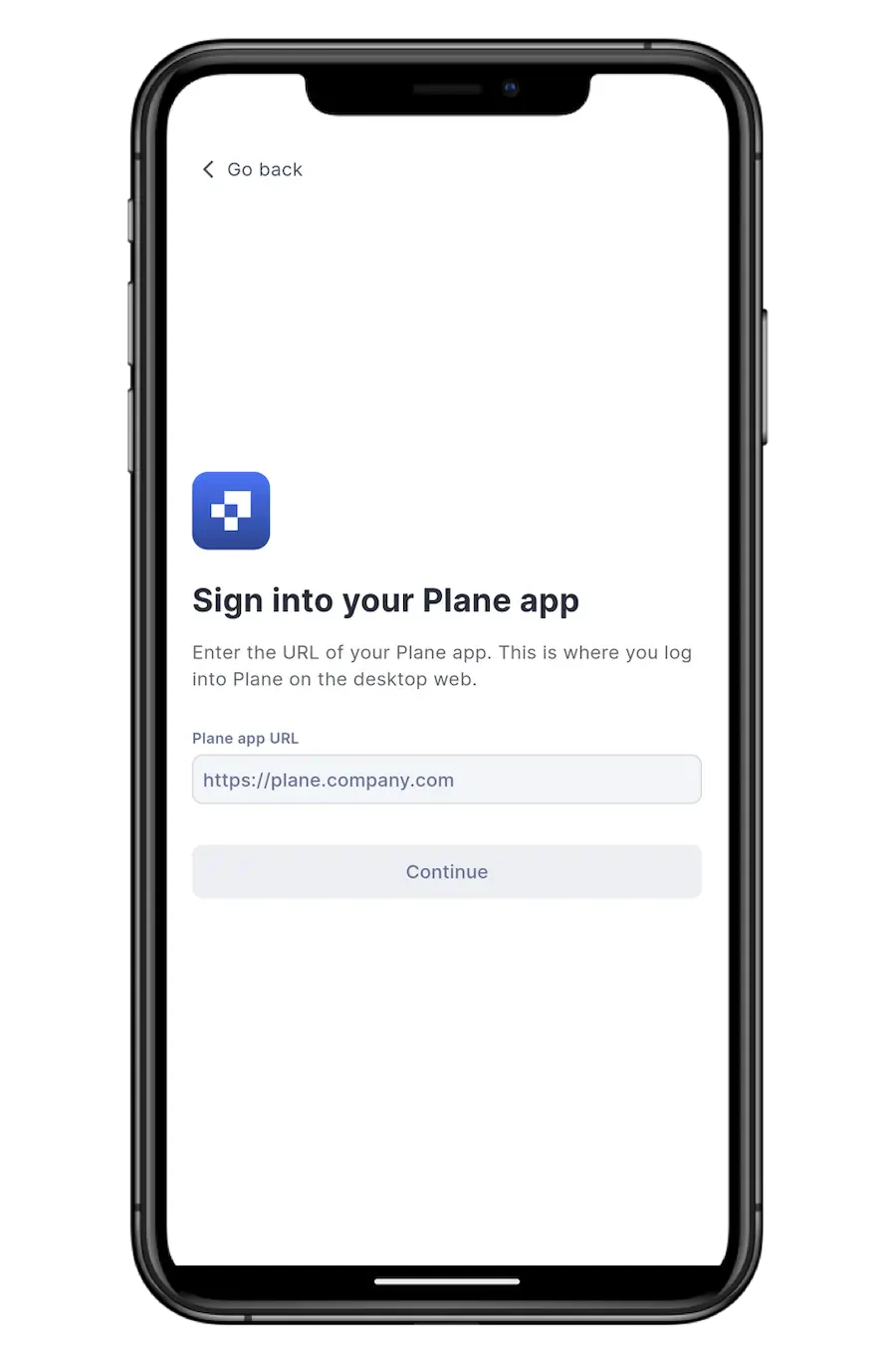
The app is available on Cloud and for self-hosted instances on all plans of the Commercial Edition starting from version `v1.5.0`. Here’s how you can get started:
* **For cloud users** Tap **Cloud sign in** and enter your credentials to log in.
* **For self-Hosted users** Tap **Self hosted sign in**, then enter your Plane app URL. Once that’s done, log in with your credentials to access your workspace.
 ## Navigate the app[](#navigate-the-app "Direct link to Navigate the app")
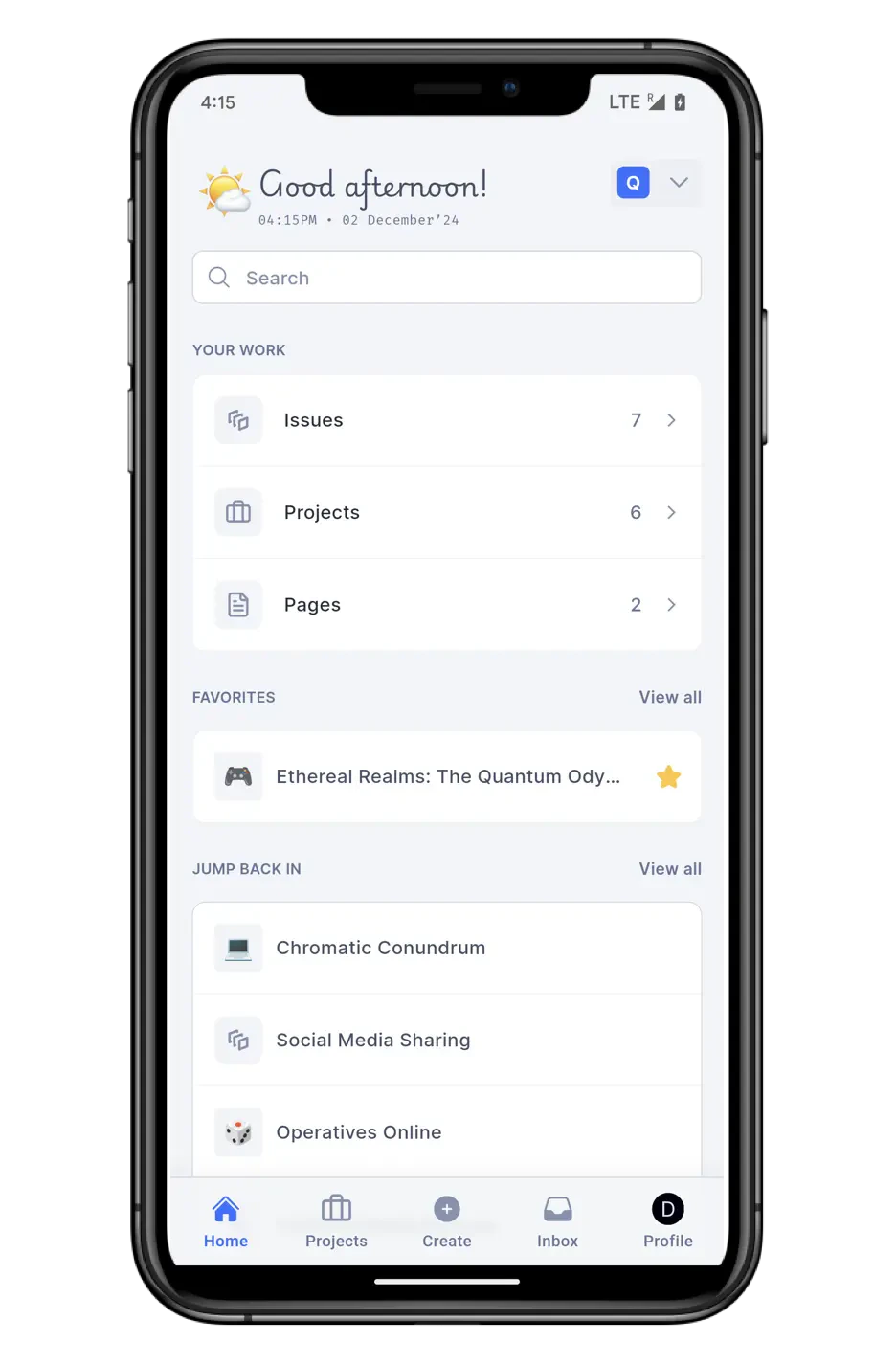
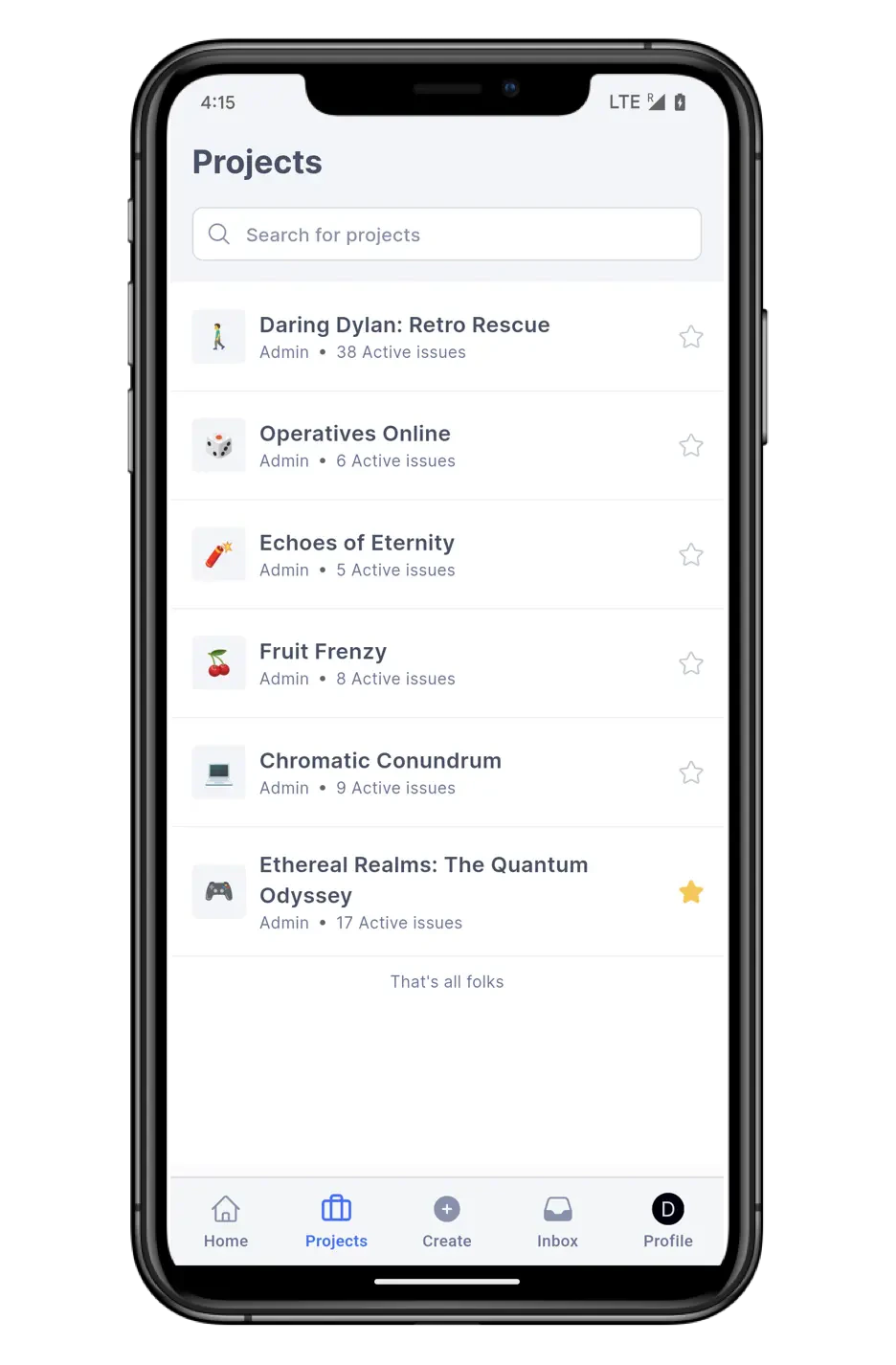
The navigation bar at the bottom of your screen helps you quickly access key areas of the app.
* **Home** Your dashboard includes a search box and familiar sections like **Your Work** and **Favorites**. There’s also a **Jump back in** section to easily access your recent projects, cycles, modules, pages, and work items.
* **Projects** This screen shows all the projects you have access to, along with your role and the active work items count. Tap the star icon to add a project to your **Favorites** for quick access.
## Navigate the app[](#navigate-the-app "Direct link to Navigate the app")
The navigation bar at the bottom of your screen helps you quickly access key areas of the app.
* **Home** Your dashboard includes a search box and familiar sections like **Your Work** and **Favorites**. There’s also a **Jump back in** section to easily access your recent projects, cycles, modules, pages, and work items.
* **Projects** This screen shows all the projects you have access to, along with your role and the active work items count. Tap the star icon to add a project to your **Favorites** for quick access.
 * **Create** Need to create a new project, work item, or page? Tap the + Create button.
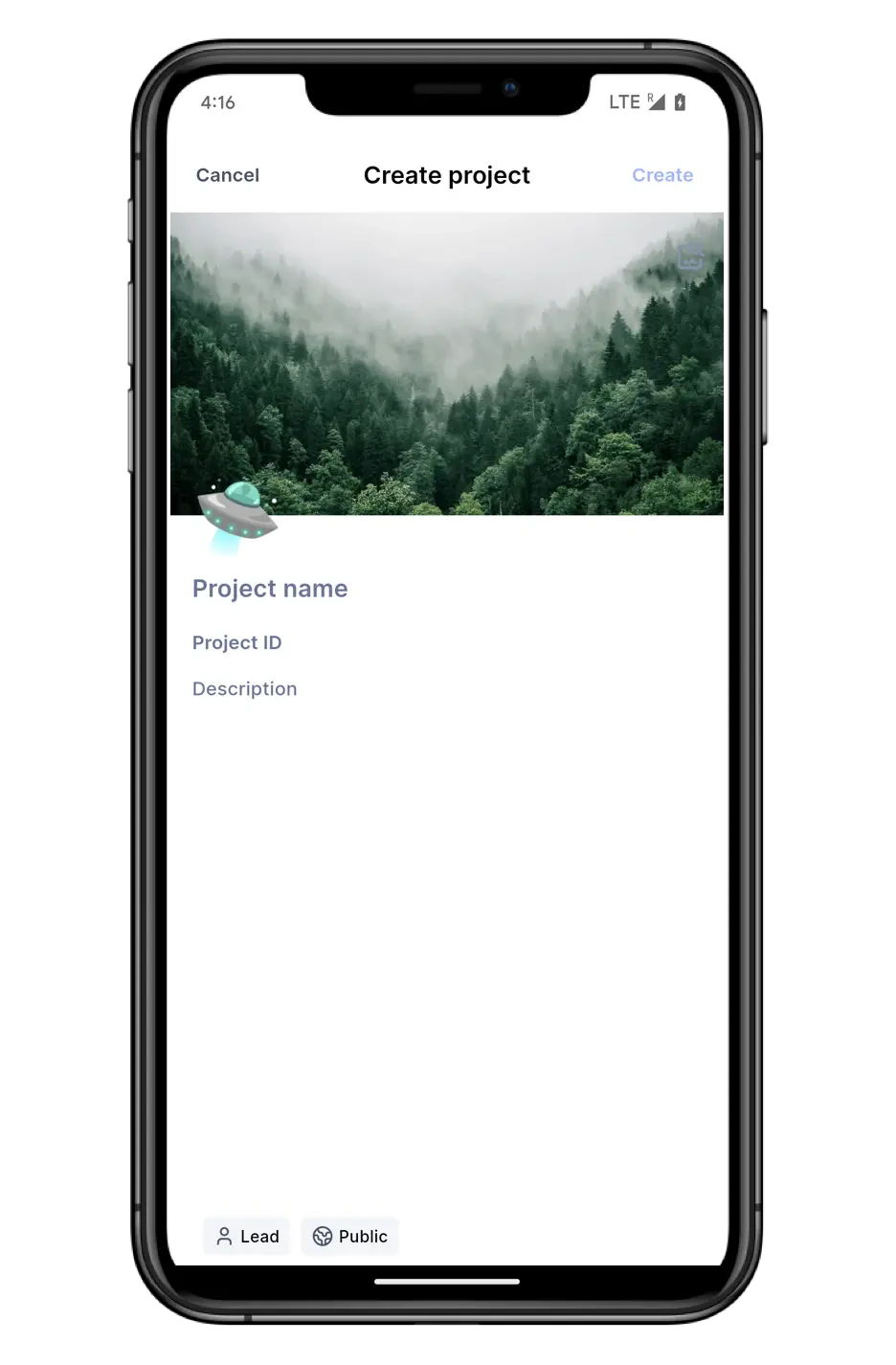
* **New project** Add the project details such as icon, name, description, and the lead. Mark it public or private. Hit the **Create** button.
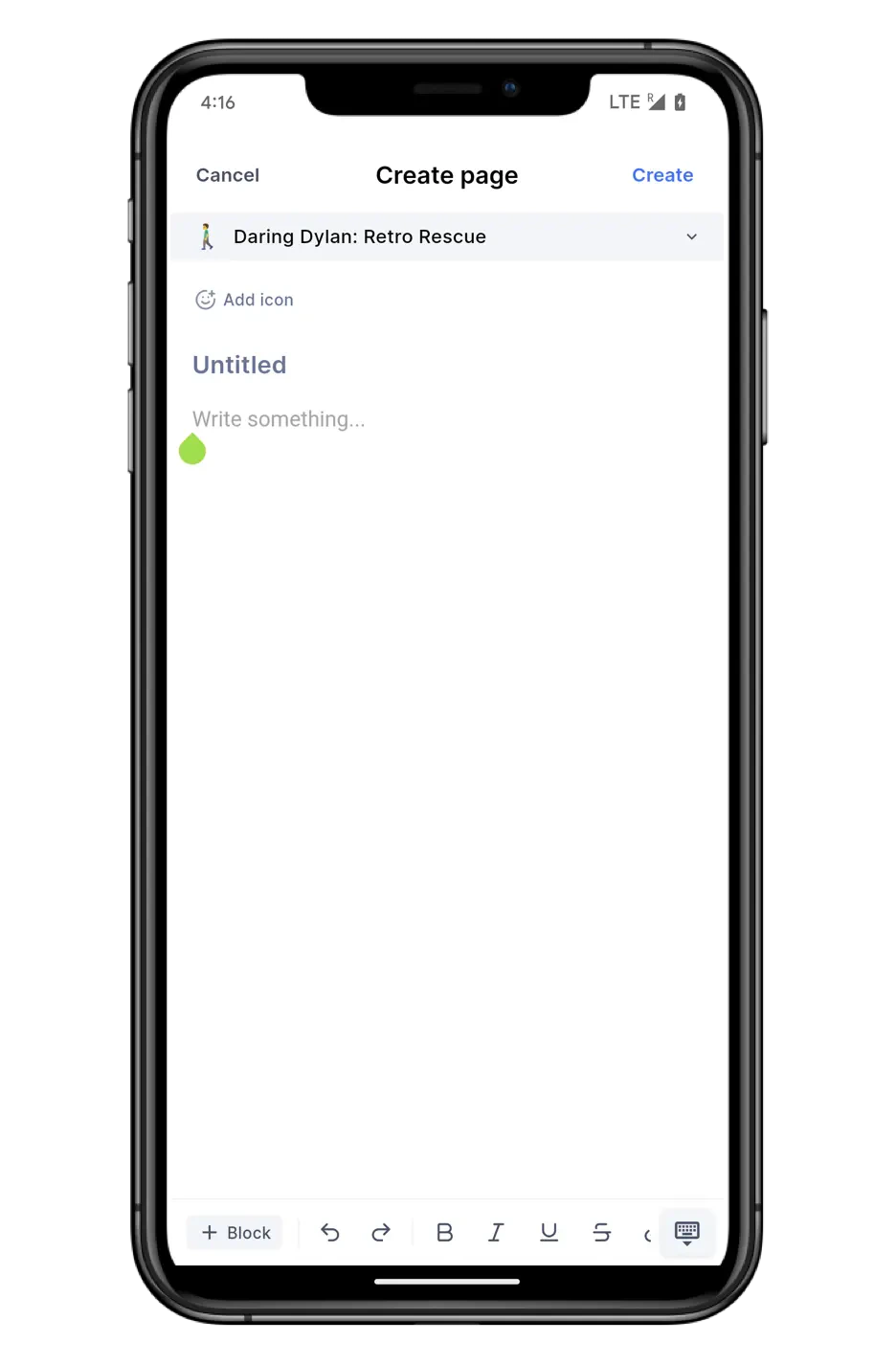
* **New page**
* Select the project by clicking the project name at the top.
* Add an icon and the page title.
* You can use the toolbar at the bottom to add different content blocks and format them as needed.
* Hit the **Create** button to add it to your project.
* **Create** Need to create a new project, work item, or page? Tap the + Create button.
* **New project** Add the project details such as icon, name, description, and the lead. Mark it public or private. Hit the **Create** button.
* **New page**
* Select the project by clicking the project name at the top.
* Add an icon and the page title.
* You can use the toolbar at the bottom to add different content blocks and format them as needed.
* Hit the **Create** button to add it to your project.
 * **New work item**
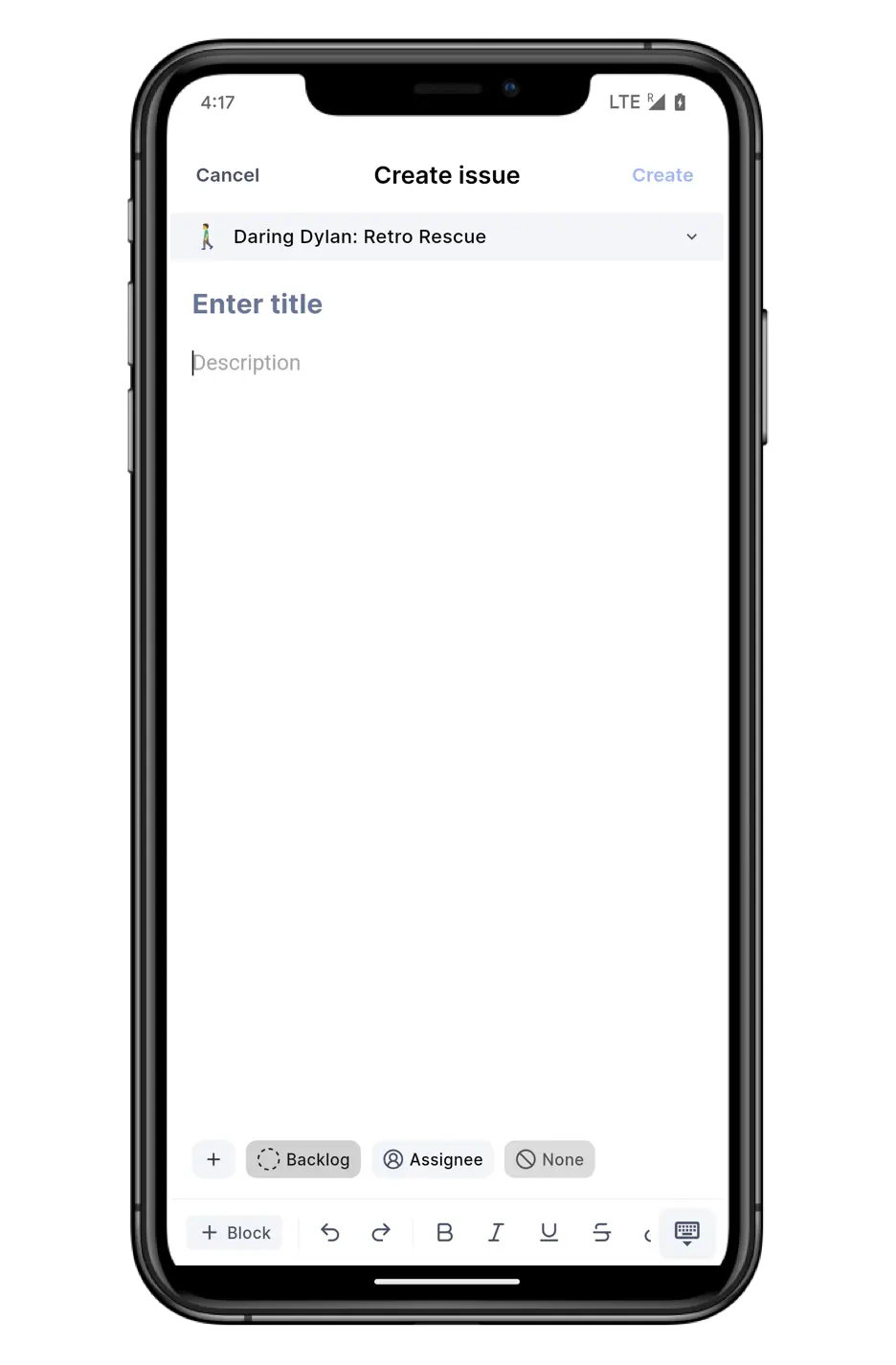
* Select the project by clicking the project name at the top.
* Add work item details like title and description. For the description, you can use the toolbar at the bottom to add different blocks and format the text as needed.
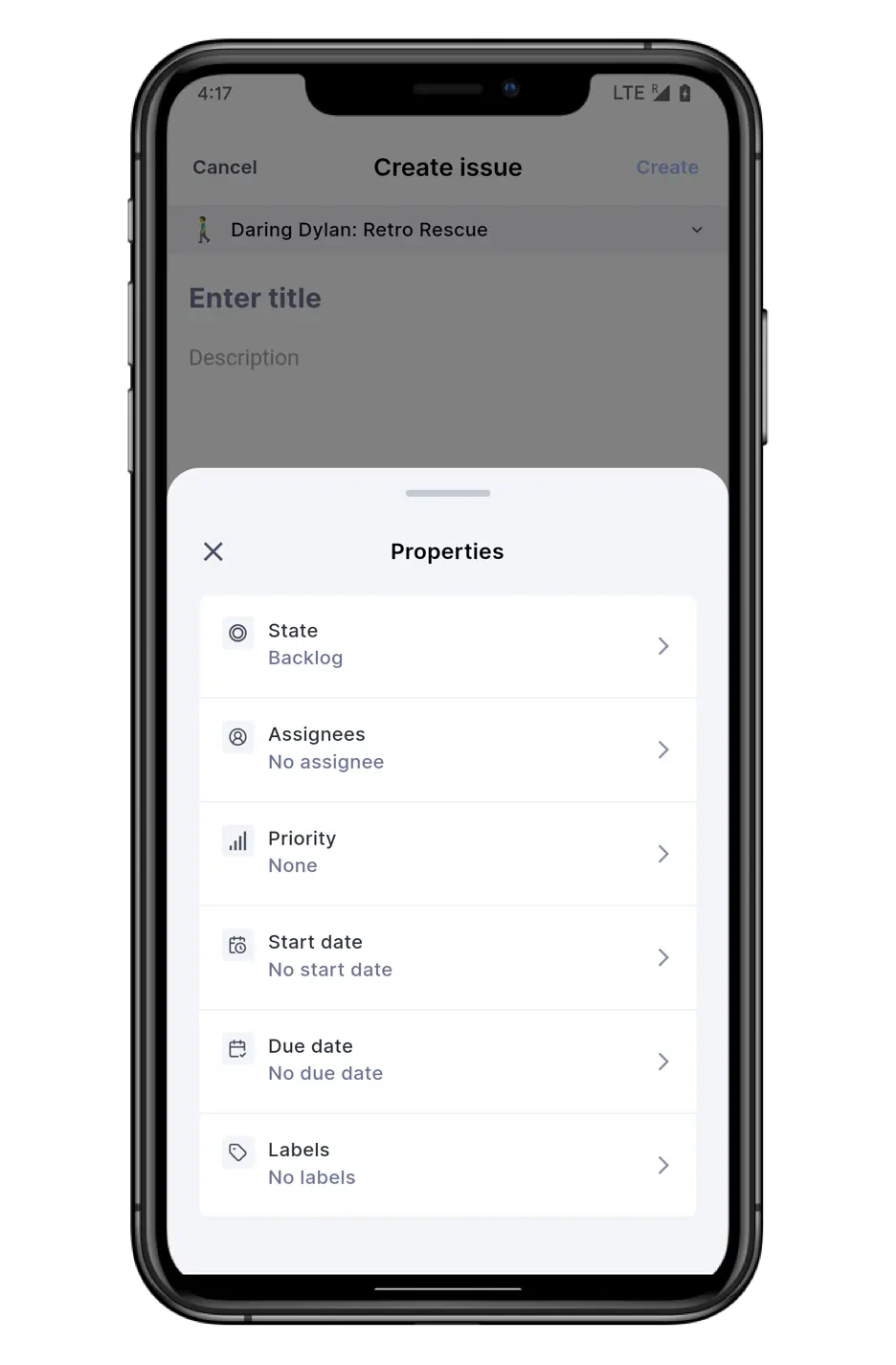
* Tap the **+** icon at the bottom left to assign members, priority, state, and other properties.
* Hit the **Create** button to add it to your project.
* **New work item**
* Select the project by clicking the project name at the top.
* Add work item details like title and description. For the description, you can use the toolbar at the bottom to add different blocks and format the text as needed.
* Tap the **+** icon at the bottom left to assign members, priority, state, and other properties.
* Hit the **Create** button to add it to your project.
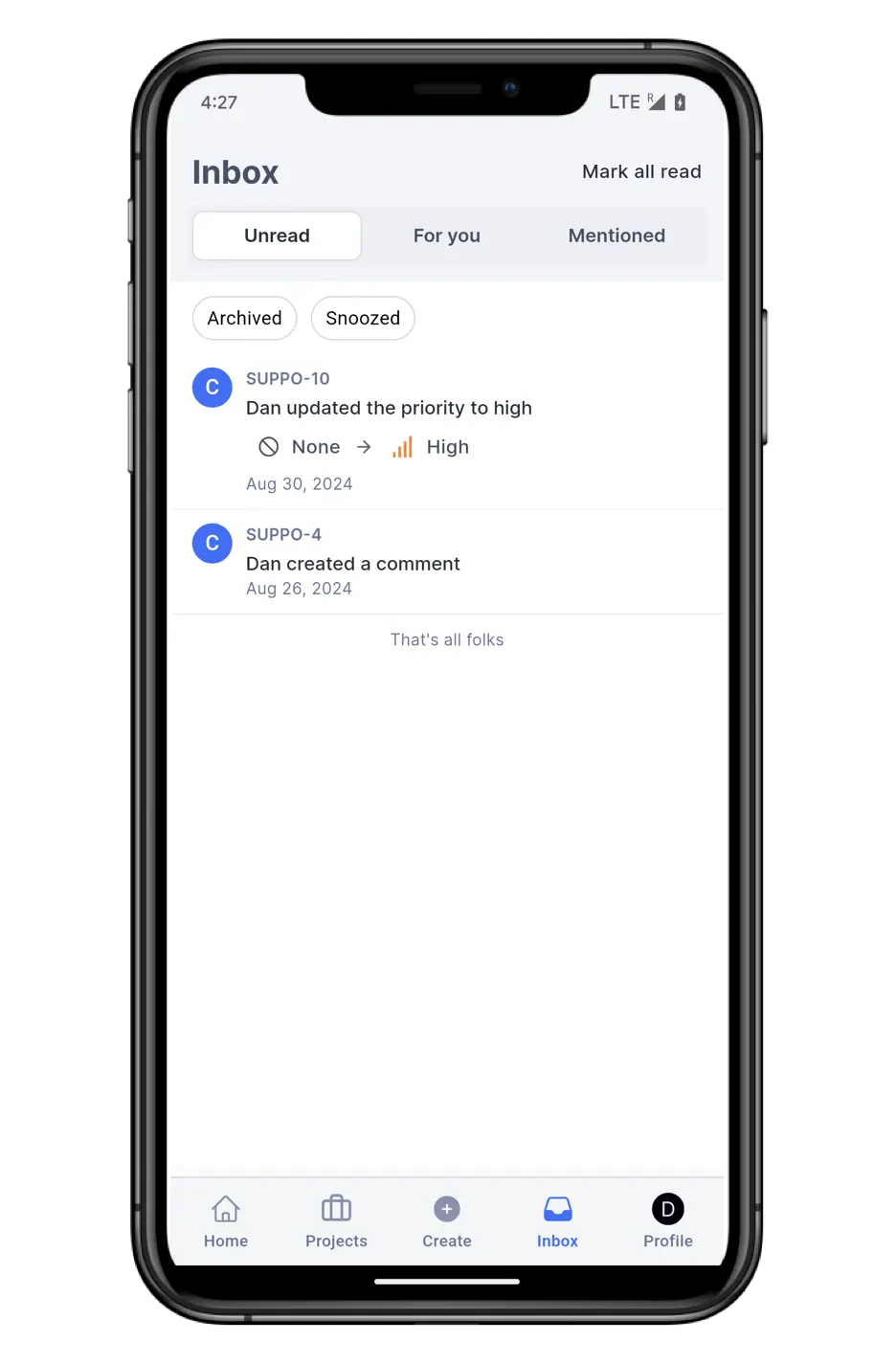
 * **Inbox** Stay updated with notifications about work items you’ve created, are assigned to, or where you’ve been mentioned. You’ll never miss an important update again.
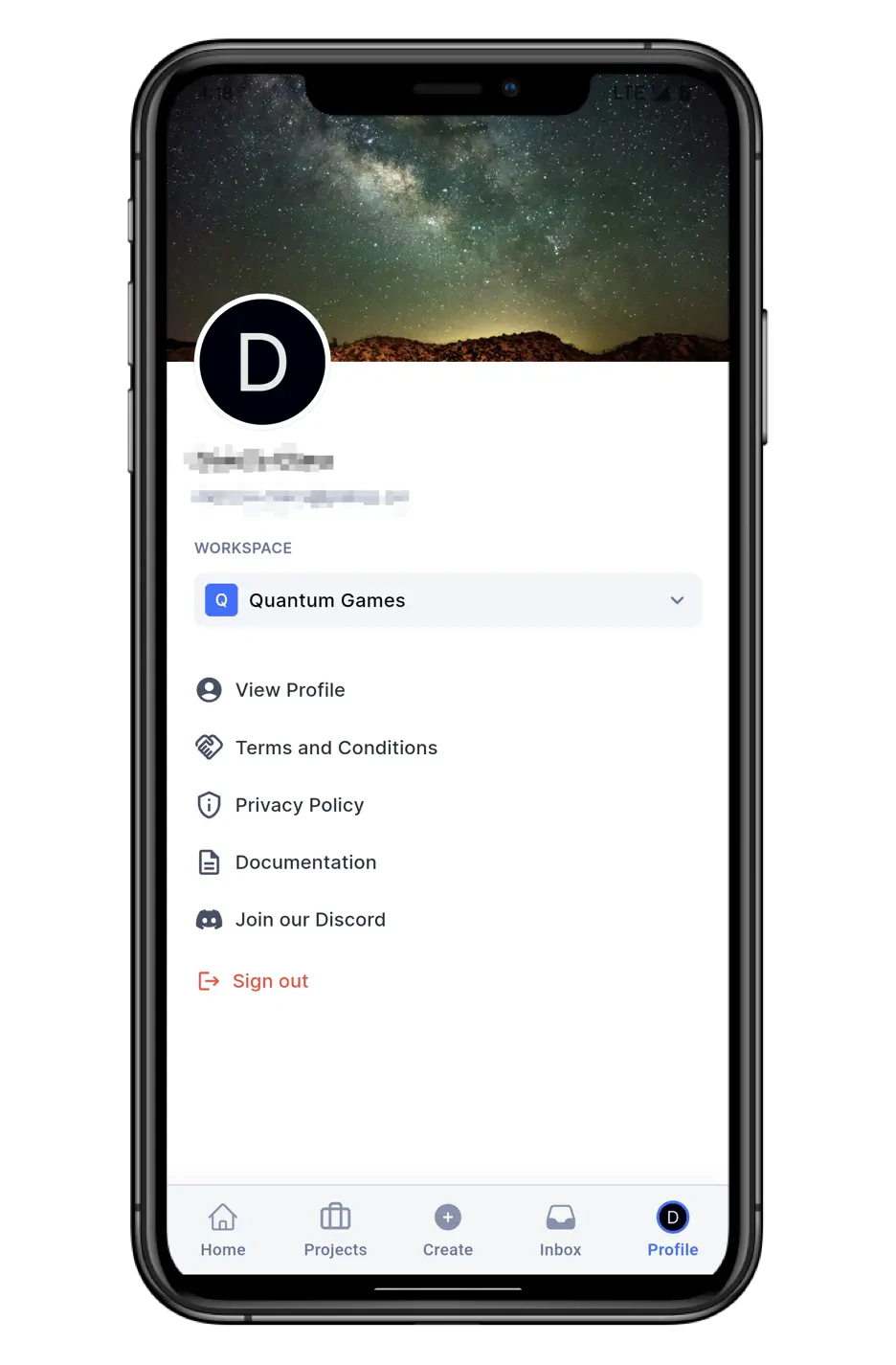
* **Profile** View your profile and manage your account here. You can also switch between workspaces or log out of the app from this screen.
* **Inbox** Stay updated with notifications about work items you’ve created, are assigned to, or where you’ve been mentioned. You’ll never miss an important update again.
* **Profile** View your profile and manage your account here. You can also switch between workspaces or log out of the app from this screen.
 ### Global search[](#global-search "Direct link to Global search")
At the top of the Home screen, you’ll find the global search bar, which helps you quickly find projects, work items, cycles, modules, or pages. It's a powerful tool to jump right to what you need.
### Switch workspaces[](#switch-workspaces "Direct link to Switch workspaces")
To switch between different workspaces, simply tap your workspace icon in the top-right corner or navigate to your profile settings at the bottom right of the screen.
## Track projects[](#track-projects "Direct link to Track projects")
Stay on top of your work by tracking all your project's elements with ease:
1. Tap the **Projects** icon in the bottom navigation bar.
2. Select the project you want to track.
You will notice that the bottom navigation bar now shows different buttons:
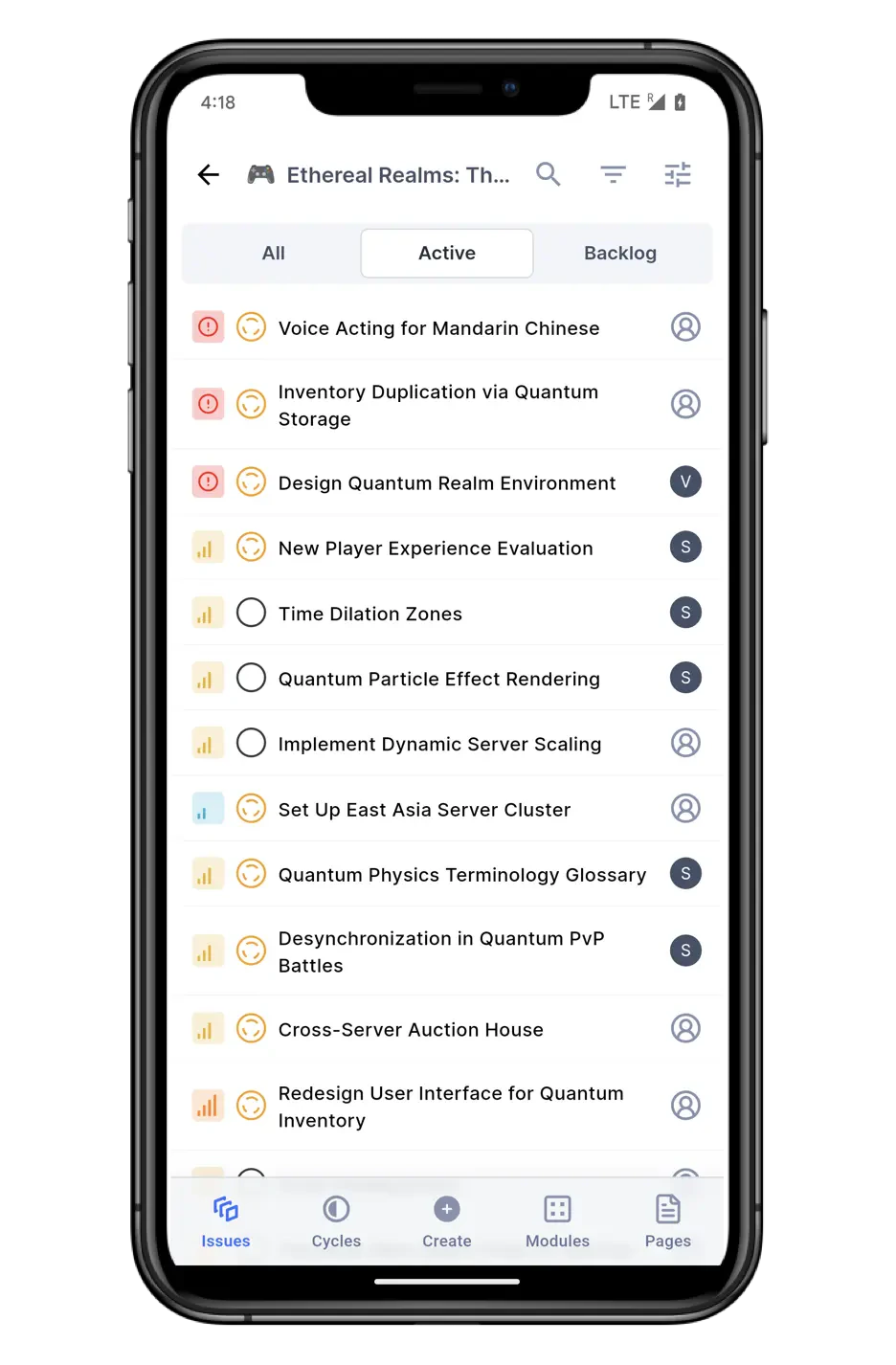
* **Work items** View a list of all, active and backlog work items.
* You can search, sort, and filter work items using the icon buttons on the top right.
* Tap any work item to view or modify work item details and view the activity. You can also add comments, copy the link, and share the work item with a personalized message via other apps.
* Click the **+ Add** button on the bottom left to add sub-work items and relations. You can also swipe left or right to view sub-work items, relations, links, and attachments.
### Global search[](#global-search "Direct link to Global search")
At the top of the Home screen, you’ll find the global search bar, which helps you quickly find projects, work items, cycles, modules, or pages. It's a powerful tool to jump right to what you need.
### Switch workspaces[](#switch-workspaces "Direct link to Switch workspaces")
To switch between different workspaces, simply tap your workspace icon in the top-right corner or navigate to your profile settings at the bottom right of the screen.
## Track projects[](#track-projects "Direct link to Track projects")
Stay on top of your work by tracking all your project's elements with ease:
1. Tap the **Projects** icon in the bottom navigation bar.
2. Select the project you want to track.
You will notice that the bottom navigation bar now shows different buttons:
* **Work items** View a list of all, active and backlog work items.
* You can search, sort, and filter work items using the icon buttons on the top right.
* Tap any work item to view or modify work item details and view the activity. You can also add comments, copy the link, and share the work item with a personalized message via other apps.
* Click the **+ Add** button on the bottom left to add sub-work items and relations. You can also swipe left or right to view sub-work items, relations, links, and attachments.
 You can add or edit the priority, state, start date, target date, cycle, and module by tapping the pencil icon in the **Properties** section. Alternatively, use the icons on the top right for choosing Priority, Cycle, and Module.
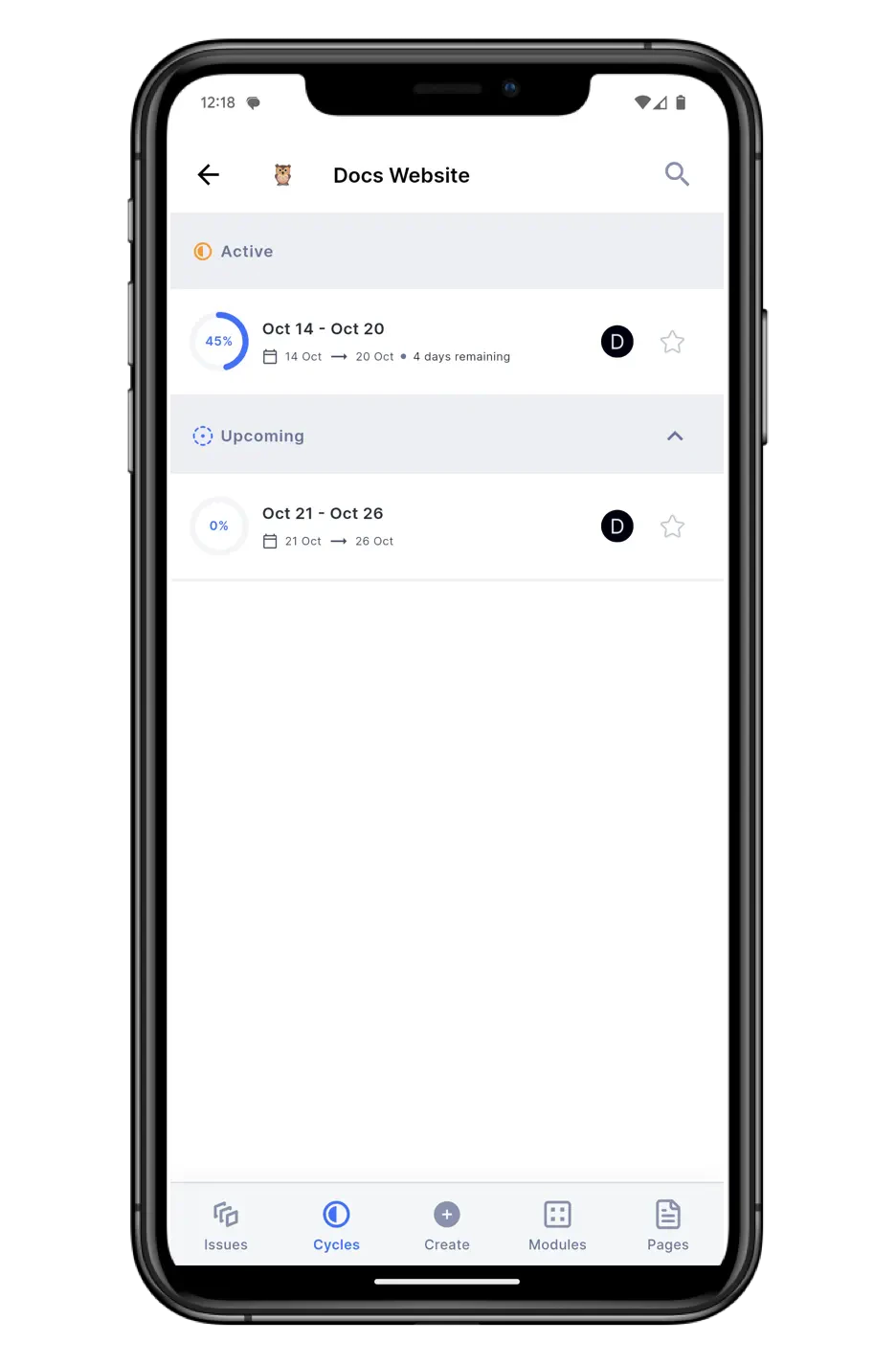
* **Cycles** Track active and upcoming cycles, and dive into the work items within each cycle.
* **Create** Similar to the Create button on the main navigation bar, except that you can only create new work items and pages here.
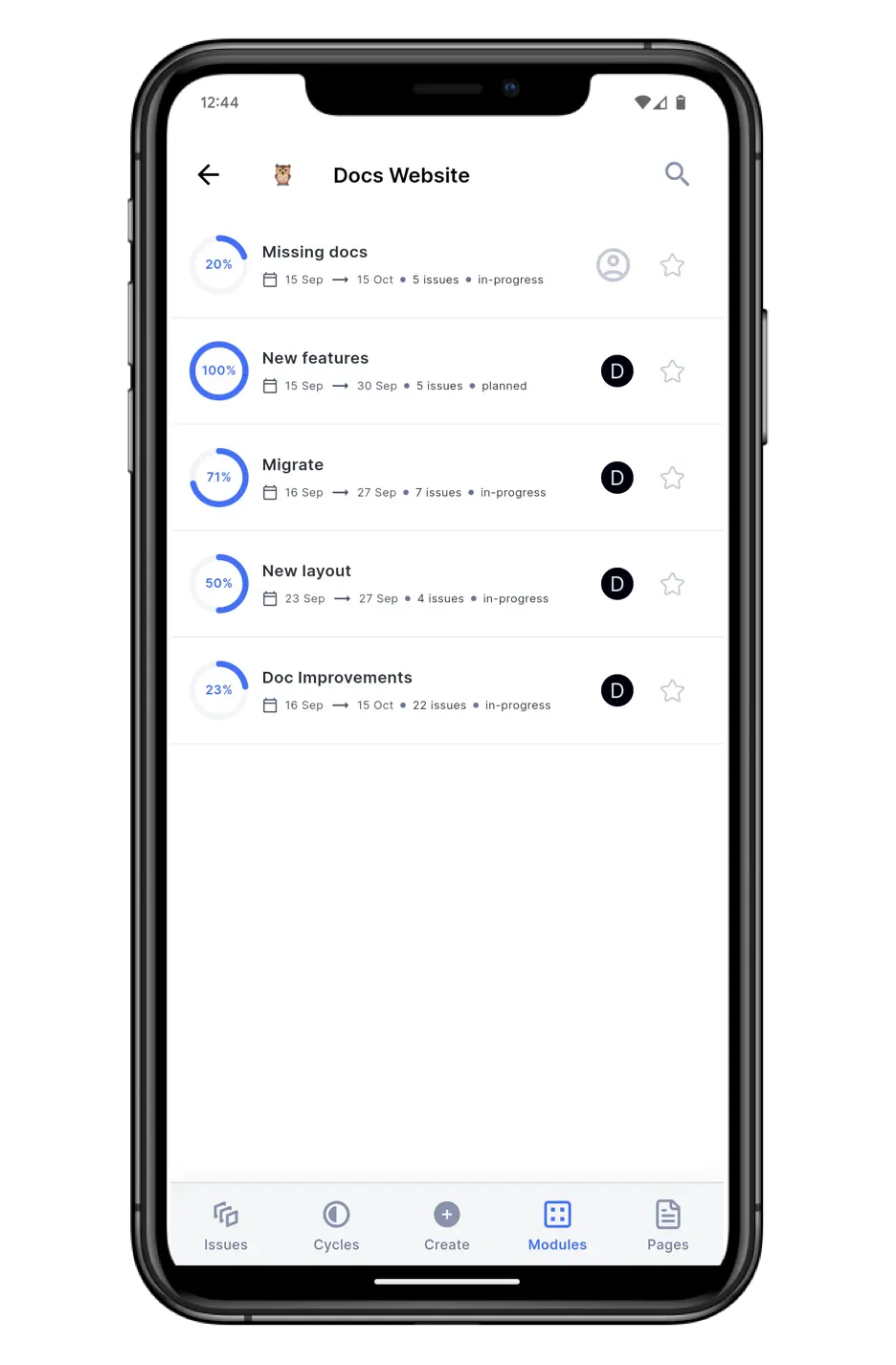
* **Modules** See all modules in your project and their progress. Tap the module to view the work items that are a part of it.
* **Pages** View all project pages, whether public, private, or archived. You can mark important pages as favorites or search for specific content.
You can add or edit the priority, state, start date, target date, cycle, and module by tapping the pencil icon in the **Properties** section. Alternatively, use the icons on the top right for choosing Priority, Cycle, and Module.
* **Cycles** Track active and upcoming cycles, and dive into the work items within each cycle.
* **Create** Similar to the Create button on the main navigation bar, except that you can only create new work items and pages here.
* **Modules** See all modules in your project and their progress. Tap the module to view the work items that are a part of it.
* **Pages** View all project pages, whether public, private, or archived. You can mark important pages as favorites or search for specific content.
 ## Push notifications[](#push-notifications "Direct link to Push notifications")
The Plane mobile app supports push notifications to keep you updated on important activities. To start receiving notifications, make sure to turn them on in the app settings. Once turned on, you'll be notified about relevant updates, ensuring you never miss an important change or task.
## Troubleshooting[](#troubleshooting "Direct link to Troubleshooting")
### Unable to log in to the mobile app[](#unable-to-log-in-to-the-mobile-app "Direct link to Unable to log in to the mobile app")
Error: 404 Page Not Found
This error occurs when attempting to log in to the mobile app with a self-hosted URL on the Community Edition or an outdated version of the Commercial Edition.
* Ensure your Plane instance is running the Commercial Edition version `v1.5.0` or higher. If you are using an older version, [update to the latest version](https://developers.plane.so/self-hosting/manage/upgrade-plane#prerequisites).
* If you are on the Community Edition, [upgrade to the Commercial Edition](https://developers.plane.so/self-hosting/upgrade-from-community) to access mobile app functionality.
* Retry logging in and ensure the self-hosted URL is entered correctly in the app.
### Unable to log in using SSO[](#unable-to-log-in-using-sso "Direct link to Unable to log in using SSO")
Ensure the correct Redirect URI is configured in your OAuth service:
* For Google Sign-In: Add the following URL to the Redirect URIs section in your Google Cloud Console:
```
https:///auth/mobile/google/callback/
```
* For GitHub Sign-In: Add the following URL to the Callback URL section in your GitHub OAuth app:
```
https:///auth/mobile/github/callback/
```
Verify that the `` part of the URL matches your self-hosted instance's domain.
## Push notifications[](#push-notifications "Direct link to Push notifications")
The Plane mobile app supports push notifications to keep you updated on important activities. To start receiving notifications, make sure to turn them on in the app settings. Once turned on, you'll be notified about relevant updates, ensuring you never miss an important change or task.
## Troubleshooting[](#troubleshooting "Direct link to Troubleshooting")
### Unable to log in to the mobile app[](#unable-to-log-in-to-the-mobile-app "Direct link to Unable to log in to the mobile app")
Error: 404 Page Not Found
This error occurs when attempting to log in to the mobile app with a self-hosted URL on the Community Edition or an outdated version of the Commercial Edition.
* Ensure your Plane instance is running the Commercial Edition version `v1.5.0` or higher. If you are using an older version, [update to the latest version](https://developers.plane.so/self-hosting/manage/upgrade-plane#prerequisites).
* If you are on the Community Edition, [upgrade to the Commercial Edition](https://developers.plane.so/self-hosting/upgrade-from-community) to access mobile app functionality.
* Retry logging in and ensure the self-hosted URL is entered correctly in the app.
### Unable to log in using SSO[](#unable-to-log-in-using-sso "Direct link to Unable to log in using SSO")
Ensure the correct Redirect URI is configured in your OAuth service:
* For Google Sign-In: Add the following URL to the Redirect URIs section in your Google Cloud Console:
```
https:///auth/mobile/google/callback/
```
* For GitHub Sign-In: Add the following URL to the Callback URL section in your GitHub OAuth app:
```
https:///auth/mobile/github/callback/
```
Verify that the `` part of the URL matches your self-hosted instance's domain.