> ## Documentation Index
> Fetch the complete documentation index at: https://docs.onestack.cloud/llms.txt
> Use this file to discover all available pages before exploring further.
# Import your Jira Server or Cloud data to Plane
> With the Jira importer, you can easily import issues, states, labels, priorities and user data from Jira to Plane and continue managing your existing projects.
## Import from Jira[](#import-from-jira "Direct link to Import from Jira")
> **Role**: Workspace admins
To import issue types from Jira, make sure the [Issue types](/core-concepts/issues/issue-types) feature is enabled in your Plane workspace.
To import Jira issues to a Plane project, follow these steps:
1. Click the **∨** icon next to your workspace name on the sidebar and select **Workspace Settings**.
2. Select **Imports** on the right pane and click the **Import** button in the Jira section.  3. In the **Jira to Plane Migration Assistant** screen, enter your **Personal Access Token**, **User email** and the **Jira domain** to allow Plane access to your Atlassian account.
  4. Click the **Connect Jira** button to link the accounts.
5. Click the **Import** button.
4. Click the **Connect Jira** button to link the accounts.
5. Click the **Import** button.  6. **Configure Plane** Select the Plane project where you want to import your Jira data and and click **Next**.
  7. **Configure Jira** Choose the workspace and project in Jira from where you want to import data.
  If you're on a paid plan (Pro or higher), issue types in Jira will be imported as work item types in Plane. On the free plan, issue types from Jira won't be imported.
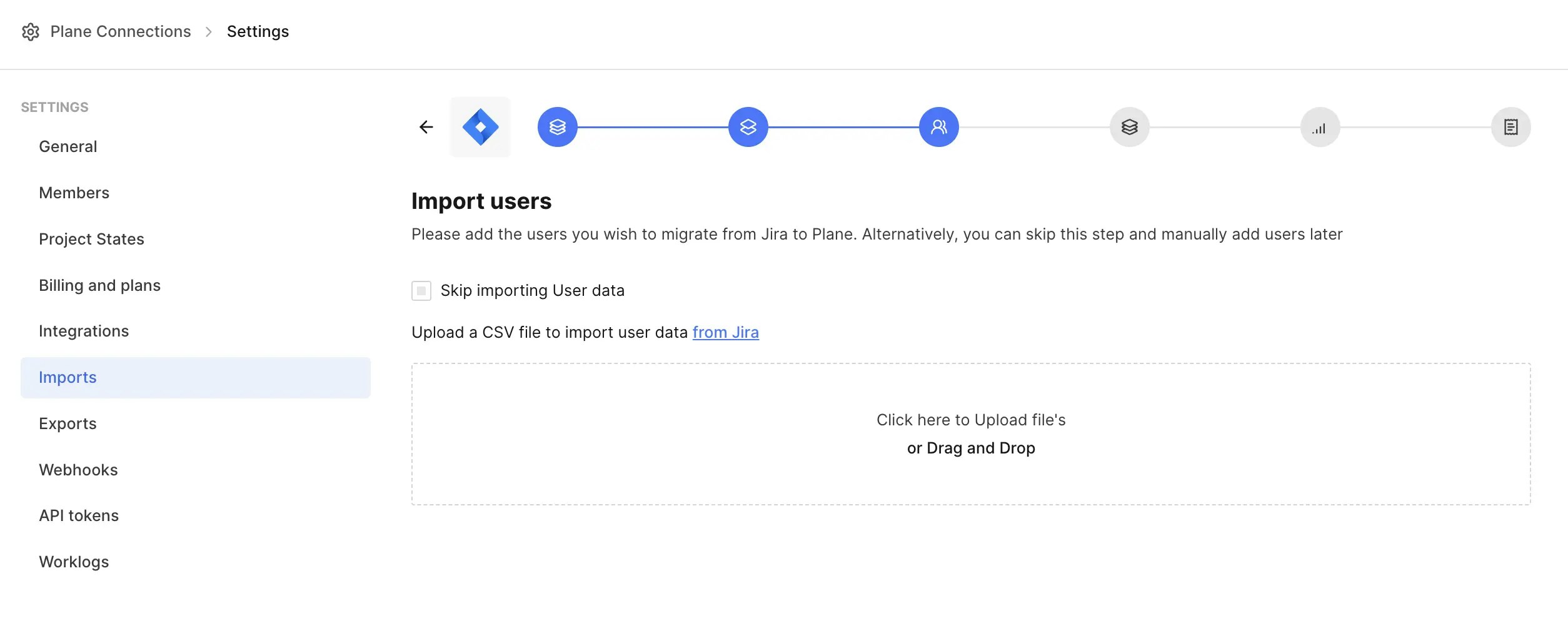
8. **Import users** Choose one of the following:
* **Upload CSV** Click the **Upload CSV** button to import users to your Plane project. Refer to [Export users from a site](https://support.atlassian.com/organization-administration/docs/export-users-from-a-site/) to download the CSV file from Jira. *(recommended)*
* **Skip user import** You can select the **Skip Importing User data** checkbox and manually add users later.
If you skip user import, work items and comments will show the name of the person who performed the migration, and the Assignees field will be empty.
If you're on a paid plan (Pro or higher), issue types in Jira will be imported as work item types in Plane. On the free plan, issue types from Jira won't be imported.
8. **Import users** Choose one of the following:
* **Upload CSV** Click the **Upload CSV** button to import users to your Plane project. Refer to [Export users from a site](https://support.atlassian.com/organization-administration/docs/export-users-from-a-site/) to download the CSV file from Jira. *(recommended)*
* **Skip user import** You can select the **Skip Importing User data** checkbox and manually add users later.
If you skip user import, work items and comments will show the name of the person who performed the migration, and the Assignees field will be empty.
 9. **Map states**
1. Map **Jira status** to their equivalent **Plane states**.
2. Select the **Auto create and map the remaining Jira states** checkbox to automatically create and map any missing states.
9. **Map states**
1. Map **Jira status** to their equivalent **Plane states**.
2. Select the **Auto create and map the remaining Jira states** checkbox to automatically create and map any missing states. 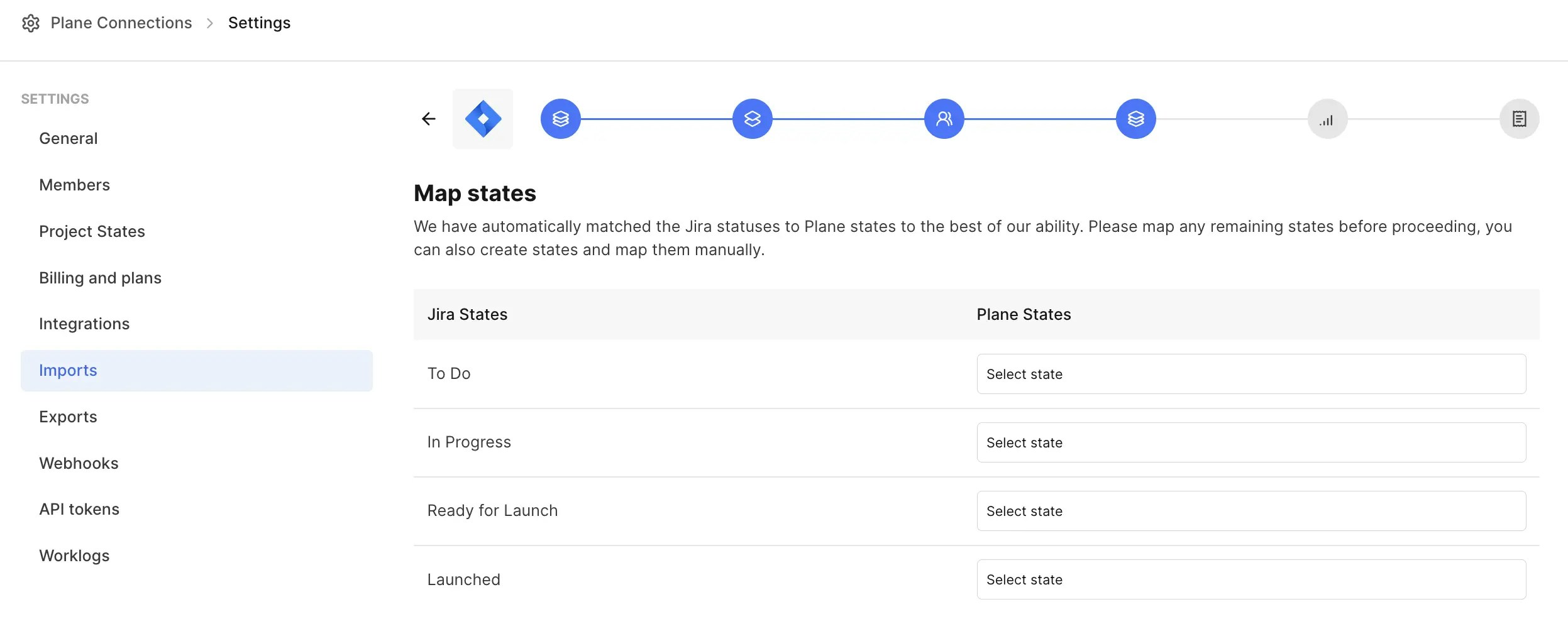 10. **Map priorities** Map the **Jira priorities** to the corresponding **Plane priorities**. If there's no match, select **None** in the **Plane priorities** list.
  11. **Summary** Review the mappings and make any changes if needed. Click **Back** to adjust, or click **Confirm** to start the migration.
  12. The data migration begins and takes a few minutes to complete depending on the number of issues in your Jira workspace.
  13. Once it's done, go to **Work items** in your Plane project to confirm that the data import is successful.
## Imported entities[](#imported-entities "Direct link to Imported entities")
Here’s a quick look at what gets imported during the migration from Jira to Plane:
| Jira | Plane | Notes |
| ------------------------------- | ----------------------------------- | ----------------------------------------------------------------------------------------------------------------------------------------------- |
| Labels | Labels | |
| Status | States | |
| Issue priorities | Priorities | |
| Users | Users | |
| Issues | Work items | |
| Relations | Parent | Includes only parent-child relationships |
| Issue comments | Work item comments | Includes username and timestamp. If you skip user import during migration, comments will show the name of the user who performed the migration. |
| Issue attachments | Work item attachments | |
| Reporter | Created by | |
| Created | Created at | |
| Assignee | Assignees | If you skip user import during migration, this will be blank. |
| Issue types | Labels \| Prefix in Issue title | |
| Images in the Issue description | Images in the Work item description | |
| Summary | Work item title | |
| Start date | Start date | |
| Due date | Due date | |
| Linked Issues | Links | Includes backlinks to the original Jira issue. |
| Sprint | Cycles | Includes the work items, start and end date. |
| Components | Modules | Includes the work items. |
## Sync Jira to Plane[](#sync-jira-to-plane "Direct link to Sync Jira to Plane")
After the import, if there are any new or updated issues in Jira, you can easily sync these changes to Plane:
1. Go to **Workspace settings**.
2. Select **Imports** on the right pane.
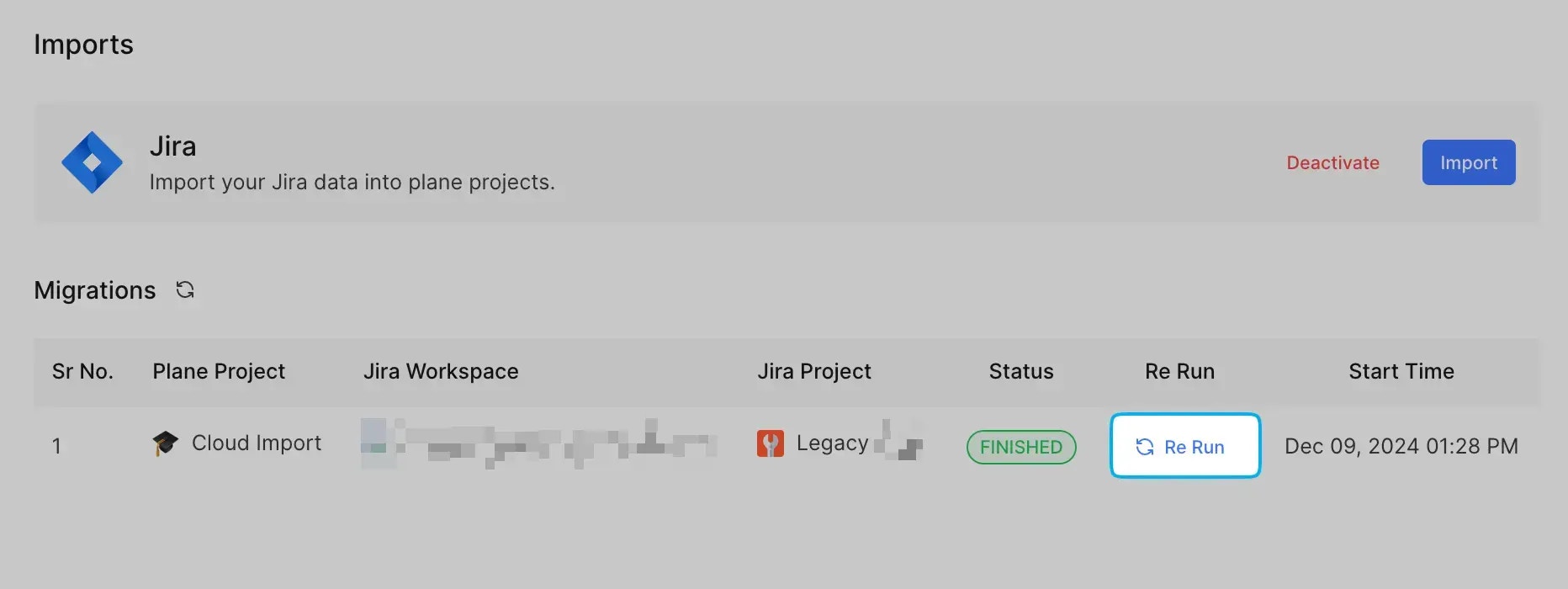
3. Click the **Re run** button next to the project you want to sync.
13. Once it's done, go to **Work items** in your Plane project to confirm that the data import is successful.
## Imported entities[](#imported-entities "Direct link to Imported entities")
Here’s a quick look at what gets imported during the migration from Jira to Plane:
| Jira | Plane | Notes |
| ------------------------------- | ----------------------------------- | ----------------------------------------------------------------------------------------------------------------------------------------------- |
| Labels | Labels | |
| Status | States | |
| Issue priorities | Priorities | |
| Users | Users | |
| Issues | Work items | |
| Relations | Parent | Includes only parent-child relationships |
| Issue comments | Work item comments | Includes username and timestamp. If you skip user import during migration, comments will show the name of the user who performed the migration. |
| Issue attachments | Work item attachments | |
| Reporter | Created by | |
| Created | Created at | |
| Assignee | Assignees | If you skip user import during migration, this will be blank. |
| Issue types | Labels \| Prefix in Issue title | |
| Images in the Issue description | Images in the Work item description | |
| Summary | Work item title | |
| Start date | Start date | |
| Due date | Due date | |
| Linked Issues | Links | Includes backlinks to the original Jira issue. |
| Sprint | Cycles | Includes the work items, start and end date. |
| Components | Modules | Includes the work items. |
## Sync Jira to Plane[](#sync-jira-to-plane "Direct link to Sync Jira to Plane")
After the import, if there are any new or updated issues in Jira, you can easily sync these changes to Plane:
1. Go to **Workspace settings**.
2. Select **Imports** on the right pane.
3. Click the **Re run** button next to the project you want to sync.