> ## Documentation Index
> Fetch the complete documentation index at: https://docs.onestack.cloud/llms.txt
> Use this file to discover all available pages before exploring further.
# Integrate with GitLab
> Pro
Integrating GitLab with Plane allows you to sync your development workflow seamlessly by linking GitLab merge requests with Plane work items. This connection enables automated updates and enhances collaboration between developers and project managers.
This guide walks you through the steps to connect your GitLab account, link GitLab projects to Plane, and configure pull request automation.
## Set up GitLab integration[](#set-up-gitlab-integration "Direct link to Set up GitLab integration")
If you're running a self-hosted instance of Plane, you'll need to set up a few extra configurations to get GitLab integration working. Check out the [setup guide](https://developers.plane.so/self-hosting/govern/integrations/gitlab) first before diving into the steps on this page.
To get started, you'll need to connect your GitLab account, organization, and repositories with Plane. Follow the steps below to complete the setup:
1. [Connect your GitLab organization](/integrations/gitlab#connect-github-organization)
2. [Connect GitLab project](/integrations/gitlab#connect-gitlab-project)
3. [Connect Plane project](/integrations/gitlab#connect-plane-project)
### Connect GitLab organization[](#connect-gitlab-organization "Direct link to Connect GitLab organization")
Link your GitLab organization to your Plane workspace to start syncing repositories. This step is crucial for enabling the full range of GitLab-Plane integrations.
1. Navigate to Workspace **Settings** in Plane.
2. Go to the **Integrations** tab.
3. Locate the **GitLab** integration section.
4. Click **Connect** to authenticate your GitLab account and initiate the connection. 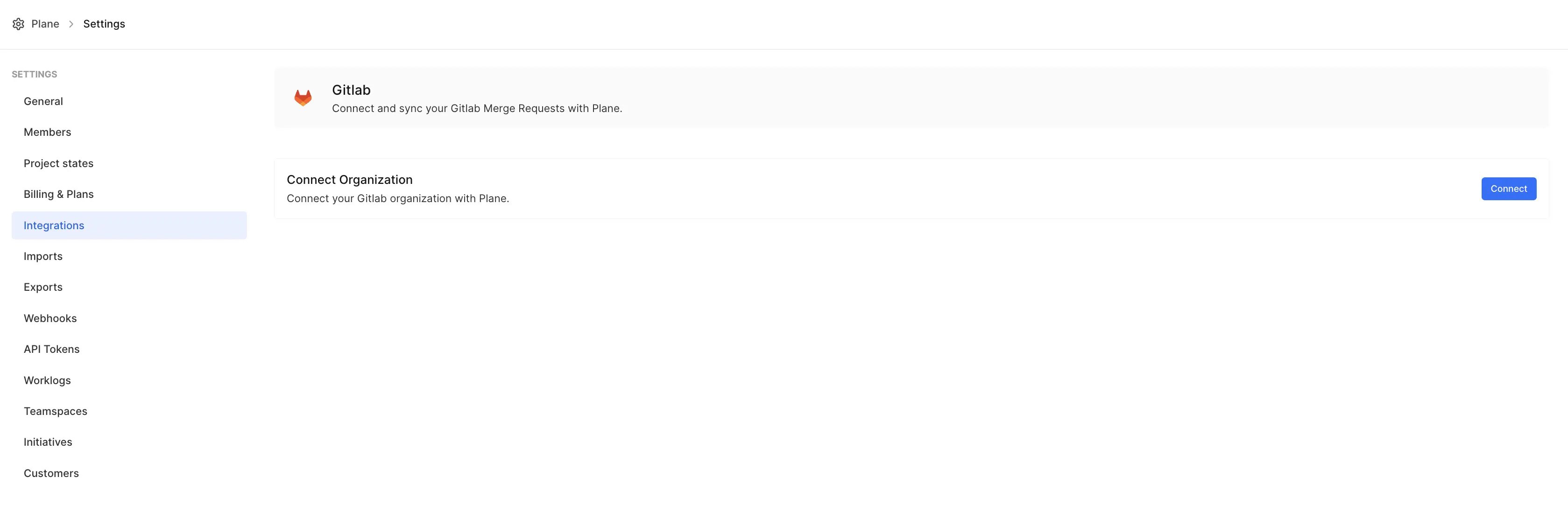 5. Review the requested permissions and click **Authorize Plane** to grant access.
 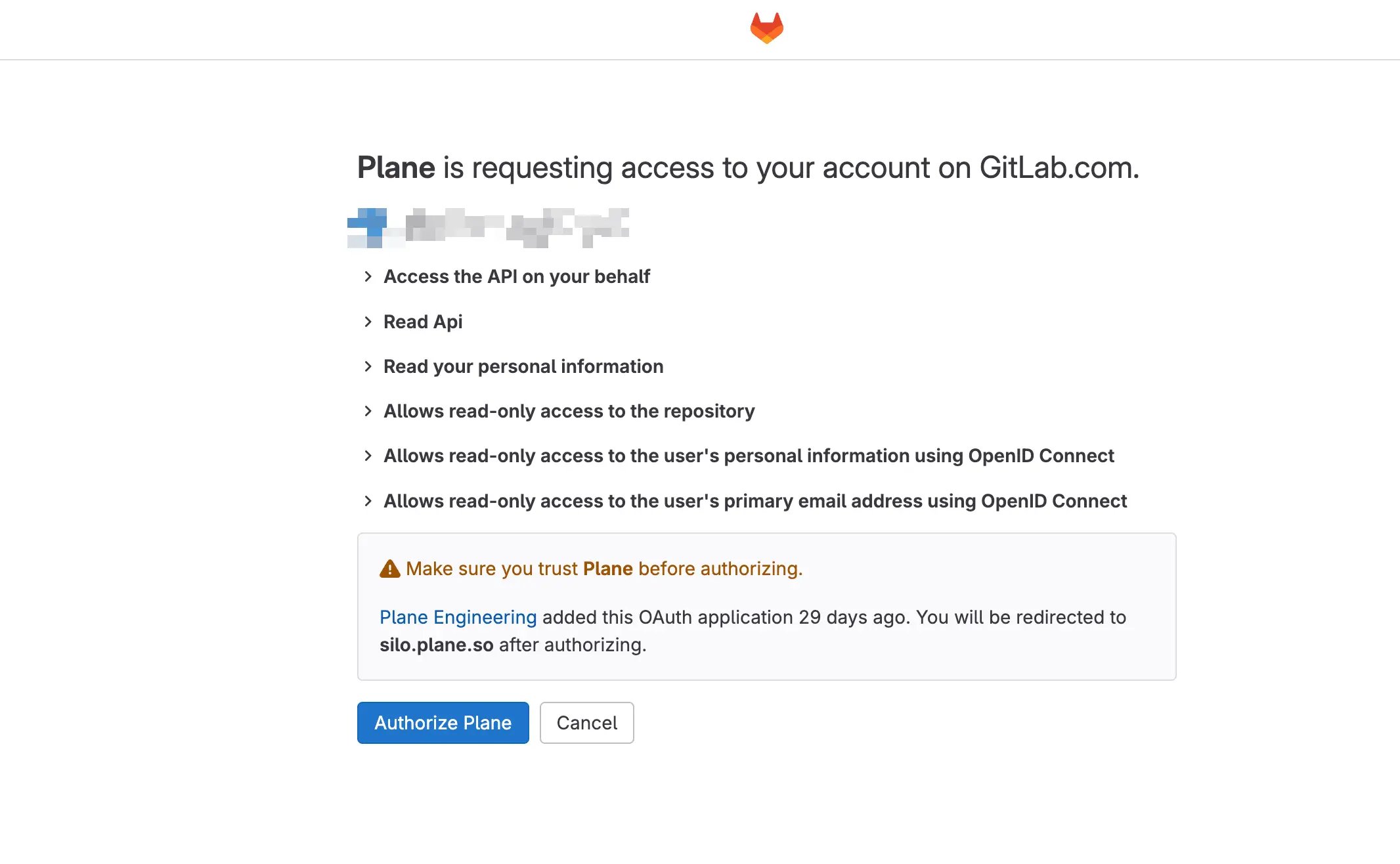 6. Once authenticated, you should see your GitLab account listed as connected.
At this stage, your GitLab account is linked to Plane, but you still need to connect specific GitLab projects to Plane projects.
### Connect GitLab project[](#connect-gitlab-project "Direct link to Connect GitLab project")
Connecting a GitLab project allows Plane to receive updates from that project via webhooks. These webhooks are essential for GitLab merge request automation.
6. Once authenticated, you should see your GitLab account listed as connected.
At this stage, your GitLab account is linked to Plane, but you still need to connect specific GitLab projects to Plane projects.
### Connect GitLab project[](#connect-gitlab-project "Direct link to Connect GitLab project")
Connecting a GitLab project allows Plane to receive updates from that project via webhooks. These webhooks are essential for GitLab merge request automation.
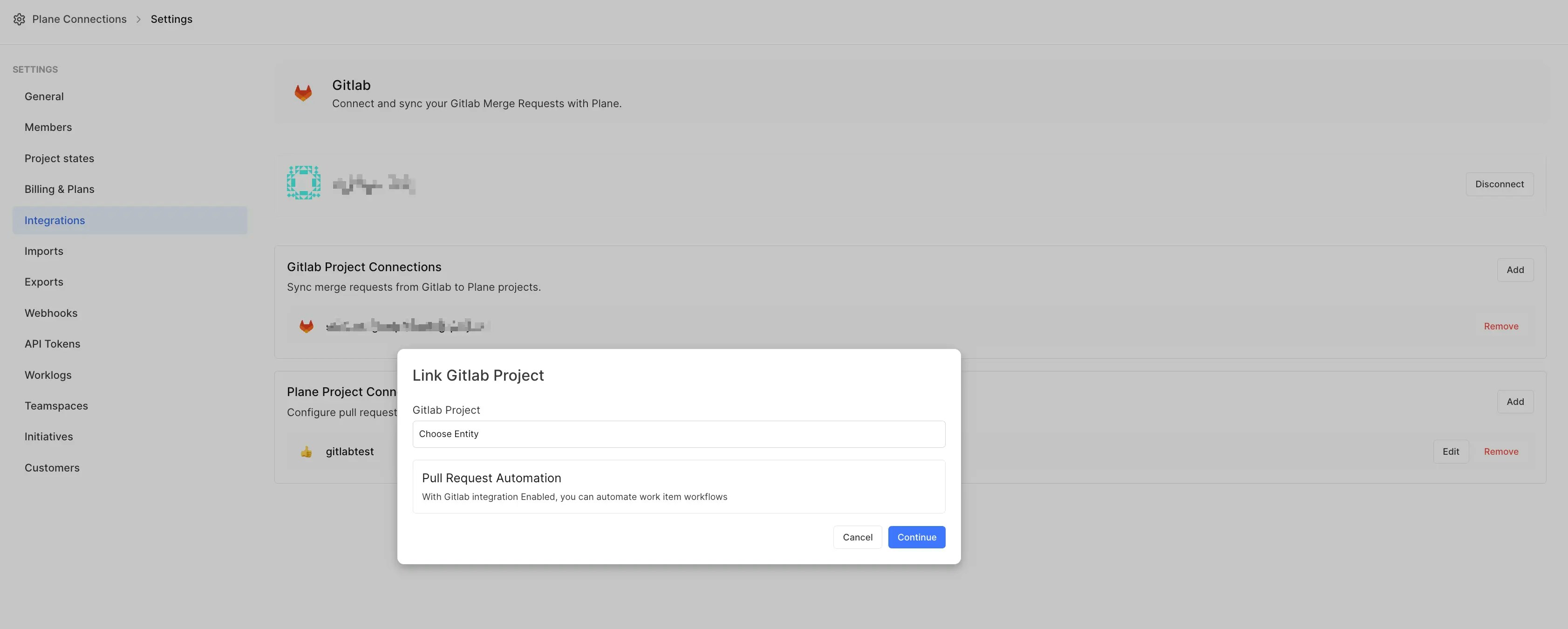 To connect a GitLab project:
1. In the **GitLab Project Connections** section, click **Add**.
2. Select the **GitLab Project** you want to link.
3. Click **Continue** to confirm the selection.
Once connected, the GitLab project will be listed in the UI, confirming the integration.
### Connect Plane project[](#connect-plane-project "Direct link to Connect Plane project")
After linking a GitLab project, the next step is to associate it with a Plane project. This connection ensures that Plane work items can be updated automatically based on GitLab merge request activities.
To connect a GitLab project:
1. In the **GitLab Project Connections** section, click **Add**.
2. Select the **GitLab Project** you want to link.
3. Click **Continue** to confirm the selection.
Once connected, the GitLab project will be listed in the UI, confirming the integration.
### Connect Plane project[](#connect-plane-project "Direct link to Connect Plane project")
After linking a GitLab project, the next step is to associate it with a Plane project. This connection ensures that Plane work items can be updated automatically based on GitLab merge request activities.
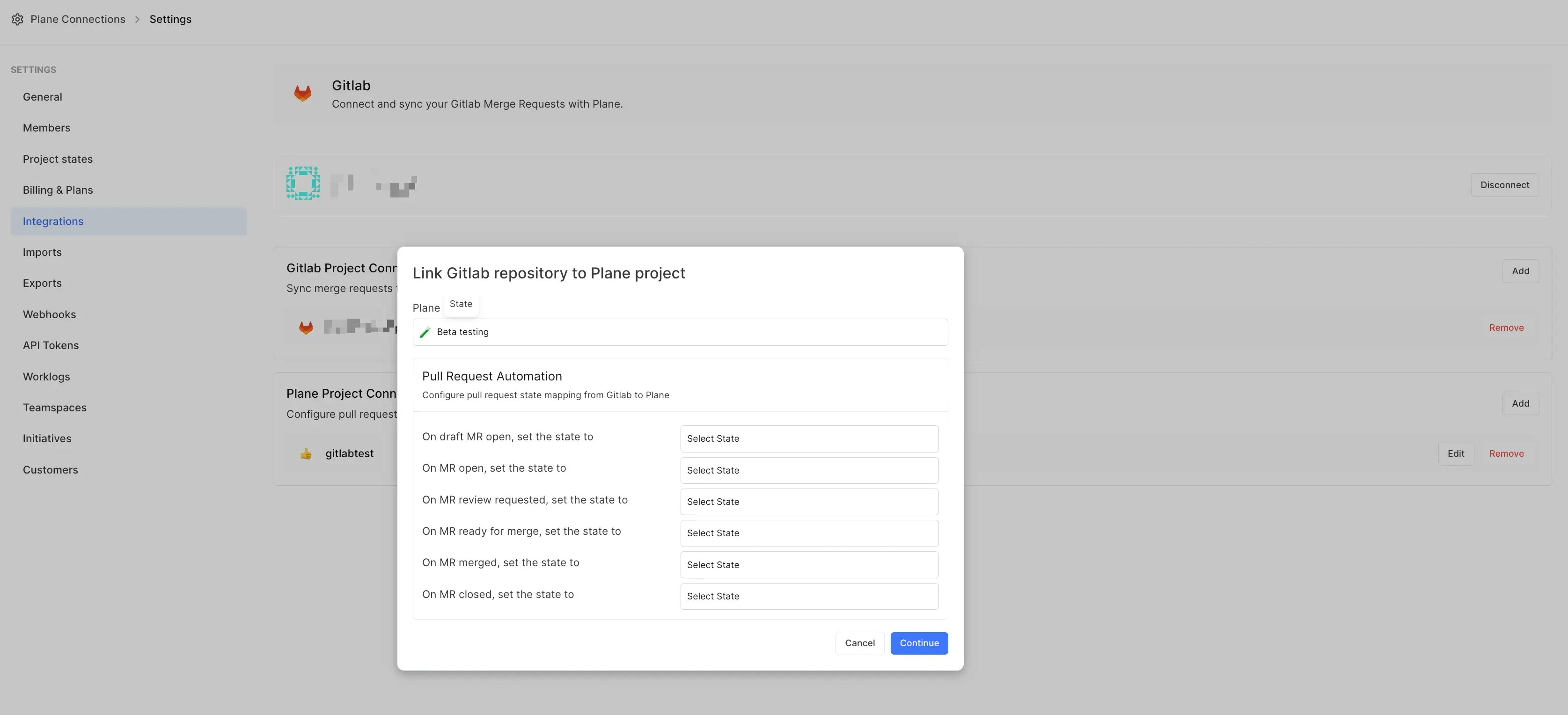 1. Select the **Plane Project** you want to connect.
2. In the **Pull Request Automation** section, set up rules for how Plane should update work item states based on merge request lifecycle events.
3. Once configured, you will see the project connection appear in the **Plane Project Connections** section.
## Sync pull requests[](#sync-pull-requests "Direct link to Sync pull requests")
Pull requests (PRs) are also synchronized with Plane to ensure issue tracking remains accurate throughout the development lifecycle.
#### Closing references and auto-updates[](#closing-references-and-auto-updates "Direct link to Closing references and auto-updates")
When a pull request includes closing references to GitLab issues (e.g., `closes #14`), any linked Plane work items will automatically update with the PR link. If the PR is merged or closed, the Plane work item state updates based on the configured workflow in [Pull Request Automation](/integrations/gitlab#connect-plane-project).
#### Magic words for issue references[](#magic-words-for-issue-references "Direct link to Magic words for issue references")
You can use specific keywords in GitLab pull requests to manage how Plane work items are updated.
* **Closing references** These keywords close linked issues when the PR is merged or closed. **Keywords** `close`, `closes`, `closed`, `closing`, `fix`, `fixes`, `fixed`, `resolve`, `resolves`, `resolved`, `complete`, `completes`, `completed`.
* **Non-closing references** These keywords maintain the state mappings of linked issues but don’t close them. **Keywords** `ref`, `references`, `reference to`, `part of`, `related to`.
#### PR lifecycle mapping[](#pr-lifecycle-mapping "Direct link to PR lifecycle mapping")
The lifecycle of a pull request can be [mapped](/integrations/gitlab#connect-plane-project) to workflow states in Plane. The following PR states are available for mapping:
* A draft PR is created.
* A PR is opened.
* A review is requested.
* The PR is approved and ready to be merged.
* The PR is successfully merged.
* The PR is closed without merging.
#### Issue backlinks in pull requests[](#issue-backlinks-in-pull-requests "Direct link to Issue backlinks in pull requests")
When a PR references Plane work items (using closing or non-closing reference keywords), Plane will post a confirmation comment on the pull request, ensuring visibility into which issues are linked.
1. Select the **Plane Project** you want to connect.
2. In the **Pull Request Automation** section, set up rules for how Plane should update work item states based on merge request lifecycle events.
3. Once configured, you will see the project connection appear in the **Plane Project Connections** section.
## Sync pull requests[](#sync-pull-requests "Direct link to Sync pull requests")
Pull requests (PRs) are also synchronized with Plane to ensure issue tracking remains accurate throughout the development lifecycle.
#### Closing references and auto-updates[](#closing-references-and-auto-updates "Direct link to Closing references and auto-updates")
When a pull request includes closing references to GitLab issues (e.g., `closes #14`), any linked Plane work items will automatically update with the PR link. If the PR is merged or closed, the Plane work item state updates based on the configured workflow in [Pull Request Automation](/integrations/gitlab#connect-plane-project).
#### Magic words for issue references[](#magic-words-for-issue-references "Direct link to Magic words for issue references")
You can use specific keywords in GitLab pull requests to manage how Plane work items are updated.
* **Closing references** These keywords close linked issues when the PR is merged or closed. **Keywords** `close`, `closes`, `closed`, `closing`, `fix`, `fixes`, `fixed`, `resolve`, `resolves`, `resolved`, `complete`, `completes`, `completed`.
* **Non-closing references** These keywords maintain the state mappings of linked issues but don’t close them. **Keywords** `ref`, `references`, `reference to`, `part of`, `related to`.
#### PR lifecycle mapping[](#pr-lifecycle-mapping "Direct link to PR lifecycle mapping")
The lifecycle of a pull request can be [mapped](/integrations/gitlab#connect-plane-project) to workflow states in Plane. The following PR states are available for mapping:
* A draft PR is created.
* A PR is opened.
* A review is requested.
* The PR is approved and ready to be merged.
* The PR is successfully merged.
* The PR is closed without merging.
#### Issue backlinks in pull requests[](#issue-backlinks-in-pull-requests "Direct link to Issue backlinks in pull requests")
When a PR references Plane work items (using closing or non-closing reference keywords), Plane will post a confirmation comment on the pull request, ensuring visibility into which issues are linked.