> ## Documentation Index
> Fetch the complete documentation index at: https://docs.onestack.cloud/llms.txt
> Use this file to discover all available pages before exploring further.
# Integrate with Slack
> Pro
Integrating Slack with Plane allows your team to streamline communication and stay updated on your projects, directly from within Slack. Whether you're syncing threads, receiving updates, or collaborating in real-time, this integration brings the power of Slack and Plane together for a more connected workflow.
This guide will walk you through how to set up and connect your Slack account to Plane.
## Set up Slack integration[](#set-up-slack-integration "Direct link to Set up Slack integration")
If you're running a self-hosted instance of Plane, you'll need to set up a few extra configurations to get Slack integration working. Check out the [setup guide](https://developers.plane.so/self-hosting/govern/integrations/slack) first before diving into the steps on this page.
Follow the steps below to complete the setup:
1. [Connect your Slack Workspace](/integrations/slack#connect-slack-workspace)
2. [Connect your personal Slack account](/integrations/slack#connect-personal-slack-account)
### Connect Slack Workspace[](#connect-slack-workspace "Direct link to Connect Slack Workspace")
To get started, you need to connect your Slack workspace to Plane.
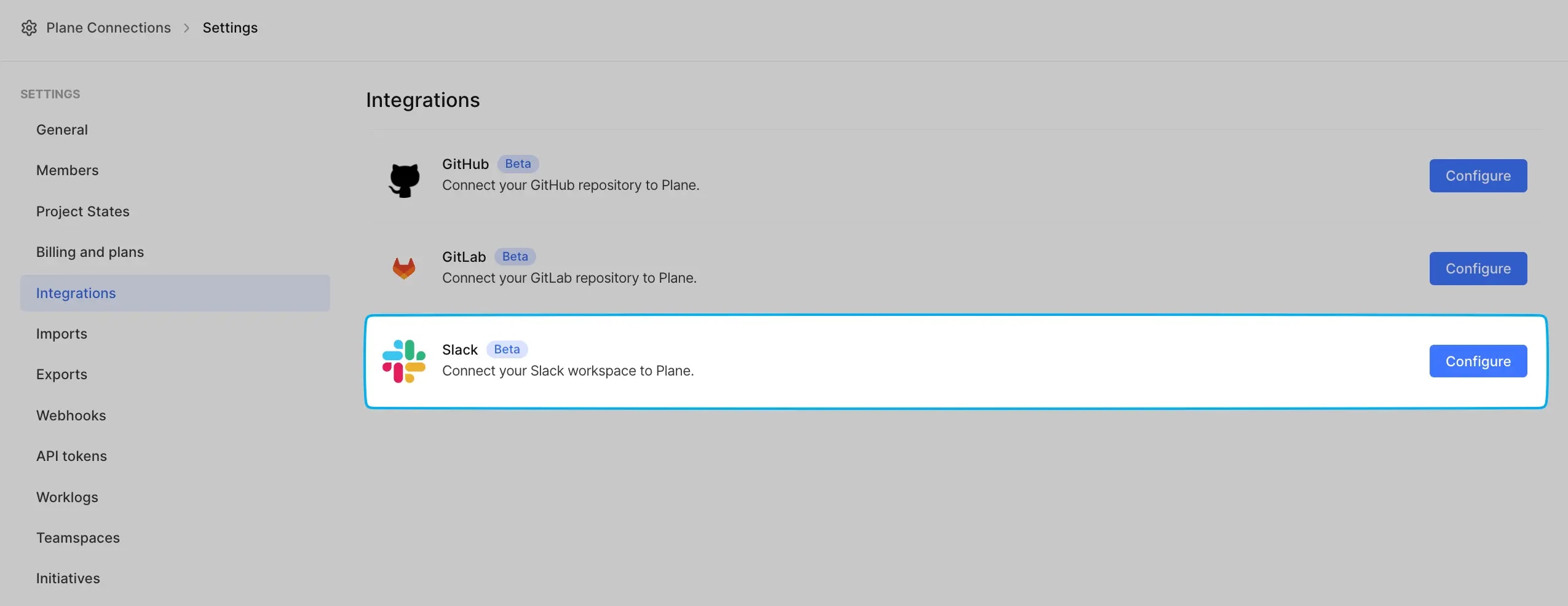 1. Navigate to [Workspace Settings](/core-concepts/workspaces/overview#workspace-settings) in Plane.
2. On the right pane, select **Integrations**.
3. Find the **Slack** integration and click **Configure**.
4. Click the **Install** button. This will redirect you to Slack’s authentication page. Slack will ask you to review the permissions it needs to integrate with Plane. Make sure to allow them.
5. After allowing permissions, you’ll be redirected back to Plane. You should now see that your Slack workspace is successfully connected.
That's it! Your Slack workspace is now integrated with Plane.
### Connect personal Slack account[](#connect-personal-slack-account "Direct link to Connect personal Slack account")
For a more personalized experience, you can connect your personal Slack account. This is particularly useful for features like Thread Sync. When Thread Sync is enabled, any messages posted to a work item will be sent back to Slack. If you're connected, it will show your name as the sender. If you're not connected, the message will appear as coming from the Plane Bot or the name of your Slack bot.
1. Navigate to [Workspace Settings](/core-concepts/workspaces/overview#workspace-settings) in Plane.
2. On the right pane, select **Integrations**.
3. Find the **Slack** integration and click **Configure**.
4. Click the **Install** button. This will redirect you to Slack’s authentication page. Slack will ask you to review the permissions it needs to integrate with Plane. Make sure to allow them.
5. After allowing permissions, you’ll be redirected back to Plane. You should now see that your Slack workspace is successfully connected.
That's it! Your Slack workspace is now integrated with Plane.
### Connect personal Slack account[](#connect-personal-slack-account "Direct link to Connect personal Slack account")
For a more personalized experience, you can connect your personal Slack account. This is particularly useful for features like Thread Sync. When Thread Sync is enabled, any messages posted to a work item will be sent back to Slack. If you're connected, it will show your name as the sender. If you're not connected, the message will appear as coming from the Plane Bot or the name of your Slack bot.
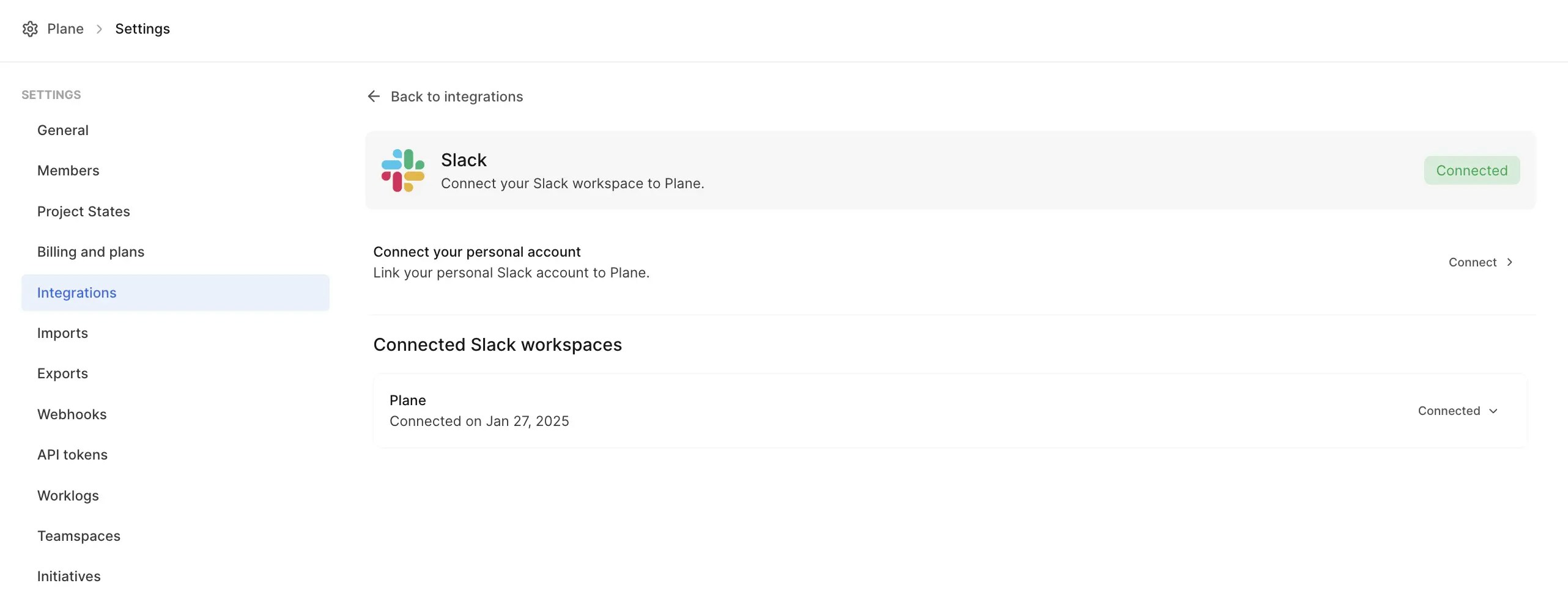 #### From Workspace settings[](#from-workspace-settings "Direct link to From Workspace settings")
Workspace admins can connect their personal Slack accounts from Workspace settings.
1. In the **Connect your personal account** section under **Integrations**, click **Connect**.
2. Slack will ask for permission to integrate with Plane. Review and allow the necessary permissions.
3. After granting permissions, you’ll see the status updated to show that your personal account is connected.
Only one Workspace Admin can connect their personal Slack account via Workspace Settings. Other Admins and Members can connect theirs from [Profile settings](/integrations/slack#from-workspace-settings).
#### From Profile settings[](#from-profile-settings "Direct link to From Profile settings")
If you don’t have admin access, you can still connect your personal Slack account through your profile settings.
1. Head to the [Profile settings](/core-concepts/account/settings) page in Plane.
2. Select the **Connections** tab on the sidebar.
3. In the dropdown menu, select the Plane workspace you want to connect your personal account to.
#### From Workspace settings[](#from-workspace-settings "Direct link to From Workspace settings")
Workspace admins can connect their personal Slack accounts from Workspace settings.
1. In the **Connect your personal account** section under **Integrations**, click **Connect**.
2. Slack will ask for permission to integrate with Plane. Review and allow the necessary permissions.
3. After granting permissions, you’ll see the status updated to show that your personal account is connected.
Only one Workspace Admin can connect their personal Slack account via Workspace Settings. Other Admins and Members can connect theirs from [Profile settings](/integrations/slack#from-workspace-settings).
#### From Profile settings[](#from-profile-settings "Direct link to From Profile settings")
If you don’t have admin access, you can still connect your personal Slack account through your profile settings.
1. Head to the [Profile settings](/core-concepts/account/settings) page in Plane.
2. Select the **Connections** tab on the sidebar.
3. In the dropdown menu, select the Plane workspace you want to connect your personal account to. 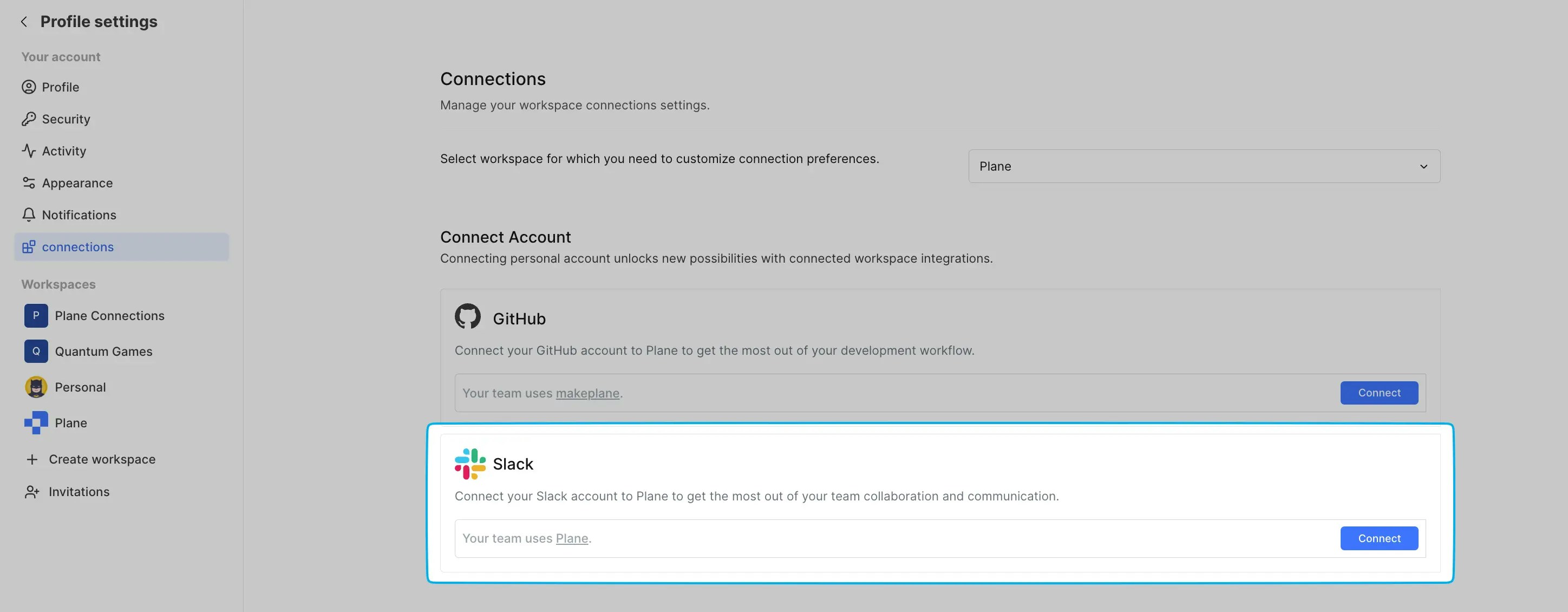 4. Click **Connect** in the Slack section, which will redirect you to Slack to complete the connection.
If your workspace doesn’t have Slack integration enabled, you won’t be able to connect your personal account. In this case, contact your Workspace Admin.
5. Once your account is connected, you’ll see the status update to reflect that your personal Slack account is successfully integrated.
## Use the Slack integration[](#use-the-slack-integration "Direct link to Use the Slack integration")
Now that you’ve connected Slack to Plane, let’s explore what you can do with this integration. We built this to reduce the constant back-and-forth between Plane and Slack—so instead of switching between tools to create work items, update statuses, or share links, you can do it all from Slack.
Here are the key features available with the Slack integration:
* **Thread Sync** Keep Slack conversations and Plane work items in sync.
* **`/plane` command** Quickly create work items without leaving Slack.
* **Link previews** Instantly see work item details when sharing Plane links.
### Thread sync[](#thread-sync "Direct link to Thread sync")
One of the biggest pain points in work item tracking is jumping between Slack and Plane—copying messages, creating work items, sharing links, and keeping everyone updated. With Thread Sync, you can create a work item directly from a Slack message and keep the conversation linked between Slack and Plane.
4. Click **Connect** in the Slack section, which will redirect you to Slack to complete the connection.
If your workspace doesn’t have Slack integration enabled, you won’t be able to connect your personal account. In this case, contact your Workspace Admin.
5. Once your account is connected, you’ll see the status update to reflect that your personal Slack account is successfully integrated.
## Use the Slack integration[](#use-the-slack-integration "Direct link to Use the Slack integration")
Now that you’ve connected Slack to Plane, let’s explore what you can do with this integration. We built this to reduce the constant back-and-forth between Plane and Slack—so instead of switching between tools to create work items, update statuses, or share links, you can do it all from Slack.
Here are the key features available with the Slack integration:
* **Thread Sync** Keep Slack conversations and Plane work items in sync.
* **`/plane` command** Quickly create work items without leaving Slack.
* **Link previews** Instantly see work item details when sharing Plane links.
### Thread sync[](#thread-sync "Direct link to Thread sync")
One of the biggest pain points in work item tracking is jumping between Slack and Plane—copying messages, creating work items, sharing links, and keeping everyone updated. With Thread Sync, you can create a work item directly from a Slack message and keep the conversation linked between Slack and Plane.
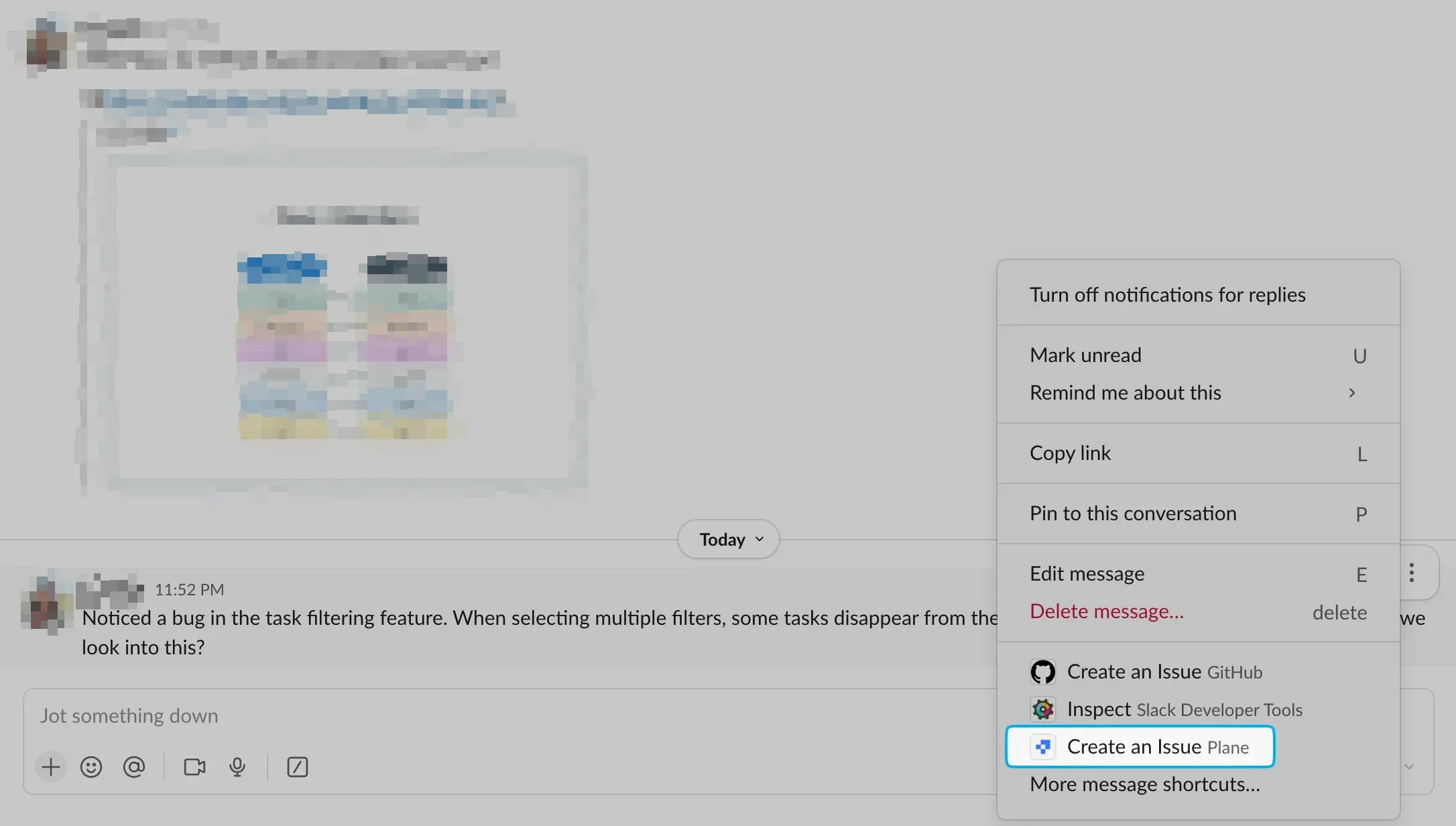 1. Hover over any message in Slack and click the three-dot menu.
2. Select **Create Plane Issue**. This pulls the message into Plane as a work item.
3. Add **Assignees**, **Labels**, and select the **State** right from Slack.
4. Choose if you want Thread Sync enabled—when turned on, any replies in the Slack thread will automatically appear as comments in the Plane work item, and vice versa.
1. Hover over any message in Slack and click the three-dot menu.
2. Select **Create Plane Issue**. This pulls the message into Plane as a work item.
3. Add **Assignees**, **Labels**, and select the **State** right from Slack.
4. Choose if you want Thread Sync enabled—when turned on, any replies in the Slack thread will automatically appear as comments in the Plane work item, and vice versa.
 With Thread Sync, discussions remain in sync, reducing the need to manually copy updates or notify team members. If someone comments on the work item in Plane, that comment also appears in the linked Slack thread—keeping everyone in the loop.
### `/plane` command[](#plane-command "Direct link to plane-command")
The `/plane` command lets you create a work item on the fly, without even opening Plane.
With Thread Sync, discussions remain in sync, reducing the need to manually copy updates or notify team members. If someone comments on the work item in Plane, that comment also appears in the linked Slack thread—keeping everyone in the loop.
### `/plane` command[](#plane-command "Direct link to plane-command")
The `/plane` command lets you create a work item on the fly, without even opening Plane.  1. Type `/plane` in any Slack channel or DM.
2. A pop-up will appear where you can fill in work item details—title, description, state, labels, priority, and more.
3. Click **Submit**, and the work item is instantly created in Plane.
This is great for when an idea or task comes up mid-conversation—you can create the work item in just a couple of clicks without breaking your flow.
### Link previews[](#link-previews "Direct link to Link previews")
When you share a Plane Issue, Cycle, or Module link in Slack, you’ll see a live preview of its details, including:
* **Issues** Title, status, priority, assignee, and quick actions.
* **Cycles and Modules** Progress percentage, active vs. completed work items, and key details.
#### Take actions from Slack[](#take-actions-from-slack "Direct link to Take actions from Slack")
With link previews, you can interact with the work item directly from Slack.
1. Type `/plane` in any Slack channel or DM.
2. A pop-up will appear where you can fill in work item details—title, description, state, labels, priority, and more.
3. Click **Submit**, and the work item is instantly created in Plane.
This is great for when an idea or task comes up mid-conversation—you can create the work item in just a couple of clicks without breaking your flow.
### Link previews[](#link-previews "Direct link to Link previews")
When you share a Plane Issue, Cycle, or Module link in Slack, you’ll see a live preview of its details, including:
* **Issues** Title, status, priority, assignee, and quick actions.
* **Cycles and Modules** Progress percentage, active vs. completed work items, and key details.
#### Take actions from Slack[](#take-actions-from-slack "Direct link to Take actions from Slack")
With link previews, you can interact with the work item directly from Slack.
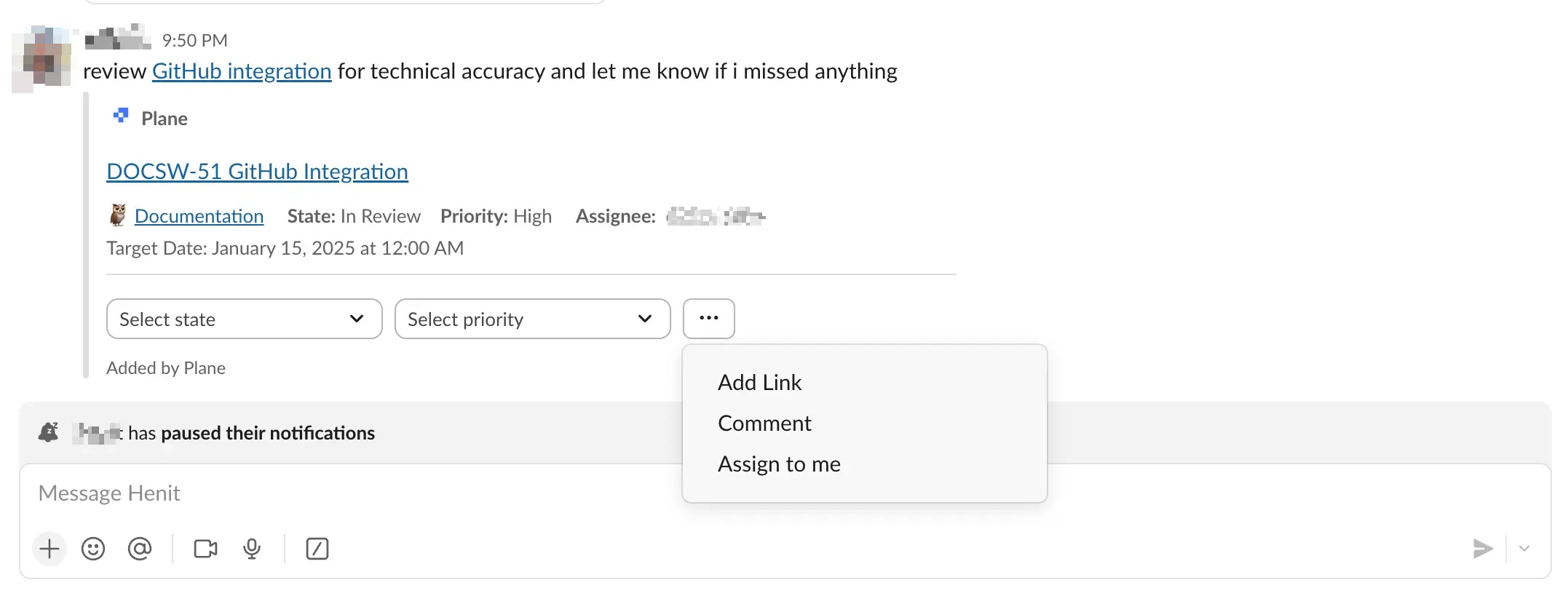 * Assign the work item to yourself.
* Change its state (e.g., move it to "In Progress").
* Add a comment.
This makes it easy to stay updated and take action without leaving Slack.
***
By using these features, you can reduce context-switching and manage Plane work items directly from Slack—keeping your workflow smooth and efficient.
* Assign the work item to yourself.
* Change its state (e.g., move it to "In Progress").
* Add a comment.
This makes it easy to stay updated and take action without leaving Slack.
***
By using these features, you can reduce context-switching and manage Plane work items directly from Slack—keeping your workflow smooth and efficient.