> ## Documentation Index
> Fetch the complete documentation index at: https://docs.onestack.cloud/llms.txt
> Use this file to discover all available pages before exploring further.
# Turbocharge speed and performance
> Hyper Mode is a feature in Plane designed to make your workspace faster and more responsive. By storing workspace data directly on your machine, Hyper Mode reduces the time it takes to load work items, modules, cycles, labels, members, and other workspace elements when using work item layouts.
## Use Hyper Mode[](#use-hyper-mode "Direct link to Use Hyper Mode")
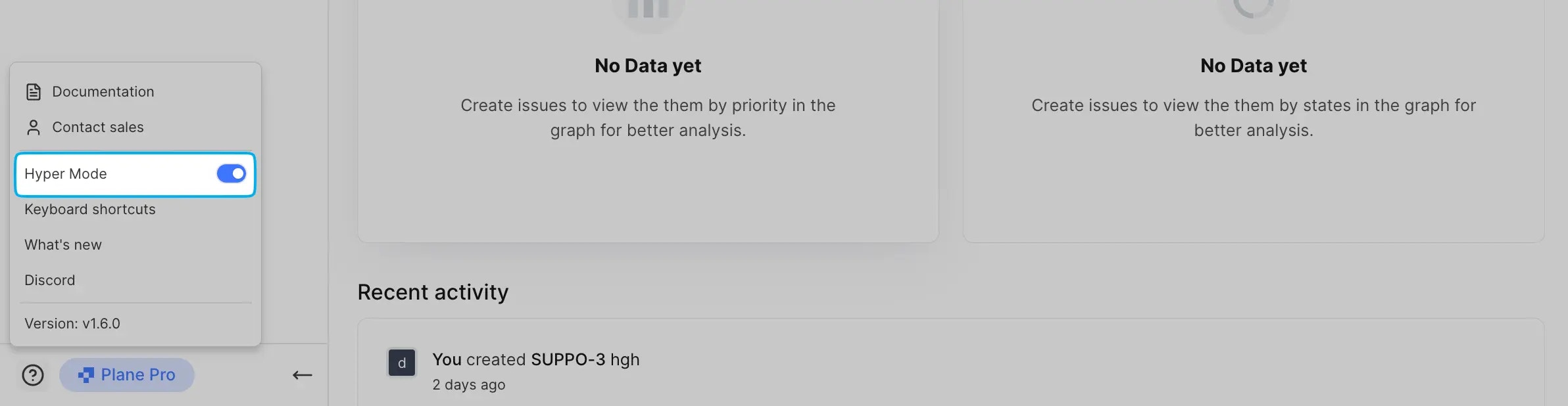
Hyper Mode is turned on by default. To manage it, click the **?** icon on the sidebar. This opens a menu where you can toggle **Hyper Mode** on or off as needed.
Hyper Mode requires your Plane instance to be served over HTTPS. Ensure your server uses a valid SSL certificate.
 ## Important security considerations[](#important-security-considerations "Direct link to Important security considerations")
Logging out clears the locally stored data to protect your privacy.
If you're working on a shared or public computer, take extra precautions by:
* Disabling Hyper Mode or
* Ensuring you log out when you're done to clear the local cache.
## Under the hood[](#under-the-hood "Direct link to Under the hood")
When you turn on Hyper Mode, Plane creates a local cache on your machine using a SQLite database powered by the Origin Private File System (OPFS). This allows us to keep a synchronized copy of your workspace data right in your browser, dramatically reducing the need for repeated server requests.
## Data sync challenges[](#data-sync-challenges "Direct link to Data sync challenges")
Our sync mechanism is continuously improving, but you might occasionally encounter inconsistencies. Most sync work items can be resolved with a simple page reload. If that doesn't work, try these steps:
### First-level troubleshooting[](#first-level-troubleshooting "Direct link to First-level troubleshooting")
1. Turn off Hyper Mode.
2. Wait 10 seconds.
3. Turn on Hyper Mode again.
4. Allow 10-30 seconds for data synchronization.
### Advanced troubleshooting[](#advanced-troubleshooting "Direct link to Advanced troubleshooting")
If the first method doesn't resolve your issue:
1. Disable Hyper Mode.
2. Completely quit your browser.
3. Re-open Plane.
4. Turn on Hyper Mode again.
5. Wait for full data synchronization.
You can continue using the app while sync happens in the background.
If these steps don't resolve the issue, reach out to our support team for further assistance.
## Important security considerations[](#important-security-considerations "Direct link to Important security considerations")
Logging out clears the locally stored data to protect your privacy.
If you're working on a shared or public computer, take extra precautions by:
* Disabling Hyper Mode or
* Ensuring you log out when you're done to clear the local cache.
## Under the hood[](#under-the-hood "Direct link to Under the hood")
When you turn on Hyper Mode, Plane creates a local cache on your machine using a SQLite database powered by the Origin Private File System (OPFS). This allows us to keep a synchronized copy of your workspace data right in your browser, dramatically reducing the need for repeated server requests.
## Data sync challenges[](#data-sync-challenges "Direct link to Data sync challenges")
Our sync mechanism is continuously improving, but you might occasionally encounter inconsistencies. Most sync work items can be resolved with a simple page reload. If that doesn't work, try these steps:
### First-level troubleshooting[](#first-level-troubleshooting "Direct link to First-level troubleshooting")
1. Turn off Hyper Mode.
2. Wait 10 seconds.
3. Turn on Hyper Mode again.
4. Allow 10-30 seconds for data synchronization.
### Advanced troubleshooting[](#advanced-troubleshooting "Direct link to Advanced troubleshooting")
If the first method doesn't resolve your issue:
1. Disable Hyper Mode.
2. Completely quit your browser.
3. Re-open Plane.
4. Turn on Hyper Mode again.
5. Wait for full data synchronization.
You can continue using the app while sync happens in the background.
If these steps don't resolve the issue, reach out to our support team for further assistance.